
Web clip Added in v0.112.0 (2026-11-04)
Much of what you take in during a day, you read in a browser: papers in their HTML version, articles, documentation. Web clip lets you keep the sentences that matter without leaving the page. A Chrome extension sends the text you select to the Graphium desktop app, and each clip lands in two places:
- As a memo — the selected text, with the page as its source. It shows in your memo collection like any other memo, so you can quote it into other notes later.
- As a quote in that page's note — one note per page, in a folder called Web clips. The first clip from a page creates the note (a bookmark to the page, then the quote). Every later clip from the same page is appended to the same note.
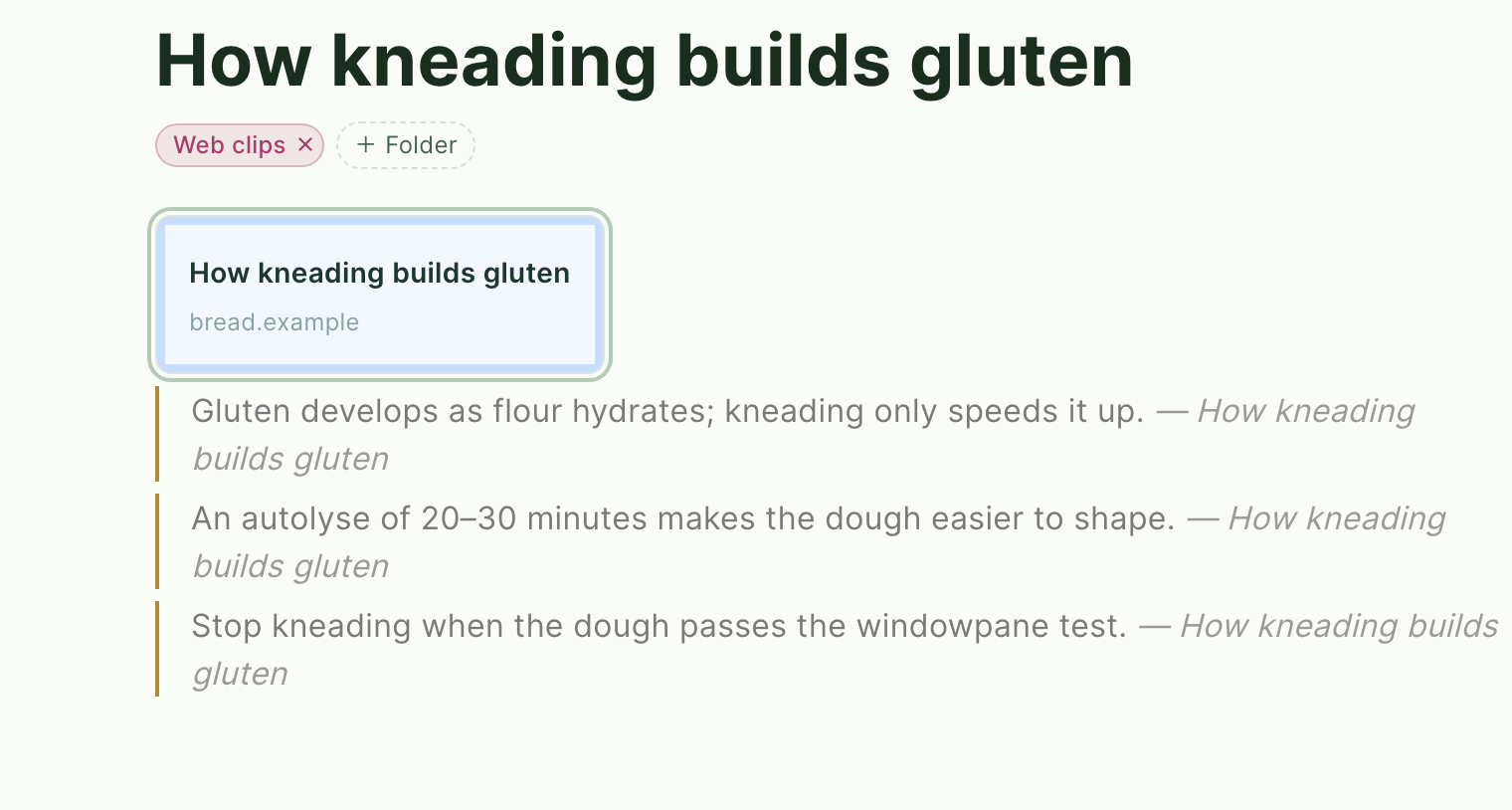
Web clip works with the desktop app (and with a self-hosted server). The extension only talks to Graphium on your own computer.
Set it up
Install the extension. It is not in the Chrome Web Store yet. Download the Graphium repository (Code → Download ZIP) and unzip it. In Chrome, open
chrome://extensions, turn on Developer mode (top right), click Load unpacked, and choose theextensions/chromefolder.Connect to Graphium. Keep Graphium running. Click the extension's icon in the toolbar; since it is not connected yet, its settings open. Press Connect to Graphium. A 4-digit number appears.
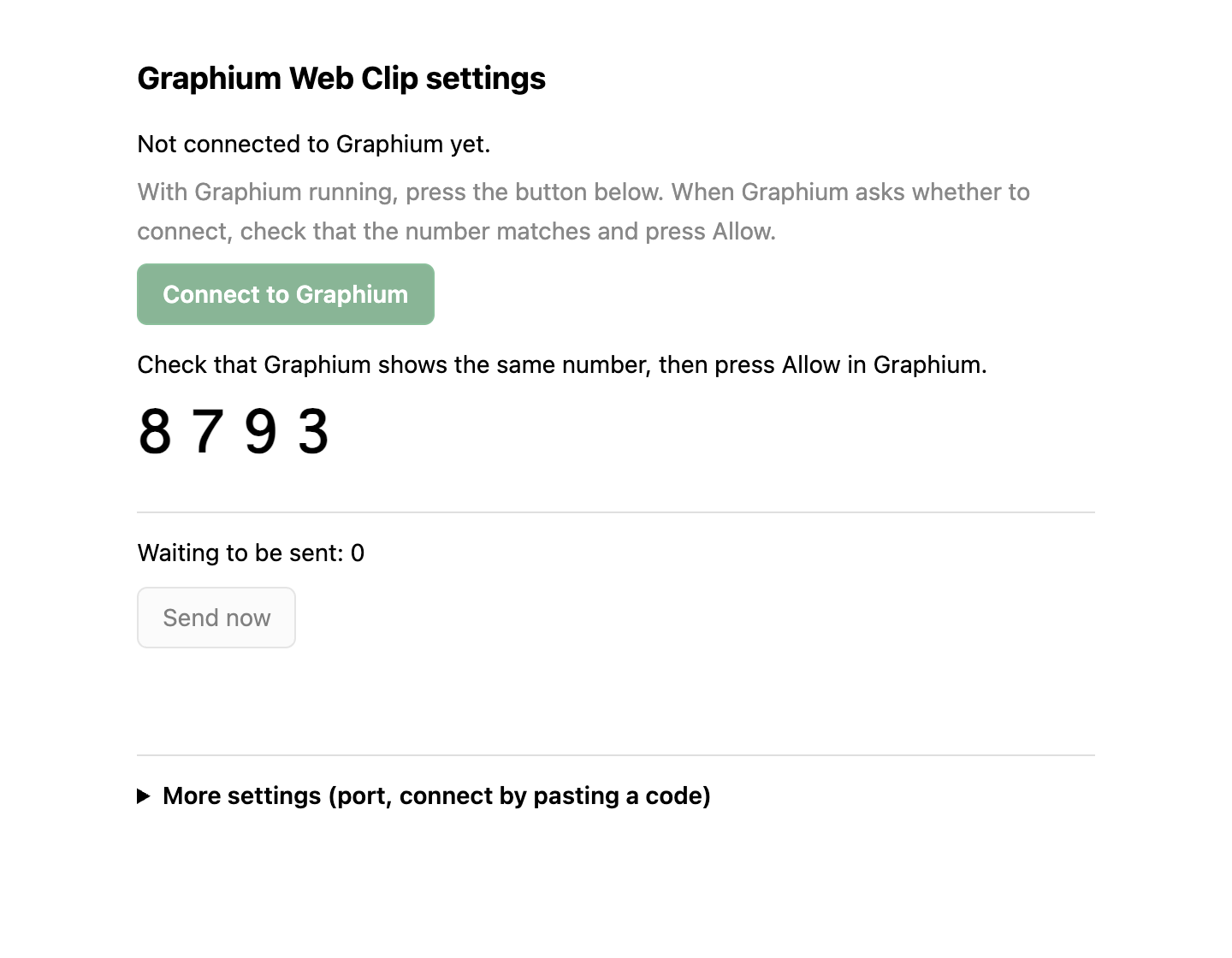
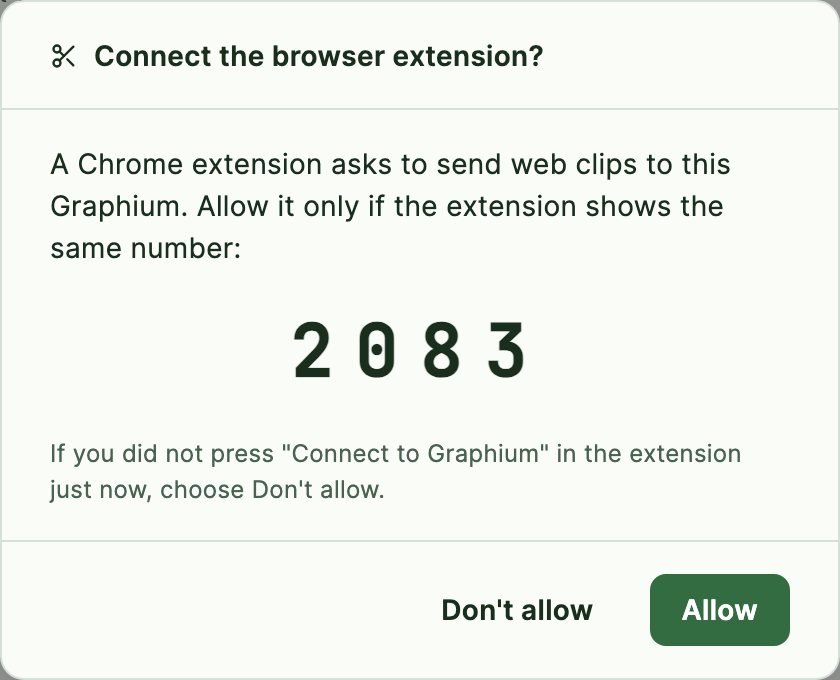
Allow it in Graphium. Graphium asks Connect the browser extension? Check that the number matches the one in the extension, then press Allow. The extension then says Connected.
You only do this once. The connection is kept in the extension.
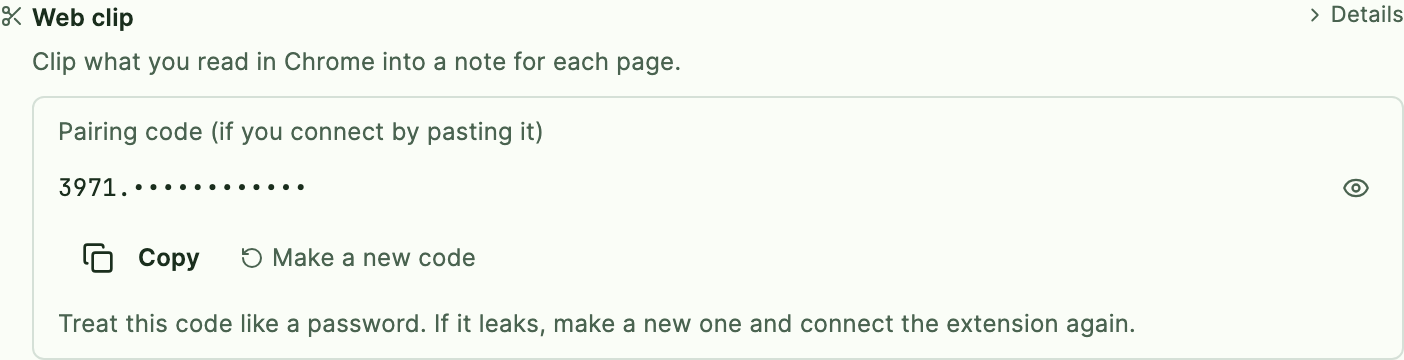
You can also connect by pasting a code. If the button does not work (an older Graphium, or a self-hosted server), open Settings → Storage in Graphium, expand Send from your phone or browser, and Copy the pairing code under Web clip. Paste it under More settings in the extension's settings and press Save.
Clip
| What you want | How |
|---|---|
| Keep a sentence or a paragraph | Select it, then click the Graphium icon in the toolbar |
| Same, from the keyboard | Select it, then press ⌥⇧C (Ctrl+Shift+Y on Windows/Linux). Change the key at chrome://extensions/shortcuts |
| Same, from the right-click menu | Select it, right-click, Clip to Graphium |
| Keep the page without a quote | Click the icon (or press the key) with nothing selected, or right-click on the page and choose Clip this page to Graphium — creates the page's note with just the bookmark |
In a PDF opened in the browser, use the right-click menu. Text you select inside the PDF can be clipped with Clip to Graphium from the right-click menu. The icon and the key cannot read the selection there, so they keep only the page.
To open the extension's settings, right-click its toolbar icon and choose Options.
The toolbar icon shows a short badge: ✓ when the clip reached Graphium, … when Graphium was not running and the clip was kept for later, ! when something went wrong (hover the icon for the reason).
Which pages count as "the same page". Clips from the same address go to the same note even when the address differs only in a #section part or in tracking parameters such as utm_source. On paper pages that declare a DOI, clips from different addresses of the same paper (the publisher's page and a mirror, for example) go to the same note too.
If the note is open. When the page's note is open in Graphium while you clip, the quote is added to it right away, and the note is saved as usual.
If Graphium is closed. The extension keeps up to 200 clips and sends them the next time you clip, when Chrome starts, or when you press Send now on the extension's settings page.
What is stored where
| Where | What |
|---|---|
| Memos | One memo per clip. Its text is the selection followed by — <page title>, its time is when you clipped, and its source is the page |
| Materials → URL | The page, once. Clips from the same page share it |
| Notes → Web clips | One note per page. You can rename it, move it to another folder, and write your own thoughts between the quotes — later clips are still appended at the end |
If you delete the page's note (or move it to the trash), the next clip from that page starts a new note.
Privacy and security
- The extension sends clips only to
127.0.0.1— Graphium on your own computer. No analytics, nothing to any other server. - It reads a page only at the moment you clip, and only the tab you clip from. It does not run on every page in the background.
- It asks for these permissions only: activeTab, contextMenus, scripting, storage, and access to
http://127.0.0.1. - When you connect, the extension receives a code (the pairing code) that lets it send clips to your Graphium. A web page you visit cannot send clips, because it does not have the code. The code cannot read your notes.
- Graphium accepts a request to connect only from a Chrome extension, never from a web page. If some other extension asks, it still cannot connect unless you allow it. Choose Don't allow when the numbers differ or when you did not just press Connect to Graphium yourself.
- Treat the code like a password: if it leaks, press Make a new code in Settings and connect again from the extension.
- Clipped text is stored as plain text. If you later use AI features on these notes, the text goes to your AI provider the same way as any other note.