
Knowledge layer
Notes are your working memory: dated, contextual, full of detail. The Knowledge layer is what Graphium distills out of them — a personal wiki of short, editable pages that each state one reusable point and cite the notes they came from. This page explains the kinds of knowledge, how to add notes to it, and how to browse, maintain, and trust what the AI builds.
Needs AI
The Knowledge layer runs only with an AI backend, which ships inside the desktop app, with at least one model registered. See AI setup. In the browser preview the Knowledge section shows an upgrade notice instead.
Knowledge Schema Added in v0.81.1 (2026-09-18)
Knowledge Schema is one built-in, editable document in the Skill list. It defines the generation conventions for Topics, Answers, and Claims: source citations, incremental revision, and upkeep. It is separate from the writing Voice and does not change Graphium's code-enforced citation checks, structured output validation, or safety rules.
Graphium creates exactly one Schema in the Skill storage area. On first creation only, the saved default follows the current UI language: Japanese UI gets the Japanese Schema body, English UI gets the English body. After that, changing the UI language does not automatically translate, overwrite, or switch the Schema body. To change it deliberately, open the Knowledge Schema and choose Switch to Japanese or Switch to English in its banner. Graphium asks for confirmation before replacing the body with that language's bundled default; the previous body remains recoverable from History.
It is not a note or a knowledge page, so it is not included in search, Knowledge counts, or the graph. Edits affect later generation only; they never regenerate existing knowledge automatically. Like other built-in skills, it cannot be deleted. A new app default updates an untouched Schema automatically in the Schema's saved language; an edited Schema shows an update badge and remains unchanged until you choose Reset to default, which also uses that saved language. Editing, default synchronization, Reset, and explicit language switches leave distinct entries in the document History.
Notes vs. knowledge
A lab note answers "what happened on Tuesday". A knowledge page answers "what do I now know". Graphium keeps both, linked in one direction: every knowledge page ends with a References section whose Source: entries link back to the notes it was distilled from, so you can always drop back into the original context.
Because knowledge is derived, regeneration is normal. When your notes change, the pages built from them can be rebuilt — knowledge follows your notes, not the other way around.
The kinds
Graphium's knowledge follows an hourglass: context-rich notes narrow into short general statements, which then connect back outward across your work — notes → claims → insights. The reasoning model behind this is documented in Inference types in Graphium. Topics and Q&A sit alongside this hourglass rather than inside it — they read your source material (or, for Q&A, a chat exchange) directly and are never fed into insight discovery.
| Kind | What it is |
|---|---|
| Topics Added in v0.75.0 (2026-09-16) | A page built directly from the source material it groups by concept (notes, PDFs, Word docs, URLs, chat sessions), with one-hop provenance (topic → source) |
| Q&A Added in v0.79.0 (2026-09-18) | A page keeping one good AI chat answer, titled by the question you asked, citing the notes/materials it drew on |
| Claims | One proposition taken from a note or document |
| Insights | A relationship pattern from your claims, written to hold in other fields |
Each kind carries a semantic type badge. Claims have a role (Finding, Decision, Anomaly, Question, Setup, Interpretation, Issue); insights have a pattern type (Causal, Mechanistic, Conditional, and so on).
Topics are Graphium's default knowledge layer — they're always on and are built directly from your source material. Claims and insights are a Graphium-specific extension on top of the topics — claims take every proposition a note or document carries, one proposition per claim, and an insight generalizes a pattern shared by several claims; you can turn the extension off entirely with Use claims in Settings → AI, inside the collapsed Experimental features group. It's off by default the first time you use Graphium, and on if you already have Graphium open before this option existed. Turning claims off also turns insights off (insights are built from claims), and stops claim extraction on ingest — the topic stage still runs from the same source text. Claim and insight pages you already made aren't deleted; they stay visible and searchable as long as at least one exists, and disappear from the sidebar once you've turned the extension off and there's nothing left to show.
Added in v0.89.14 (2026-10-20) There is also a fourth kind, Summaries: one page per document you ingest — a PDF or a URL — saying what that document says, in the document's own order (overview, method and conditions, results and claims, limitations). Where a Topic gathers everything your sources say about one concept, a Summary is the place to look up "what was in that paper?". It is written from that document alone, every sentence cites it, and it goes through the same source check as a Topic; ingesting the same document again rewrites its existing Summary rather than adding a second one. Summaries are off by default because each one is an extra AI call — turn on Write a summary page per source in Settings → Knowledge. Notes and Word files never get a Summary (they are primary sources written by you or your colleagues, and read much like a note). Summaries appear as a Summaries row at the end of the sidebar's Knowledge list; summaries made by the earlier per-note generator (stopped in v0.75.0) stay listed there too, readable and deletable but not regenerated.Changed in v0.78.0 (2026-09-17) Topics used to be built from your claims (grouping already-extracted claims by concept). They're now built from the source material itself: when you ingest a note, PDF, Word doc, URL, or chat, the AI separately reads that source's text and decides which existing topic(s) it should update and which new one(s) it should create — claims are extracted for other purposes but are no longer topic material. An older topic you made before this change keeps working, and moves to the new form the next time a new source is routed to it (the completion toast reports how many topics were migrated). Graphium replays the sources behind its existing member claims one at a time to rebuild the body, so the wording can change; a source that's no longer readable (trashed, never indexed) is skipped, and that count is reported too.Added in v0.80.0 (2026-09-18) A long document doesn't get read in one shot and doesn't get cut off partway through, either: Graphium reads it in overlapping windows from start to finish, first skimming just the opening to get its bearings before working through the rest window by window, so a 100-page paper's later sections still make it into your topics. You'll see this as the progress toast counting up through both the document and the window (e.g. source 2/6 · window 5/32) on a long source — a PDF, but also a long note, Word doc, URL, or chat import — instead of jumping straight from one document to the next; a topic still only gets rewritten once per window that actually concerns it, not once per window regardless of relevance. A topic that already existed is saved once, after the whole document has been read; a topic the document creates along the way is saved right away so a later window can add to it, and gets one more save at the end if that happens. The one exception: a topic that predates the source-reading format and gets migrated to it mid-document is saved right away at the moment it migrates, not held until the whole document is done.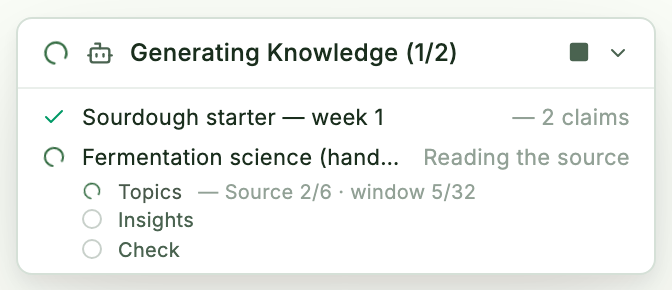
Reading every window costs AI calls roughly in proportion to the source's length, so a book-length PDF takes noticeably longer (and costs more) than a note — the window count in the toast is your warning, and Stop takes effect at the next window boundary, keeping whatever has been written so far. Added in v0.89.4 (2026-10-19) Within one window, the topics it touches are revised up to four at a time, so a window that concerns many topics no longer waits for them one by one (a local model that handles one request at a time sees no difference). A long source can also produce more topics than a short one; that is granularity rather than a filter, and any near-duplicates it leaves behind are surfaced by Organize topics and the Check tab instead of being merged without you.
Adding a note to knowledge
The main entry point is the Add to Knowledge chip in the note editor header (it also appears in the side peek and in the note's header menu). Click it and the AI reads the note, extracts claims from it, and — separately — routes the note's own text into one or more topics.
Whenever a topic is created or revised this way and unchecked statements remain, the toast adds a dedicated line — press Open source check there to jump straight to the Upkeep → Source check tab (this line doesn't appear if you've turned on automatic source-checking in Settings, since a check already runs on its own then).
Progress appears in a toast at the corner of the screen — Generating Knowledge (1/3) — which you can collapse with Minimize and reopen with Show details. Each row shows the step it is on, such as Extracting claims, Waiting for topics or Topics: window 2/5. Added in v0.89.4 (2026-10-19) Each row and each pipeline stage also shows how long it has taken (e.g. 1m 23s), ticking while it runs and frozen once it finishes, so a slow batch tells you where the time went. While it runs, the toast header also has a Stop button (■): it interrupts the in-flight AI call, keeps whatever already finished, and marks the rest Stopped — useful when a slow model turns out to be slower than you expected. When it finishes you'll see Done: 2 generated, and the chip flips to In Knowledge; clicking it now jumps to the generated entry. Running it again on an updated note regenerates the existing entries rather than duplicating them.
Other routes into knowledge:
| From | How |
|---|---|
| Note list | Select multiple notes, then Add 3 to Knowledge. A Knowledge column shows which notes are already in. Notes already in knowledge and unchanged since are dropped automatically here (not when adding a single note from its header) |
| Materials | Select URLs / PDFs / Word files in the gallery, then Add 3 to Knowledge; memos can be ingested directly too. Materials already in knowledge are dropped here the same way (a single material's own button still re-ingests it, after any batch already running), and the rest are read one at a time, so each one sees the claims the previous ones added and extends them instead of creating near-copies |
| AI chat | Make Knowledge on an answer (see below) |
The Composer (⌘K, Ctrl+K on Windows/Linux) | The Add this note to Knowledge suggestion card |
TIP
Ingestion is always something you trigger — Graphium never turns notes into knowledge behind your back. Skills marked Auto-apply on Ingest let you inject your own standing instructions (terminology, style) into every run.
Two built-in skills define the default writing voice (Japanese / English). When an app update ships an improved default, skills you never edited pick it up automatically. If you have edited one, an Update available badge appears in the skill list instead, and Reset to default replaces your version with the new content. Added in v0.30.0 (2026-08-09)
Prompts take trial and error, so skills support the same manual version snapshots as notes: while editing a skill, press ⌘⇧S or click Save version in the History tab to pin the current prompt, and use Restore this version on any saved version to switch the skill back to it. The restore itself is recorded in the edit history. Added in v0.30.0 (2026-08-09)
Browsing knowledge
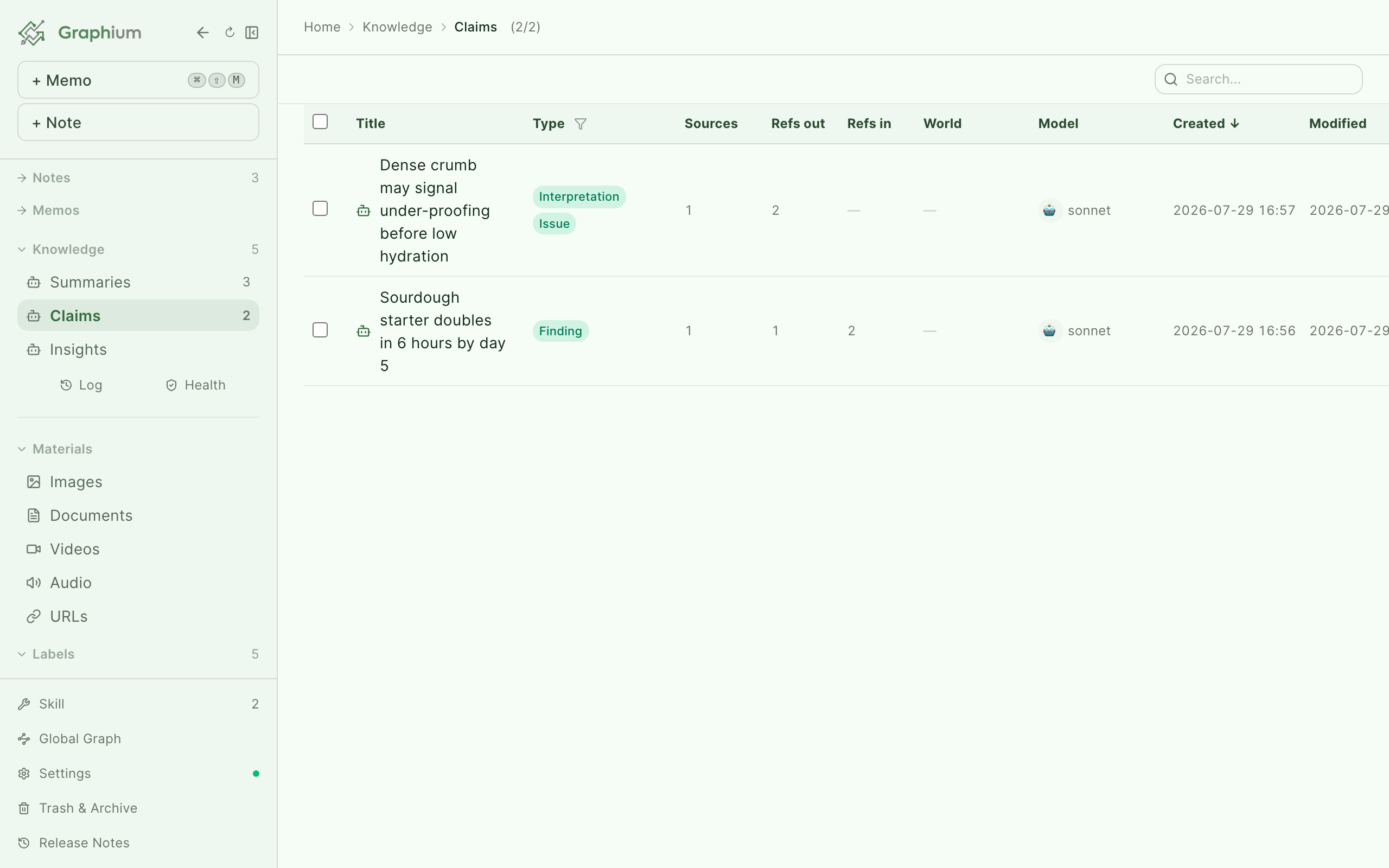
The sidebar has a Knowledge section (collapsed by default) listing Topics, Q&A, Claims, and Insights with counts (plus Previous Summaries if any legacy summaries remain). Click a kind to open its list view, which offers:
- Columns: Title, Type, Sources (how many source notes — for topics, how many documents it was built from, or for older topics the member claims it groups), Links (how many links the page makes, not counting links to its sources, i.e. citations) / Refs in, Model, Created, Modified, and World (latest world-grounding verdict). When the window is narrow, Model, then Created, then World, then Sources are left out so the title stays readable, and past that the title column is narrowed a little so Modified is not cut off (the sort basis shows above the list while its column is hidden)
- Search, per-column type filters, sorting, and multi-select by dragging over the rows or shift-clicking a range
- Bulk actions on selected rows: Regenerate 3, Move 3 to trash, Check world (3), and for Topics (select 2 or more) Merge, which asks which topic to keep and moves the other(s) into it
Claims also show an evidence status: ?candidate (used in only 1 note) or ✓verified (used in 2+ notes). A claim that gets corroborated by a second independent note is promoted automatically, and its page shows a Corroborated badge.
Knowledge pages are editable notes
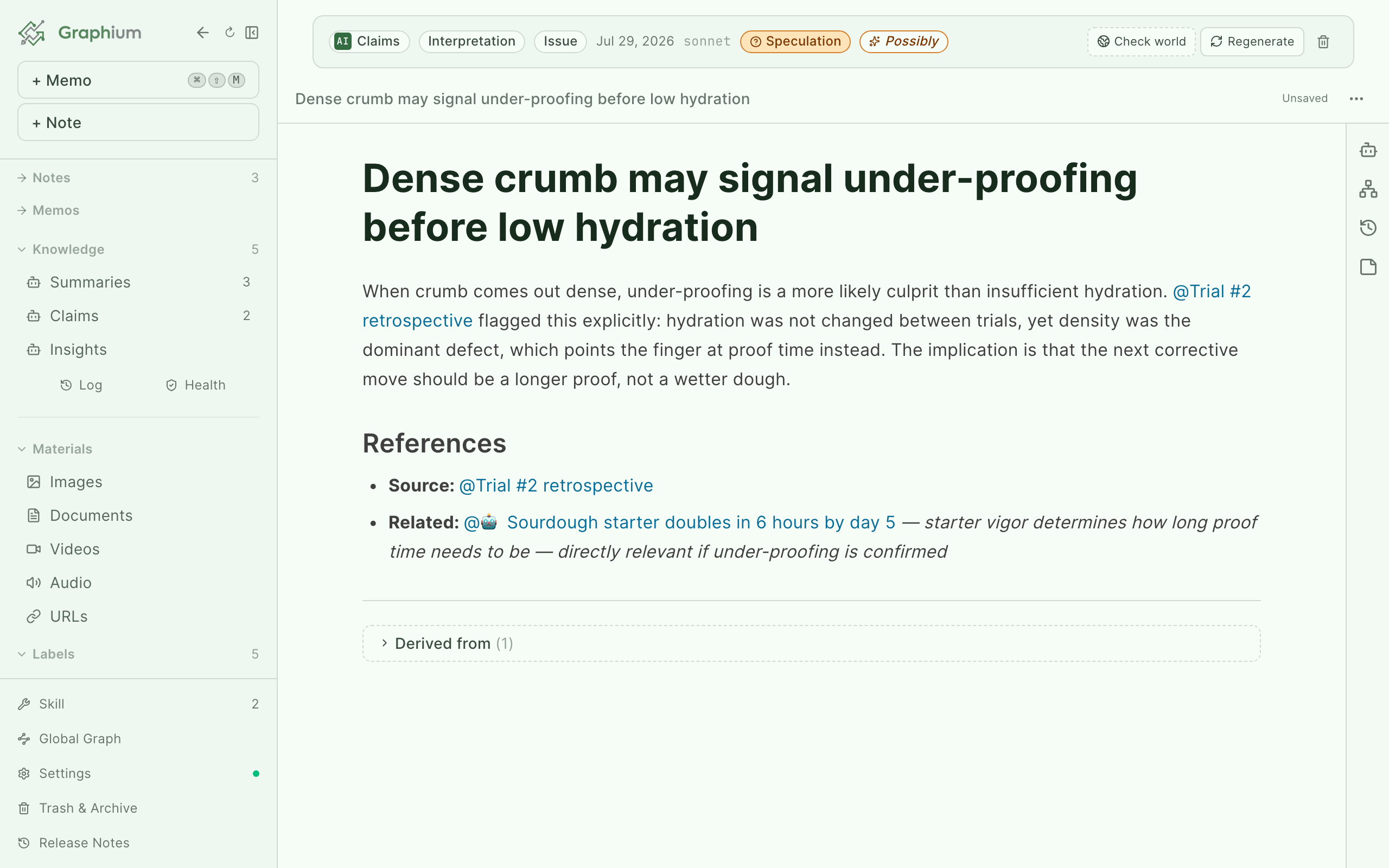
A knowledge page opens like any other note, and you can edit it like one. What makes it special is the banner at the top:
- Regenerate — rebuild the page from its current sources with your configured model
- Derived from — the page's provenance: source Notes, Source claims (for insights), and Related insights
- Check world — locate the statement against external knowledge (see World grounding)
- Epistemic status — how firmly the statement is grounded, from speculation to established
The body ends with a References section linking back to sources. Keep in mind that Regenerate rewrites the body from the sources — so make lasting corrections in the source notes where you can, and treat hand-edits to knowledge pages as provisional.
Topic types Added in v0.89.15 (2026-10-20)
Every Topic carries a type: Concept (a phenomenon, principle, property), Material (a substance, compound, sample family), Method / instrument (a technique, apparatus, software), Person / organization, or Place. It is a tag, not a different kind of page — a Topic about "VASP" and a Topic about "lattice thermal conductivity" are written the same way; the type just says what the page is about, so you can filter. The AI assigns it when it routes a document into a new Topic, and fills it in for an untyped Topic it happens to update; Topics made before types existed show as Untyped until you run Assign topic types in Settings → Knowledge (title and one-line definition only, 50 topics per AI call, count shown first) or pick a type yourself from the small selector on the page banner. Where it shows up: the Type column and its filter in the Knowledge list (Topics tab, including an Untyped entry), and the Topics: … toggles in the global graph's Display menu. Nothing else reads it — not routing, not revision, not source check.
Merging topics Added in v0.75.0 (2026-09-16)
Topics can drift apart over wording, particles, or an overly narrow per-case title even when they're the same concept. There are four ways to merge them, none of which need you to open Settings unless you want the AI to judge the whole corpus at once:
- Topics list — select 2 or more Topics and press Merge; pick which one to keep.
- A topic's own banner — shows a Similar topics chip when a candidate is found nearby (same normalized title, or embedding similarity when an embedding model is set); press Merge to absorb it into the page you're viewing.
- Check tab (Upkeep) — a Redundant issue for two Topics gets a one-click Merge button alongside the usual Regenerate/Archive/Open actions. Added in v0.94.2 (2026-10-21) To merge many at once, select the issues and press Merge N as recommended: each selected pair is merged one at a time exactly as its own Merge button would (the count only includes issues that carry a keep/absorb recommendation), a pair that involves a page already absorbed earlier in the same run is skipped, and each merge can still be undone on its own from the Operations tab.
- Settings → Knowledge → Organize topics — the only entry point that has the AI scan every existing Topic and decide which ones are the same concept, in one pass. It only consolidates topic pages — it doesn't assign or reassign Claims to topics.
The first three don't call a model — you've already made the decision by picking the topics. Organize topics and the AI-analysis Check tab use your Chat model (Settings → AI) to judge whether topics are the same concept. What happens to the absorbed topic's text when it's kept: if both pages are already in the newer source-reading format, their bodies are combined in one AI call that keeps every existing citation as-is (if that call fails, nothing is merged or moved to the Trash: both topics stay as they were and a notice says the merge didn't go through); if one of them still predates that format, Graphium instead rebuilds the kept page from scratch from every source both pages ever cited (see Rebuilding a topic from its sources below); if that rebuild fails and the group mixes both formats, an absorbed topic already in the newer format is left untouched (its text hasn't reached the kept page either) while an older-format one is still absorbed as usual, since its knowledge was already carried over.
Rebuilding a topic from its sources Added in v0.78.0 (2026-09-17)
Beyond the ordinary one-source-at-a-time revision that happens on ingest, a Topic can also be rebuilt from scratch — reading every source it cites again, one at a time. This can mean several AI calls for one page, so Graphium never does it on its own: you always start it, and you always see a minimum AI-call count before it runs — a source long enough to be read in windows (see above) takes more than one call, so the real count can run higher than the number shown.
- A topic page's own Regenerate button — rebuilds that one page; the confirmation dialog names the minimum call count first.
- Upkeep → Check → "N topics in the older format" — appears only while you still have topics made before the source-reading format existed. One button rebuilds all of them at once, after a single confirmation, and reports how many were rebuilt, how many sources it had to skip (unreadable — trashed or never indexed), and how many failed.
- Upkeep → Check → a "Missing source" issue's "Rebuild from sources" button — rebuilds just that one topic from the sources it can still reach.
If every source a topic cites goes missing (moved to Trash, or never indexed), Graphium archives the page on its own — no AI call, fully reversible from the Archive. If only some of its sources are missing, the page is left alone and shown as a Missing source issue in Upkeep instead, so you can decide whether to rebuild it from what's left.
Log and Upkeep
Two buttons at the bottom of the sidebar's Knowledge section open upkeep views:
- Log — an activity log of every knowledge operation (ingest, merge, cross-update, regenerate, delete, archive, restore a version, undo), grouped by day, each entry linking to the affected page. The Log is read-only; you undo operations from the Upkeep view.
- Upkeep — the Knowledge upkeep view, split into three tabs. The Check tab is what used to be called the Health Check: press Run Check and choose Quick (local only), which finds orphaned and duplicate-topic entries, topics with a partially missing source (Missing source, local-only, topics in the source-reading format only) — plus any Insight pairs already flagged as Contradiction during discovery (see below) — without any LLM call, or Full (AI analysis), which additionally has the AI look for Gap, Stale, Redundant, and any other Contradictions it can spot across the whole corpus, plus a list of questions worth investigating beyond fixing anything. There's no threshold behind these — Stale means the AI found a specific newer page or note that supersedes it (not "hasn't changed in a while"), and Redundant means two pages assert the same specific claim. A Contradiction issue offers Open on both affected pages so you can compare them yourself — Graphium never decides which one is right. If the AI analysis itself fails (for example, too many pages to fit the model's context), a notice above the issue list says AI analysis failed and the results below are Quick (mechanical) only — the raw error text is available in a details toggle, so you can tell at a glance whether you're looking at Quick-only or a completed Full check. The Source check tab is covered separately in World grounding. The Operations tab lists the operations you started yourself (merges, regenerate, archive and so on, including ones you asked an outside AI to do), newest first, and you can undo them from there — fix, see the result, and undo, all in one view.
A Redundant issue between two Insights also gets a one-click Merge button, just like the one for Topics: their source Claims, related Insights, and Contradiction links are combined, the absorbed Insight is archived (reversible, never deleted), and the kept page's body is rewritten through the same re-lift Regenerate uses. Insights are never merged automatically during ingest — the Merge button is the only way, so a model's judgment never quietly shrinks your Insight collection.
Worth investigating Added in v0.81.3 (2026-09-24)
Alongside issues to fix (Contradiction, Stale, Orphan, Redundant, Gap, Missing source), a Full check also proposes questions worth going and finding out — things the corpus doesn't yet answer. These show up below the issue list as Worth investigating (N), collapsed by default (the section doesn't appear at all when there are none). Each row names why it's worth investigating (what it would change on which page) and links to the pages involved; a question that needs outside material also gets a hint of what to look for.
Questions are a different kind of thing from issues — they're not counted in the issue total or the "needs review" count. There's no cap on how many can appear; instead, the bar is qualitative — a question only makes the list if answering it would actually revise an existing page's claim or require a new page, so general background questions and things already written on a page don't qualify. No extra AI call is spent on this — it rides along in the Full check's existing call (one per part when a large knowledge base is split) and comes back together with the issues. Quick checks never show this section.
Pressing Ask in chat on a row opens a new conversation on the chat without a note open screen with the question already sent — internal scope for questions your notes/knowledge might already answer, external scope for ones that need outside material. Once you have an answer, Keep as knowledge turns that conversation into a Q&A page, which then feeds the next check. A Full check also reads the last week of the activity Log (ingests, Q&A pages created, and so on) and prioritizes questions tied to that recent work.
The checks that run on their own (after ingest, and on startup if it's been over 24h) are Quick (local only) by default — no LLM call. Turning on Settings → AI's Run full (AI) analysis in automatic checks makes those same automatic checks run Full (AI analysis) too (off on first launch, on by default for anyone who was already using Graphium before this setting existed). Turning it on doesn't change who fixes, merges, or links anything it finds — that's still always you. You can also press Run Check → Full yourself from the Upkeep screen at any time, regardless of this setting. Whether or not it's on, within the automatic Quick check Graphium automatically archives pages that are mechanically empty — a Topic left with no member Claims (its members were all deleted or merged elsewhere), or a Claim whose source notes are all gone (trashed or missing). No AI is involved and nothing is silently thrown away: it's the same reversible Archive action available from the individual Regenerate/Archive/Open buttons — the page stays fully restorable, and each run reports how many pages it archived, both as a toast and in the Log. Anything else the automatic check finds — whether Quick or Full — orphaned pages, duplicate-topic suspects, gaps, stale items, redundancy — is only ever surfaced as a badge for you to review in the Upkeep screen; nothing is auto-merged, auto-linked, or auto-archived. Instead, the Check tab lets you check off any number of issues and archive them together with one button, so you stay the one deciding what counts as outdated or duplicate. Added in v0.94.2 (2026-10-21) Drag down the rows, or shift-click, to select a range.
Since most issues don't get a toast, the Upkeep button in the sidebar shows a small count whenever the last check found something that still needs a look; opening Upkeep clears it, and it only reappears once a later check finds something new.
Upkeep operations can be undone Added in v0.87.0 (2026-10-07)
When you start an upkeep operation yourself, Graphium keeps a copy of each page it is about to rewrite, so the whole operation can be taken back in one step. This covers:
- merging Topics (Merge topics) or Insights (Merge insights), one operation per page that is kept
- Organize topics
- Regenerate and Rebuild from sources, one operation per page
- Archive from Upkeep or from the Source check tab, one page or many at once
- Restore this version on a knowledge page
- undoing itself
Where to undo it. There are three places (the Log is where you read what happened; you can't undo from it):
- Right after the operation. The notice that appears has an Undo button. It disappears after a few seconds. The notice that reports an undo has its own Undo button too.
- The Upkeep view's Operations tab. The Operations tab of the Upkeep view lists recent operations, newest first, each with Undo. Use Load more for older ones.
- The page's history panel. On a knowledge page, the Upkeep operations section lists the operations that involved that page.
Operations started from an outside AI (Claude Desktop and the like, through MCP) appear in the same Operations list, with the route shown as MCP (client name), and you can undo them here. Undos done through MCP appear there too. They do not appear in the Log, which is a record kept inside Graphium.
Before anything changes, you are asked to confirm. If you edited the affected pages after the operation, the confirmation tells you how many edits would come back with it; if source check results were added since, it says those go back too. A page that has been deleted for good is named there as one that can't be restored. After the undo, the notice says how many pages couldn't be restored.
- Undo can be undone. Undoing is recorded as an operation of its own, and undoing that returns things to how they were after the original operation.
- Newer operations come first. If a newer operation that hasn't been undone involves the same page, the older one can't be undone yet. The message says Undo this first and names that operation.
- Copies are kept for one year. The one year is how long Graphium keeps the copies used for undoing. After that the copy is removed, the operation disappears from the list, and it can no longer be undone.
- A page that has been deleted for good can't be brought back. The rest of the operation is still undone.
Merges, regenerate, archive, version restores and undos are also written to the Log (read-only), so you can see later what happened. Organize topics appears in the Log as the merges it made.
What can't be undone this way:
- revisions made by ingesting a source (the page's history shows them)
- the automatic archive of mechanically empty pages (restore it from the Archive)
- the results of source check and world grounding
- Insight discovery, including adding support to an existing Insight
- sending a single page to the Trash from a list or banner (restore it from the Trash screen)
Nothing here runs by itself: every one of these operations starts at your instruction (from Graphium's screen or from an outside AI), and undoing one is your choice too.
Discovering insights from claims
An insight takes the relationship inside a claim, classifies it into a fixed set of shapes (steadily increasing or decreasing, a sweet spot in the middle, a threshold, a trade-off, composition deciding the outcome, an enabling condition, a reinforcing or balancing loop), replaces field-specific terms with general ones, and states it as a principle that still holds in other fields. One claim is enough; claims that share a shape are folded into one insight. An example from another field is attached only when a separate check — the same model, asked again without seeing how the insight was written — confirms the shape really matches rather than just looking similar. Discovery happens incrementally during ingestion, and you can run it across your whole corpus from Settings → Knowledge → Discover Insights from Claims → Discover Insights. Existing insights are sent to the model as a shortlist first (embedding similarity), then the AI judges each shortlisted pair: a genuine duplicate reinforces the existing insight instead of creating a new one, but a pair that actually disagrees (opposite direction, conflicting condition) is kept as two separate insights and flagged as a Contradiction in the Check tab — Graphium never silently merges conflicting findings into one page.
Every scan reports how much it looked at Added in v0.45.0 (2026-08-25). Claims are scanned cluster by cluster, and the result reports the coverage it measured — covered n/m after an ingest, Claims in view: n/m in the corpus-wide run — meaning how many of your claims were in view at least once. So "no new insights" is never ambiguous: you can see whether the scan looked at everything and found nothing new, or simply hasn't reached the rest of your corpus yet. The corpus-wide run continues until every claim has been in view, and tells you up front how many LLM calls that takes; ingest-time scanning is capped by Scans per ingest in Settings → AI, so you decide what each ingest costs. If Insights are rare, the FAQ walks through how to tell whether it's your material or your model.
Bulk regeneration and re-embedding
The Settings → Knowledge tab holds corpus-wide maintenance:
| Tool | When to use it |
|---|---|
| Bulk regenerate Knowledge | After changing models — rebuild pages by kind (Target kinds), with an optional Model override (optional), progress display, cancel, and Retry failed only |
| Re-embed all Knowledge | When AI-chat citation search stops finding your knowledge — rebuilds the embeddings for every page |
Both show a confirmation with the count first; regeneration issues LLM calls and consumes tokens.
Saving chat findings as knowledge Added in v0.16.8 (2026-07-02)
When an AI chat answer contains something worth keeping, press Make Knowledge under the answer. Instead of saving the whole reply, Graphium proposes discrete candidates in a picker titled Knowledge candidates (select to save) — each with a Claims or Insights badge, a title, and a preview. Check the ones you want (or Select all) and press Save selected (2). Only what you pick enters your knowledge.
Keeping a whole Q&A Added in v0.79.0 (2026-09-18)
Make Knowledge breaks an answer apart into claims/insights. If instead the whole answer reads well as-is — a self-contained explanation you'd want to find again by the question you asked — press Keep as knowledge under the same message. Before saving, Graphium calls the AI once more to rewrite the exchange into a standalone article: it hands over the conversation so far, so a reply that only makes sense in context ("for the first one, how far should I push it? keep it short") comes back with the missing context filled in and the title rewritten to something that reads on its own, not the phrasing of your request. Any citation the answer already showed carries over, re-anchored to the rewritten sentences. A confirmation with an Open link appears once it's saved.
If the rewrite fails — the AI isn't configured, or the call errors — saving still goes through: Graphium falls back to the answer's text as-is, titled with the question you asked, same as before. It also falls back if the rewrite drops every citation the original answer had — losing sources isn't worth reading better. It's not available in shared-note or material chat, but works from both the note editor's chat panel and the sidebar chat without a note open.
Once saved, a Q&A page is upkept the same way a Topic is: it's included in Upkeep's Check (empty page, missing source, and out-of-date checks), covered by source check, and can be rebuilt from its sources with Regenerate if a source changes. A new note only revises an existing Q&A page when it actually updates or contradicts the answer — otherwise the note becomes its own Topic instead of drifting the Q&A page off-topic.
Knowledge in the global graph
Open Global Graph from the sidebar to see your whole workspace as three layers: Sources at the bottom, Notes in the middle, and Claim · Insight on top. Knowledge sits at the crystallized tip — you can watch clusters of notes funnel into a few claims and insights, and spot notes that haven't been distilled yet. A claim is joined to its topics, and an insight to the claims it was lifted from, by derived lines; topics about similar things gather into islands (by how close their embeddings are — turn off Group islands by content in the Display menu to group topics that share claims or sources instead).
Tick Pull by meaning and claims with similar embeddings drift together within their island (experimental). Only claims that have an embedding move, and nothing crosses an island. The numbers read "claims that took part · pairs linked".
Drag a node and it stays where you put it, even when the graph is rebuilt; the other nodes arrange themselves around it. Reset arrangement in the top-right corner of the graph releases the pinned nodes.
Provenance of knowledge Added in v0.17.3 (2026-07-13)
Knowledge is held to the same provenance standard as everything else in Graphium:
- Every page's Derived from panel and References section cite its sources; insights additionally record which claims they were lifted from.
- Growth events — ingest, merge, reinforcement, regeneration — are recorded as first-class activities in the page's history, so the history panel shows which sources fed each revision.
- Deleted pages go to the trash, and merged ones are archived rather than destroyed, so existing citations keep resolving.
You can also cite knowledge back into your notes: type / in the editor and pick Claims or Insights under the Existing knowledge group to insert references to existing pages (multi-select supported).