
Desktop app
The desktop app is the full Graphium experience: your notes become real files on disk, the AI backend ships inside the app, and desktop-only features like sharing and receiving mobile captures become available. The browser version at kumagallium.github.io/Graphium/app/ is a preview for trying the editor — notes live in the browser's IndexedDB and can be evicted, and AI features need a backend the hosted page doesn't have.
Why the desktop app?
- Notes as real files. Every note is a plain JSON file in a folder you can see, back up, and sync. Nothing is locked inside a browser database.
- AI included. The app bundles the AI backend and starts it automatically — the Knowledge layer, AI chat, and the Composer work out of the box once you register a model.
- Sharing. Publishing notes to a team folder is desktop-only, because the browser cannot read or write local folders. See Storage & sync.
- Mobile receive. Captures sent from your phone land in a desktop inbox. See Mobile.
- Native menu and shortcuts. A real menu bar with reliable keyboard shortcuts, plus automatic updates.
Web vs. desktop at a glance
| Browser preview | Desktop app | |
|---|---|---|
| Where notes live | Browser IndexedDB (can be evicted by the browser) | Plain JSON files in Documents/Graphium |
| AI features | Not available — no backend | Included, starts with the app |
| Sharing to a team folder | Not available | Yes |
| Receiving mobile captures | Not available (sending works) | Yes |
| Updates | Always latest on page reload | Automatic check at launch and every 24 hours |
Downloads
Get the latest installers from the Releases page.
| Platform | File | How to check your machine |
|---|---|---|
| macOS (Apple Silicon — M1/M2/M3/M4) | Graphium_x.x.x_aarch64.dmg | Apple menu → About This Mac → "Apple M..." |
| Windows (x64) | Graphium_x.x.x_x64-setup.exe (or the .msi) | Settings → System → About → System type "x64-based" |
Linux and Intel Mac builds are not provided today. On those machines, use the browser version — bringing the desktop app to more platforms is on the roadmap.
Install on macOS
- Open the downloaded
.dmgand drag Graphium into your Applications folder. - Launch it from Applications. The macOS build is code-signed and notarized, so it opens without security warnings.
- macOS may ask for permission to access your Documents folder on first launch — allow it so Graphium can create its data folder there.
Install on Windows Added in v0.8.0 (2026-05-21)
- Run the downloaded
Graphium_x.x.x_x64-setup.exe. - The Windows build is not code-signed yet, so SmartScreen shows "Windows protected your PC" on first launch. Click More info, then Run anyway. Code signing is on the roadmap.
- Follow the installer prompts.
First launch
On first launch, Graphium creates its data folder in your Documents folder — ~/Documents/Graphium on macOS, Documents\Graphium on Windows. Inside you'll find plain, inspectable subfolders:
| Folder | Contents |
|---|---|
notes/ | Your notes, one JSON file each |
media/ | Images, PDFs, audio, video, and other materials |
wiki/ | Knowledge layer pages (topics, claims, insights, plus any older summaries still on disk) |
skills/ | Your saved skill documents |
appdata/ | The note index and other app state |
You can move the data folder anywhere — even into a Dropbox, Google Drive, or OneDrive sync folder to keep machines in sync with no extra setup. See changing the storage folder for the steps and the caveats before you switch.
Updating
Graphium checks for updates automatically on launch and every 24 hours. When a new version is available, a banner appears at the top of the window — "Graphium x.x.x is available" — with a Restart to update button. Clicking it downloads the update, installs it, and relaunches the app automatically. While the update downloads, the banner shows the progress, and if anything fails the error appears right on the banner so you can simply try again. The banner keeps showing the version it found at check time, so if an even newer release has come out since, click the banner's Check for updates button to refresh it to the latest version before installing.
You can also check manually: open Settings → About and click Check for updates. If you're current, it reports "You're on the latest version". If a new version is found, a Restart to update button appears right there, so you can install without leaving Settings — it works the same way as the banner, showing download progress on the button and any error below it. The browser version shows that update checks are only available in the desktop app.
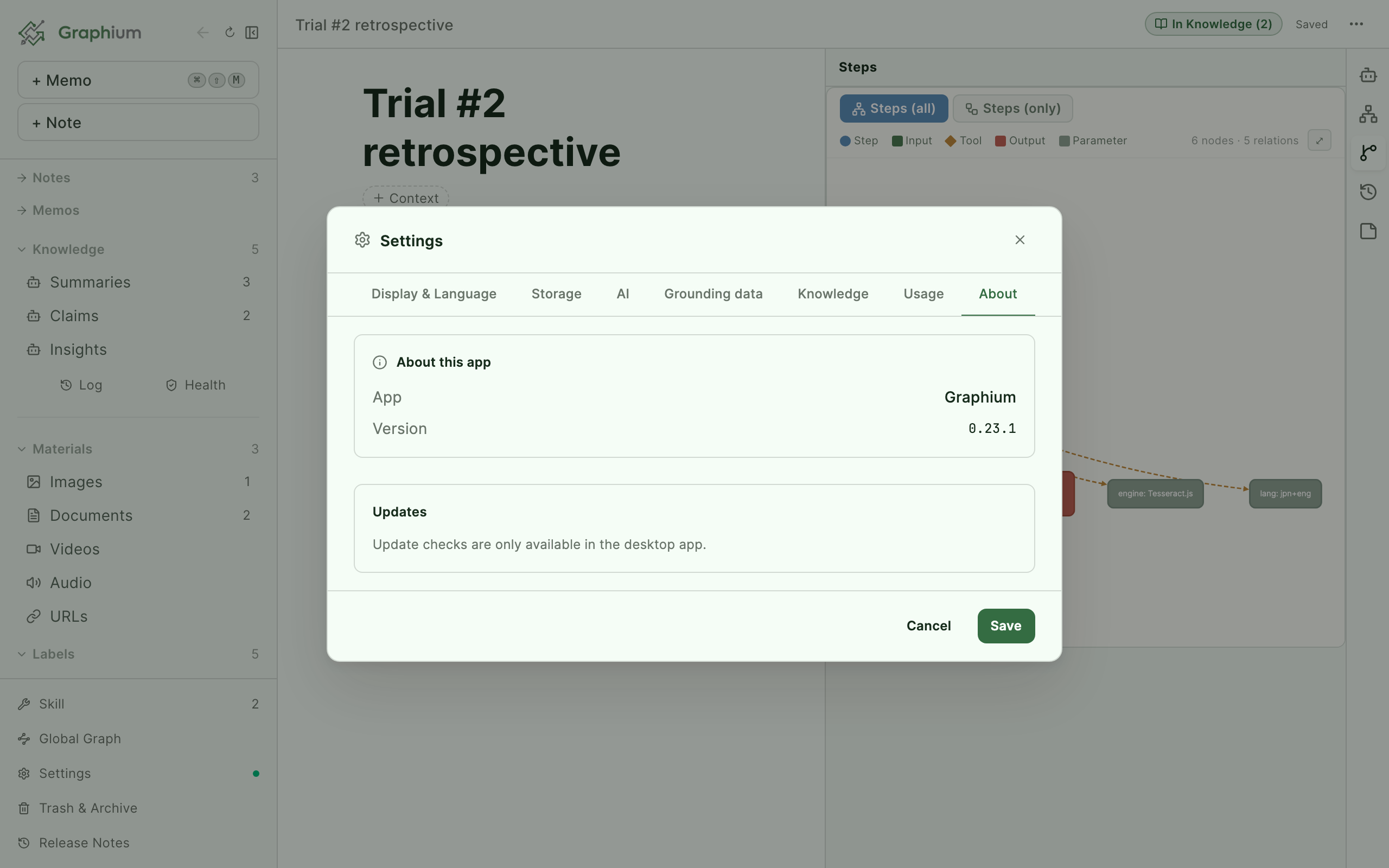
Updates never touch your notes — your data lives in Documents/Graphium, separate from the app itself. If a new version changes an internal index format, Graphium rebuilds the index automatically on the next launch. To see what changed in each release, check the release history or the Help → Release Notes menu.
The menu bar
The desktop app adds a native menu bar (menu labels are always in English, regardless of the app language):
| Menu | Items |
|---|---|
| File | New Note · New Memo (⌘⇧M) · Print / PDF · Export PROV-JSON-LD · Close Window |
| Edit | Standard Undo / Redo / Cut / Copy / Paste / Select All |
| View | Toggle Graph Panel · Toggle AI Chat · Zoom In (⌘=) / Zoom Out (⌘-) / Actual Size (⌘0) |
| Backend | Restart Backend — restarts the bundled AI backend without restarting the app |
| Help | About Graphium · Release Notes |
Desktop shortcuts
A few shortcuts are worth knowing on the desktop (see Shortcuts for the full list):
| Shortcut | What it does |
|---|---|
⌘\ (Ctrl+\ on Windows) | Collapse or restore the sidebar — a quick focus mode. On JIS keyboards, the ¥ key works too. |
⌘⇧M (Ctrl+Shift+M) | Open a quick memo dialog from anywhere in the app. |
⌘ − (Ctrl − on Windows / Linux) | Zoom out — the whole window shrinks so you can see more at once. |
⌘ + (Ctrl + on Windows / Linux) | Zoom in. |
⌘ 0 (Ctrl 0 on Windows / Linux) | Back to 100%. |
Ctrl + mouse wheel (Windows / Linux) | Zoom in and out; scroll up to zoom in. |
In the desktop app, ⌘⇧M is also registered as the New Memo item in the File menu, so it fires reliably even when the editor would otherwise swallow the keystroke — and you can discover it from the menu bar.
− is the minus key and + is the plus key (; without Shift on JIS keyboards). The zoom steps run from 50% to 150% (in a narrow window the top steps are skipped so the layout does not switch to the mobile one), and the whole window changes together, sidebar and panels included. Graphium remembers the level after you close the app. You can also pick it in Settings → Display & Language → Zoom. If your screen feels cramped — Windows laptops at 150% display scaling show less than you might expect — try zooming out to 90%.TIP
External links in notes and citations open in your default OS browser, not inside the app window.
Troubleshooting
The update fails to download
If the banner or Settings → About reports that the update couldn't be fetched, the download was cut short before it finished — usually a slow connection, a corporate proxy, or security software inspecting the traffic. Graphium retries once on its own. If it still fails, wait a little and press Check for updates again. When it keeps failing, use the Download manually link shown next to the error to get the installer from the release page and run it over your current install; your notes in Documents/Graphium are untouched. Show details (Error details in Settings) keeps the updater's own message along with how far the download got before it stopped — worth quoting if you report the problem.
AI features fail right after an update
If AI endpoints start returning errors (such as 404s) immediately after an automatic update, an old helper process from the previous version may still be running. Quit Graphium completely (⌘Q on macOS, or close the window on Windows) and relaunch it. If AI features still don't respond, try Backend → Restart Backend from the menu bar.
"Windows protected your PC" on first launch
This is expected — the Windows build is unsigned. Click More info, then Run anyway (see Install on Windows).
Graphium can't read your notes folder on startup
If Graphium stops on a screen saying it could not open your notes folder, press Show details — it names what actually failed, and the fix follows from that:
- macOS is withholding access. This almost always shows up right after an update: the replaced app starts while still carrying the permissions of the version it replaced, and launching it again clears it. Press Restart Graphium on that screen, or quit Graphium completely (
⌘Q) and open it again. If the same screen comes back, open System Settings → Privacy & Security → Files and Folders, turn on the Documents folder for Graphium, then press Reload. - It is taking longer than usual. The folder did not answer in time. Press Reload — the second attempt usually goes through.
- The folder was not found. If you moved the save location to an external drive or a synced folder via Settings → Storage, check that it is mounted and available.
The app can't write to its data folder on macOS
If Graphium reports it cannot save, check System Settings → Privacy & Security → Files and Folders and make sure Graphium has access to your Documents folder, or move the save location to a folder it can reach via Settings → Storage.