
Getting started
Ten minutes, one running example. By the end you'll have a real note, a memo caught on the fly, a link between two notes, a version you can always come back to, and a feel for where the deeper layers live. We'll use a bread-baking trial — swap in your own experiment, essay, or study session as you go.
1. Open Graphium
No account, no sign-up. Pick whichever fits:
- Try it in your browser — kumagallium.github.io/Graphium/app. Notes live in this browser's storage, so treat it as a way to kick the tires.
- Desktop app — for durable files on disk and the AI features. See Desktop app and Storage & sync.
Everything in steps 2–5 works in the plain browser version.
2. Write your first note
Click + Note, give it a title, and write what you know going in — the plan, the amounts, a stray hunch:
Bread dough trial #3

Trying a longer ferment than trial #2.
Bread flour 300 g / water 200 g / dry yeast 3 g / salt 5 g
Hunch: the crumb was dense last time because the proof was too short.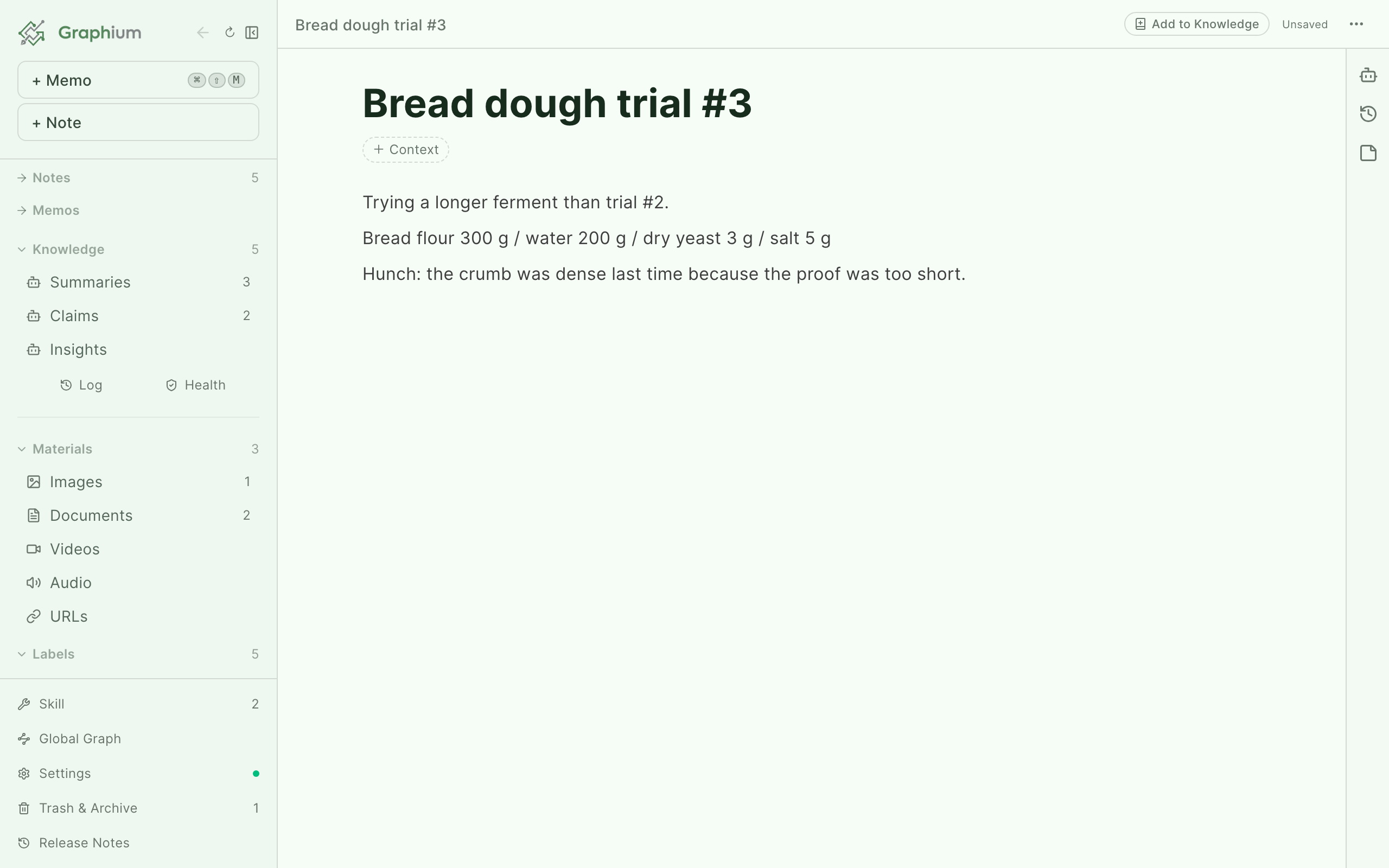
That's a complete Graphium note. It's a regular block editor — headings, lists, tables, images, formulas are all one / away — and it saves as you type (⌘S works too, Ctrl+S on Windows/Linux). No labels, no structure, no ceremony required.
3. Catch a thought without opening a note
Two hours later the oven timer rings and you think "crumb looks better when the ferment runs 45 min" — but you're in the middle of something else. Press ⌘⇧M (Ctrl+Shift+M), type it, hit ⌘Enter. Done.
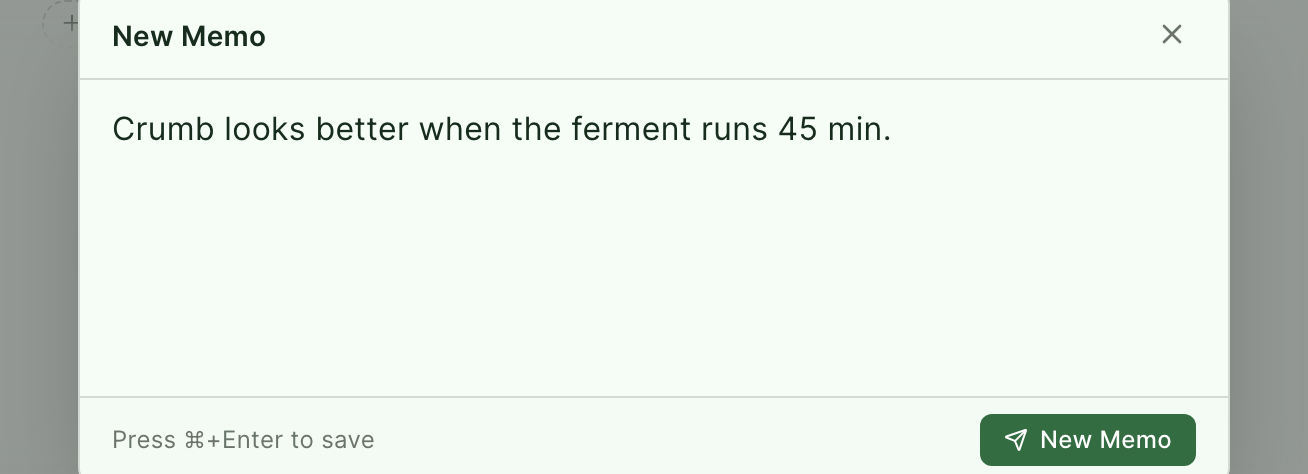
The memo lands in Memos, out of your way, until you want it: insert it into a note with /memo, or leave it as raw material. On your phone the same capture-first idea goes further — photos, voice, links — see Mobile capture.
4. Link it to what you already know
Back in the note, type @ and start typing another note's name — pick it, and the two notes are linked. The menu also offers your memos, materials, AI-generated knowledge, and a Create new note escape hatch, so a link is never more than a few keystrokes away.
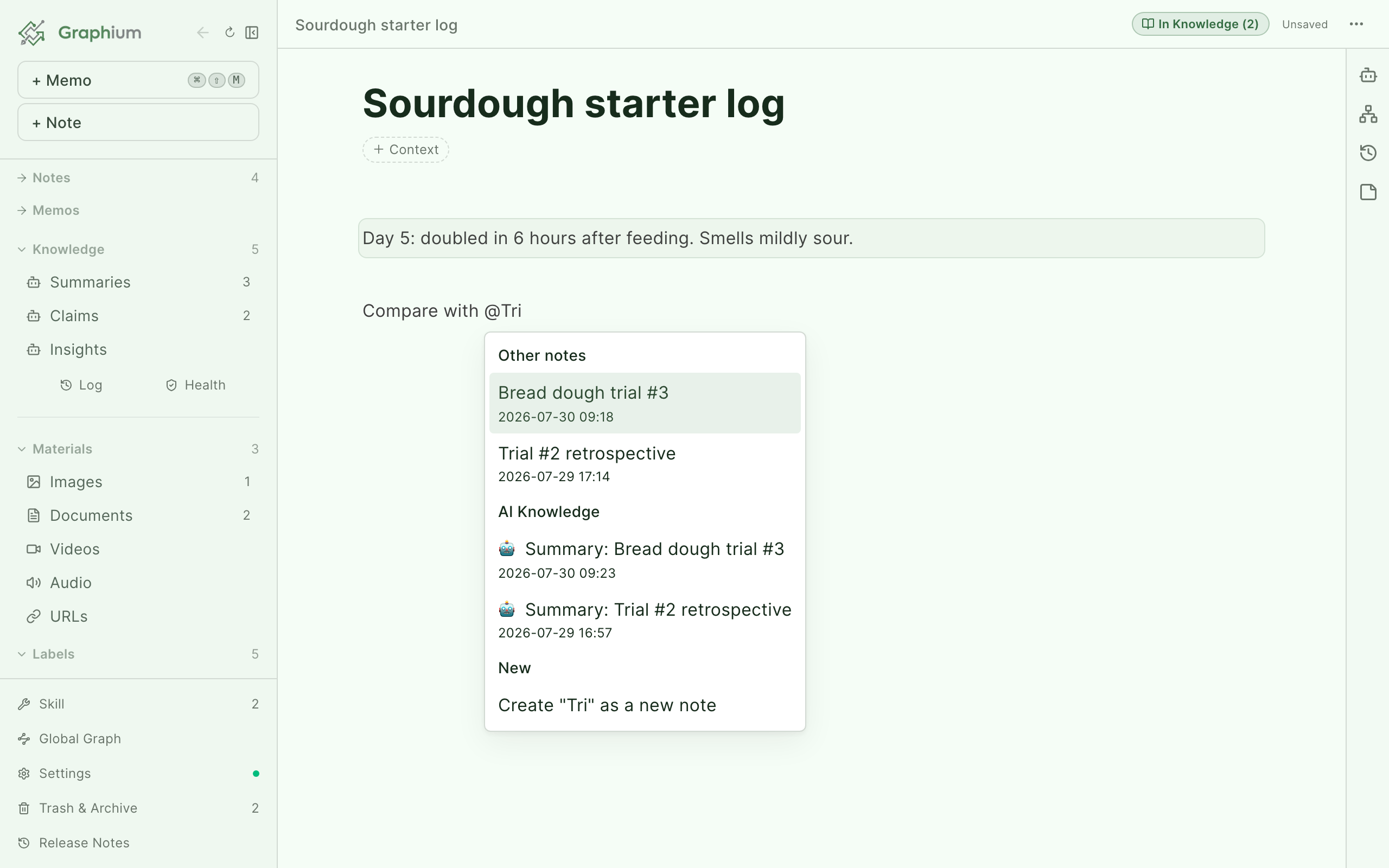
Renaming a note updates every link to it, so nothing rots. Each link feeds the note's neighborhood graph (the icon on the right), and the network gets more useful the more you toss in.
5. Change your mind safely
Ready to rewrite the recipe for trial #4? Press ⌘⇧S first (⌘⌥S if your system takes it). That pins the current state as a version in the History panel, where every save is already recorded — including who made it, you or an AI. Open a pinned version read-only any time, or Fork from here to branch a new note off a past state and explore in a different direction.
Delete boldly, too: notes go to Trash & Archive, not oblivion. The details are in History and versions.
Going further — three doors
The basics above are the whole obligation. Behind them are three optional doors — open the ones that match how you work.
Make your process visible with steps Added in v0.23.0 (2026-07-28)
When a note describes something you did, steps turn prose into a traceable record:
- Type
/and choose Step (under Advanced). A step block is a container for text, tables, and images; name itMixand move the ingredient line inside. - In the step's header, click Next step → Create new for
Ferment, thenBake. Graphium links the order for you (the Prev step chip rewires it; branches are fine, only cycles are blocked). - Optionally, select details inside a step and label them from the toolbar's second row: Input (
⌘⇧I), Tool (⌘⇧E), Parameter (⌘⇧P), Output (⌘⇧O).
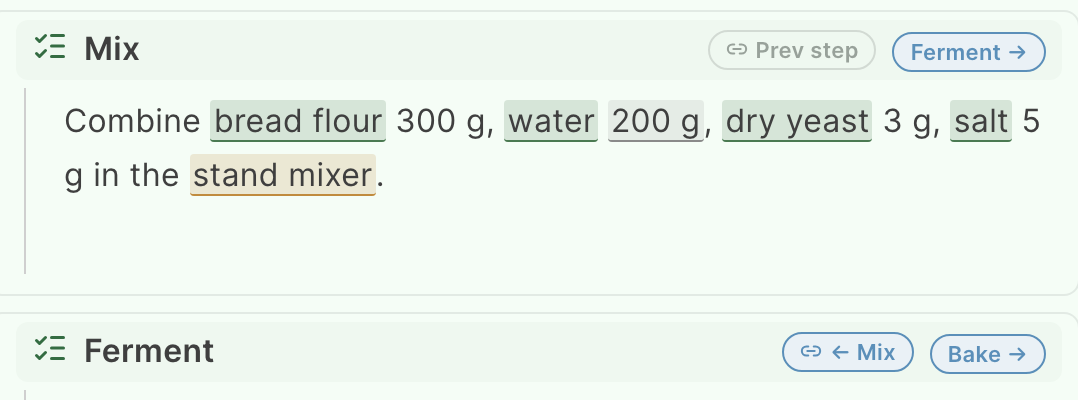
There is no generate button — the Steps panel opens when your first step appears and redraws as you edit. Steps become nodes, labels hang off them, and shared items flow between linked steps. You wrote a recipe; you got a traceable record of the run, exportable as standard PROV-JSON-LD.
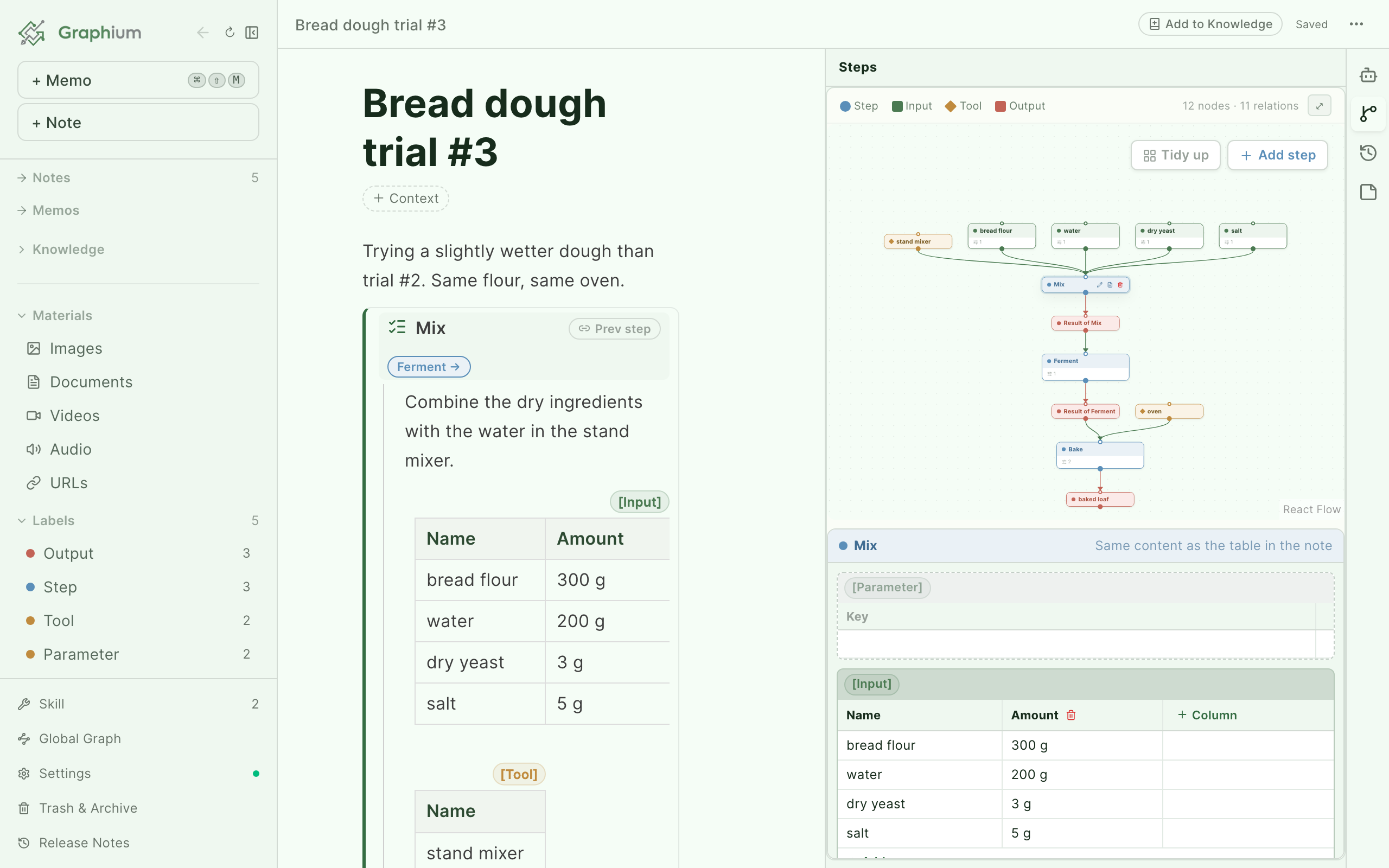
Label as much or as little as you like — the graph only shows the parts you chose to mark. The full story is in Labels & provenance.
Write with AI beside you (needs AI)
Register a model once — bring keys for Anthropic, OpenAI, Google Gemini, or any OpenAI-compatible endpoint (Setting up AI). Then the chat panel discusses the note you're in, and ⌘K (Ctrl+K) opens the Composer: type to jump to a note, or press ⌘Enter to ask the AI with your own notes as context. Answers cite the notes they drew on, so you can check them. See Chat & Ask.
Turn notes into knowledge (needs AI)
Click Add to Knowledge in a note's header and Graphium distills it into short, editable pages — Summaries, Claims, and Insights — each citing the notes it came from. The chip flips to In Knowledge, and the results live under Knowledge in the sidebar. As your notes evolve, regenerate the pages; knowledge follows your notes, not the other way around. See Knowledge layer, and World grounding for checking claims against outside knowledge.

Where to go next
- Put everything in — Materials & citations: PDFs, web pages, Word files, images. Search finds it all again — even text inside photos.
- Start from a scaffold — type
/and choose Template for a ready-made Plan Template or Run Template; the Run Template doubles as a worked example of labeled steps. - The editor in depth — Notes & editor: blocks, formulas, callouts, templates, search.
- Capture from your phone — Mobile capture.
- The thinking behind it — CONCEPT.md on GitHub.
Write as much, or as little, as you need. The deeper layers are there when you want them, and out of the way when you don't.