
Voice notes Added in v0.91.0 (2026-10-20)
A meeting is full of decisions that nobody wrote down. A voice note records a meeting — or just your own voice — on your computer, turns it into text there, and lets you walk from a decision in the summary back to the sentence someone actually said.
- No bot joins the call. Graphium records what your computer plays and what your microphone hears, so it works the same for Zoom, Teams, Gather, or a browser tab.
- Audio never leaves your computer. Recording and transcription both run locally; the only network use is the one-time download of the speech model. See the FAQ for the numbers behind this.
- It is a block in a note. The transcript sits in your note like any other block, so you can write around it, summarize it, and link to it.
Desktop app only
Voice notes need the desktop app. In the browser and on a phone, a voice note block shows Recording isn't available on this device or Can't be read on this device — the note itself still opens, and the block comes back to life when you open it on the desktop.
Starting a voice note
There are two ways in.
| Where | What happens |
|---|---|
| + Note ▾ → Voice note | Creates a new note titled "Voice note …" with the voice note block at the top |
/audio in any note | Inserts the block at your cursor (the slash menu entry reads Audio (transcribe at this spot)) |
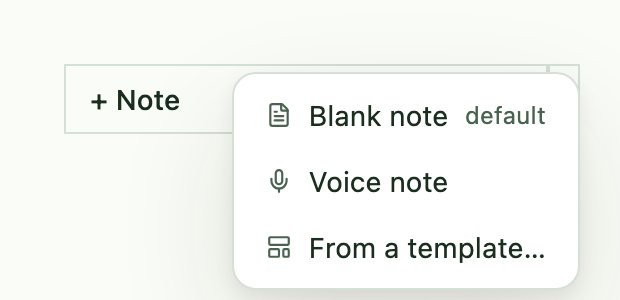
Either way, the block is placed ready, not recording. It shows a Voice note header with Start recording, and nothing is captured until you press that button. A ready block can wait in a note for as long as you like — start it when the meeting does.
Recording
Before the first sentence, the block shows what you are agreeing to:
- By starting, you confirm that all participants have agreed to being recorded and transcribed. Tell people. Graphium records the call quietly; asking is your job.
- Also record the other side (for online meetings) is on by default. Turn it off to record only your own voice — the block then says Only your own voice will be turned into text, which suits dictating thoughts or an in-person chat.
- Headphones keep the other side's voice out of your microphone. Use them for online meetings. Without headphones, the speakers' sound reaches the microphone too and the same words are transcribed twice.
Press Start recording and the header changes to Recording with a running timer. Press Stop when you are done: the recording is saved to your Audio materials ("Meeting …", a .wav file) and the block fills in the rest. A recording also stops and saves itself at the three-hour limit, and when you close the window.
Permissions
| Platform | What the first recording asks for |
|---|---|
| macOS | Screen recording permission to hear the other side (System Settings → Privacy & Security → Screen & System Audio Recording → allow Graphium), and microphone access for your voice |
| Windows | Microphone access, if Windows asks |
Recording the other side on macOS needs macOS 12.3 or later (the system feature it uses arrived then). On macOS 11 or 12.0–12.2, Graphium still runs and can record your own voice — turn off Also record the other side (for online meetings) before you start.
On macOS, if the permission is missing Graphium says Screen recording permission is needed and offers Open Settings. After you allow it, restart Graphium (the Restart button in the same message) — macOS only applies the permission to a freshly started app.
If the microphone cannot be used, Graphium keeps recording the other side, and when you stop it says which side is missing — for example Recording saved to Assets (your voice isn't included).
Taking notes during the meeting Added in v0.96.0 (2026-10-26)
Take notes in the block's header creates a notes page named after this voice note ("Notes for …"), puts an @ link to it right below the block, and opens it in the side peek. You can write in it while the block keeps showing what is said. Press the button again — it now reads Open notes — to reopen the same page.
Clean up and Summarize read this notes page first, then what you wrote around the block in this note, as hints for what the meeting is about and which words are likely (up to 2,000 characters in all). Only the notes page made with this button is read; other pages you @ link are not. Notes pages are ordinary notes, so they also show up in search and in Add to Knowledge.
The transcript block
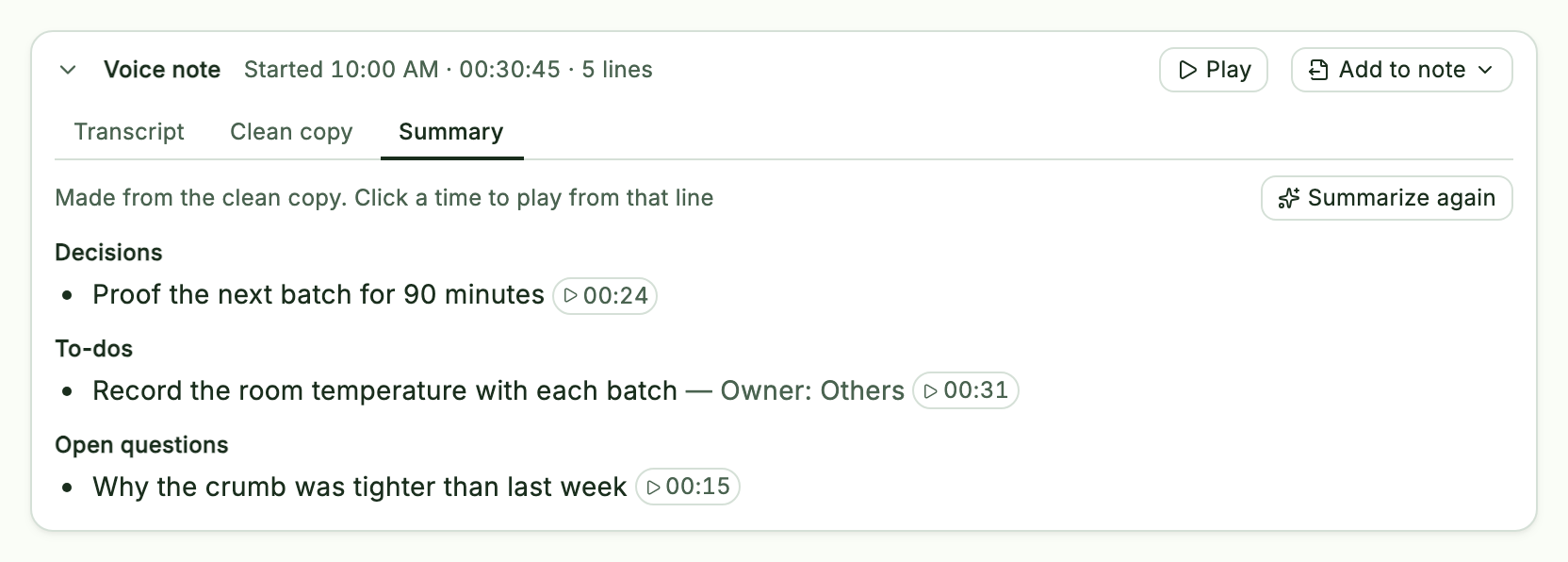
While you record, lines appear in the block with a delay of about 20 seconds: Graphium transcribes the audio in windows as they fill, cutting each one at a pause in the conversation, and finishes the rest after you stop. The header shows Transcribing · N utterances while it works and the block settles to Transcript when it is done.
- Others / Me. Each line starts with its time and Others (the people on the other side) or Me (your microphone). The two sides are kept apart from the start, so the labels are not a guess.
- Play, and click a time. Play plays the recording. Once the recording can be played, each time is a small button with a ▶ mark — in the Transcript, Clean copy and Summary tabs alike — and clicking it plays from that line (Play from this line). The audio loads the first time you press play. Playback mixes both sides to the center.
- Fold / Open, Show all. A long transcript shows the most recent 20 lines; Show all (N more) reveals the rest and Fold hides the block's body.
- Three tabs, one block. Added in v0.92.0 (2026-10-20) A finished block has Transcript, Clean copy and Summary. All three stay inside the block: speech recognition is good but not perfect, so nothing it wrote lands in your note until you choose to add it.
- Clean copy. Clean up asks your AI model to remove the ums and ahs, fix words the speech model misheard (using the conversation and your Frequent terms), and break the text into short paragraphs. It is labeled Tidied by AI. Check what was actually said under Transcript — the Transcript tab keeps what was heard, untouched — and lists the words it changed (Words the AI corrected: …), so a wrong correction is easy to spot. Clean up again redoes it.
- Take notes in the note. Added in v0.92.0 (2026-10-20) Write the agenda or memos in the note around the block, as you normally would. The clean copy uses them to tell what the meeting is about and which words are likely, and the summary uses them to judge what mattered (every summary item still points to what was said). A line of agenda before the meeting is often enough to turn a misheard word into the right one; how well this works also depends on the AI model.
- Write out. First pick what — Transcript (original), Clean copy or Summary — then where it goes. To this note adds it below the block as ordinary paragraphs you can edit — this is where you fix the last misheard words — after whatever you added before. To a new note puts it in a minutes page ("Minutes of …") instead, so this note keeps only your notes and the block: the first time creates the page with an @ link back to this note and puts an @ link to it below the block, and later ones are added to the end of the same page (it then reads To the minutes note). Markdown (.md) or Text (.txt) saves just that part as a file. A file leaves Graphium, so it carries no provenance; with names hidden, it holds the hidden text only. Press → to open the second level from the keyboard and ← to go back.
- Without an AI model. If no AI model is set up, the block shows only the transcript, and Write out adds it. A clean copy or summary you made earlier stays readable in its tab.
- Blocks from v0.91. A block you expanded with Expand to paragraphs in v0.91 keeps its short header (Expanded (N utterances)) and Show original.
- If it stops partway. Transcription stopped partway means the speech model did not finish. What was transcribed is kept; open the recording in your materials and use Transcribe to run it again.
The words themselves live with the recording in your materials, not inside the note file, so a long meeting does not make the note heavy. If you share the note, the recording has to be shared too.
Summary and provenance
In the Summary tab, Summarize asks your AI model for what mattered. It works from the clean copy when there is one — clean up first, so misheard words stay out of the summary — and from the transcript otherwise:
- Decisions, To-dos (with Owner and Due when the conversation named them), and Open questions, each as a short bullet.
- Every item shows the times it came from. Click a time to play the recording from that line and check the AI against what was said.
Press Summarize again to redo it. To put it in your note, choose Write out → Summary: it arrives under a Summary heading with the line Summarized by AI. The time at the end of each item marks where it was said in the recording, and each item ends with its source times, after the owner and due date of a to-do. Adding it again replaces the summary you added before; if you edited that one by hand, Graphium asks first (You've edited the previous summary. Replace it?). A very long meeting — more than 1,500 utterances or 60,000 characters — is too large to summarize in one go.
If a part cannot be cleaned up even after one retry — a local model can get stuck repeating itself — the clean copy keeps that part's original utterances in grey and says which times they cover; with names hidden, that part is left out instead. Clean up again retries it.
Copy in the Clean copy and Summary tabs copies the whole text in the same form as Write out — the hidden text when names are hidden.
The clean copy and the summary need an AI model; set one up in Setting up AI. They use the chat model unless you pick another in Models and settings. They send the text, never the audio, to that model. The summary is written in the language Graphium is displayed in, even if the meeting was mixed; the clean copy keeps each line in the language it was spoken. Transcription itself needs no AI model and no account. Like the transcript, the clean copy and the summary are saved with the recording, not in the note.
What you add to the note is recorded as provenance: added paragraph or summary item → voice note block → transcription → recording. In the PROV-JSON-LD export you can follow it end to end. The transcription step is a system step, so it does not appear in the Step panel as if you had written it.
Hiding names and contact details Added in v0.94.0 (2026-10-21)
Tick Hide names and contact details above the tabs of a voice note block when a meeting should not leave your trusted model with names in it — for example, when you want a frontier model to pick out topics from the note later.
| Placeholder | What it replaces |
|---|---|
| [name] | People's names — the speakers and anyone mentioned |
| [organization] | Companies, schools, clients and other organizations |
| [contact] | Email addresses, phone numbers and postal addresses |
| [number] | Account, membership, employee and other personal ID numbers |
| [redacted] | The words in Always hide these words (Models and settings) |
- Clean up and Summarize ask the model to replace these details, and Graphium then replaces your Always hide these words, email addresses and phone numbers itself, in case the model missed one. The Japanese interface uses [人名], [組織名], [連絡先], [番号] and [伏せ字].
- Write out then offers only a clean copy and a summary made with hiding on. The Transcript is not offered, and a clean copy or summary made before you ticked the box shows Made before hiding until you run it again.
- Features that read the note — Add to Knowledge, AI chat, titling with AI — see only what you added to the note. AI chat no longer receives the block's utterances either.
- The full transcript stays with the recording on this computer, so the Transcript tab still shows what was heard.
What hiding cannot do
- The model that cleans up and summarizes still reads everything. Hiding happens in that step, so pick a model you can trust with the raw text in AI model for clean-up and summaries — for example, one run by your organization.
- A model can miss a name. Read the clean copy before you add it, and put the names that matter in Always hide these words. When a word just before an honorific (さん, 様, 先生 and the like, or Mr. / Dr. in English) is left in the hidden text, the tab lists it under Names that may not be hidden; Add to always-hide words and hide adds them and hides them in the clean copy and the summary without asking the AI again. Common words such as 皆さん or お客様 are not listed.
- It hides who, not what. Unpublished results, compositions, amounts and ideas you have not filed yet stay in the text — hiding them would leave nothing for the topics. For such a meeting, protect the content by the model instead: use a model you trust for Add to Knowledge too (the default model, Settings).
- What you already added to the note stays as it is. Ticking the box does not change paragraphs added earlier.
- A misheard name cannot be corrected, because it is hidden instead.
Models and settings
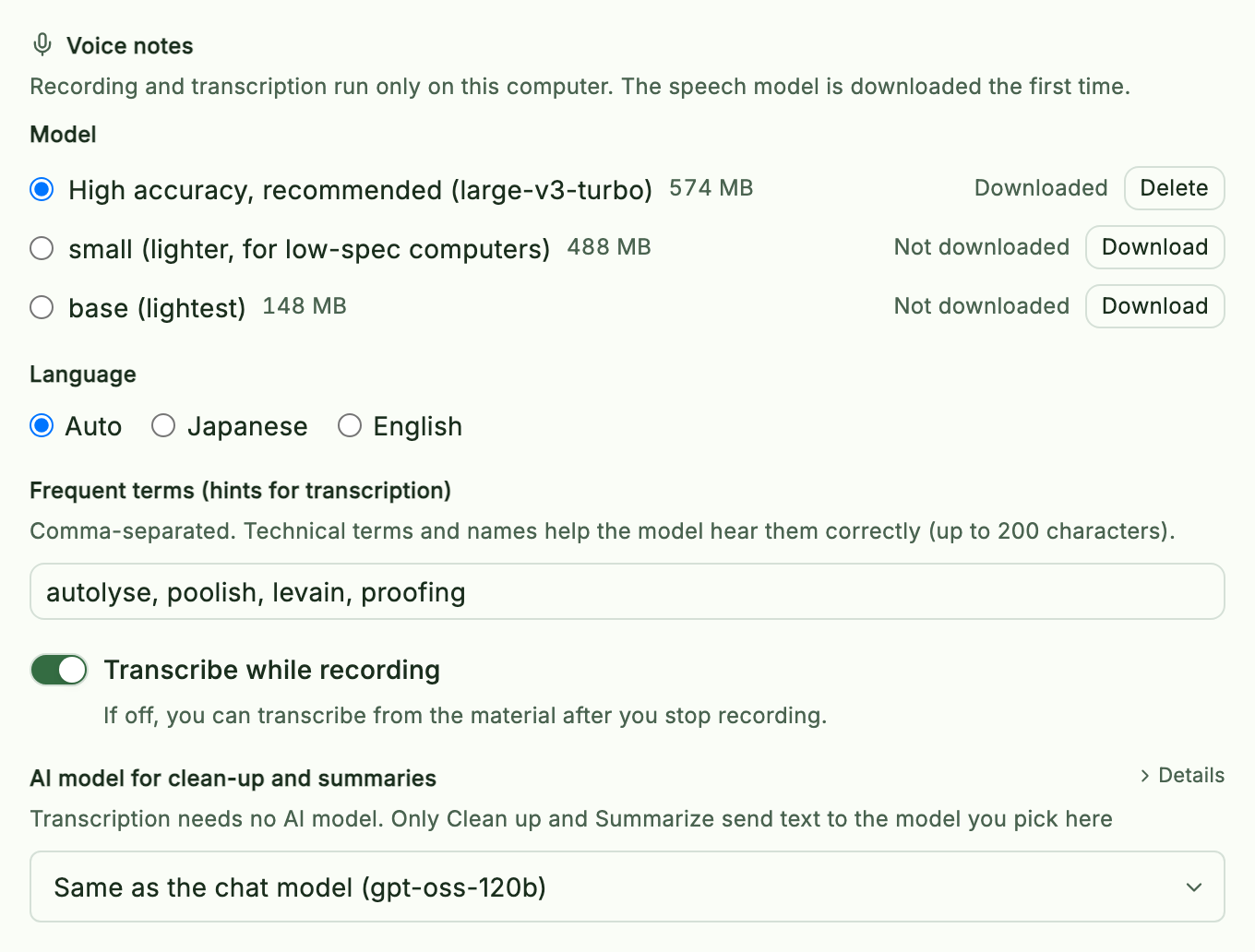
Open Settings → AI → Voice notes (desktop app only).
| Setting | What it does |
|---|---|
| Model | High accuracy, recommended (large-v3-turbo) — 574 MB, the most accurate, and the default. small (488 MB, lighter, for low-spec computers) and base (148 MB, the lightest) trade accuracy for speed. Each one has Download, Cancel while downloading, and Delete once downloaded. |
| Language | Auto, Japanese, or English. If you know the meeting's language, fix it — it is more reliable than Auto. |
| Frequent terms (hints for transcription) | Comma-separated terms, up to 200 characters — product names, people, jargon. The model hears them more reliably. The note's title is used as a hint too, so name your voice note after the topic. |
| Transcribe while recording | On by default. Off means no lines appear during the meeting; after you stop, run Transcribe from the recording's material preview. |
| AI model for clean-up and summaries | Shown once an AI model is registered. Same as the chat model by default; if the chat model is empty too, the default model is used. Pick a stronger model here if the clean copy leaves mishearings in — transcription itself never uses it. |
| Always hide these words | Shown with the AI model. Comma-separated words, up to 300 characters — names of people, clients or projects. In a voice note that hides names and contact details, they always become [redacted], even if the model misses them. |
The model is downloaded once, the first time you need it, and kept on your computer. Until it is downloaded Graphium says The transcription model isn't downloaded yet, so only the recording will be made — the recording is still saved, and you can transcribe it after downloading.
Limits to know about
- Mixed languages. Auto detects Japanese or English for each stretch of speech. A sentence that switches language in the middle can lose the minority-language words. Fix the language in Settings when you can.
- Homophones and names. The model chooses between words that sound alike by context, so technical terms and names can come out wrong. Add them to Frequent terms, let Clean up fix what the conversation makes clear, and correct the rest after Write out.
- Without headphones, the other side is heard twice — once from the call and once through your microphone.
- Two sides only. Everyone on the call is Others. Graphium does not tell individual remote speakers apart.
- Windows runs on the CPU. Transcription on Windows is slower, so the text can trail further behind than 20 seconds. Nothing is skipped — Graphium transcribes what has piled up together.
- Quiet or silent stretches. Silence is skipped on purpose so the speech model does not invent text over it; very quiet speech can be skipped with it.
These are deliberate choices rather than bugs; the thresholds are listed in the FAQ (search for "Meeting transcription").