
Setting up AI
AI in Graphium is optional — the app is a complete note editor without it. Until you register at least one model, every AI control (chat, the Composer, Knowledge generation, AI actions on materials) stays hidden, so nothing nags you to configure anything. This page takes you from zero to a working model: where AI runs, how to add a model, where your API keys live, what each model assignment does, and how to track what AI costs you.
Where AI runs
AI features need a small local backend that talks to your model provider, and that backend ships inside the desktop app — it starts automatically, with nothing to install separately. The browser version is an editor preview with no backend, so its AI controls stay hidden and the AI tab shows an upgrade notice with a Get the desktop app button instead.
There is no Graphium cloud service in between: the backend runs on your own machine and sends requests directly to the provider you configure.
The AI tab
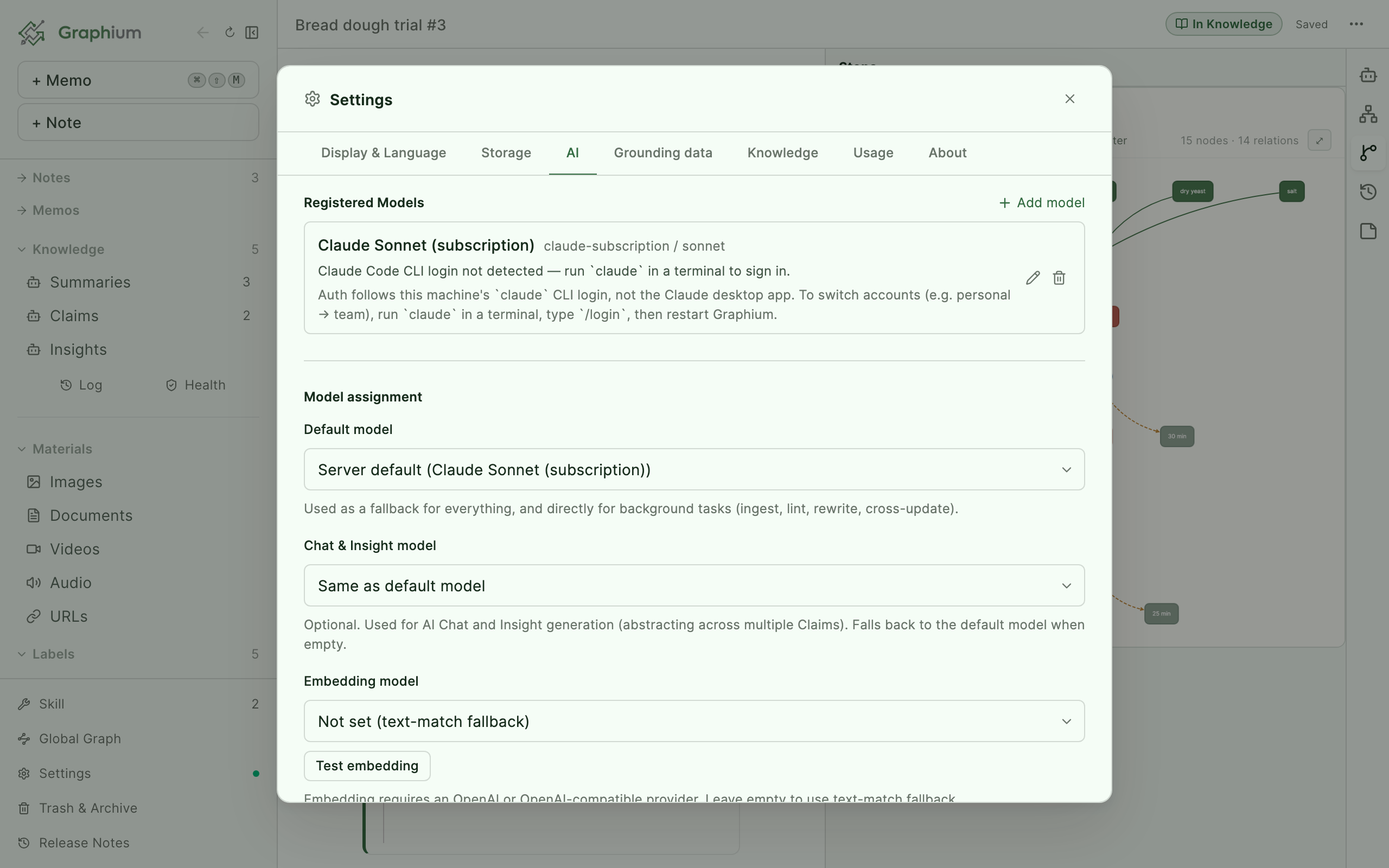
Open Settings and pick the AI tab. Everything on this page lives there, except the Usage tab covered at the end.
Checking the connection
When you launch the desktop app, the backend takes a few seconds to come up. While it does, the Knowledge section in the sidebar reads Starting the backend… and the dot beside Settings stays grey — it turns green once AI is ready. If the backend never comes up, that same section offers a Restart backend button.
The AI tab checks the backend each time you open it. A per-component Connection Status panel lives on the Knowledge tab; when the backend is down, the desktop app also offers a Restart backend button there, with Show log to see what went wrong.
If the backend stops on its own while the app is running, the desktop app shows a banner at the top of the window — The AI backend has stopped. Restart it to use AI features. — with the same Restart backend and Show log buttons, so you don't have to open Settings to recover.
Adding a model
Which provider?
- Already paying for GitHub Copilot? In Settings → AI, click Connect under Use your GitHub account — no API key, prompts count against your existing plan, and MCP tools (web search, etc.) run natively. This is the simplest way to get full AI in Graphium.
- Want to try for free first? Open Connect with an API key (cloud services) and tick Show only services with a free tier. Free tiers differ widely in how they are counted and how far they go, so compare them in AI usage and free tiers before you choose.
- Have an API key? Any of the key-based providers works; the model assignment below lets you mix them.
Choose where to connect Added in v0.95.8 (2026-10-26)
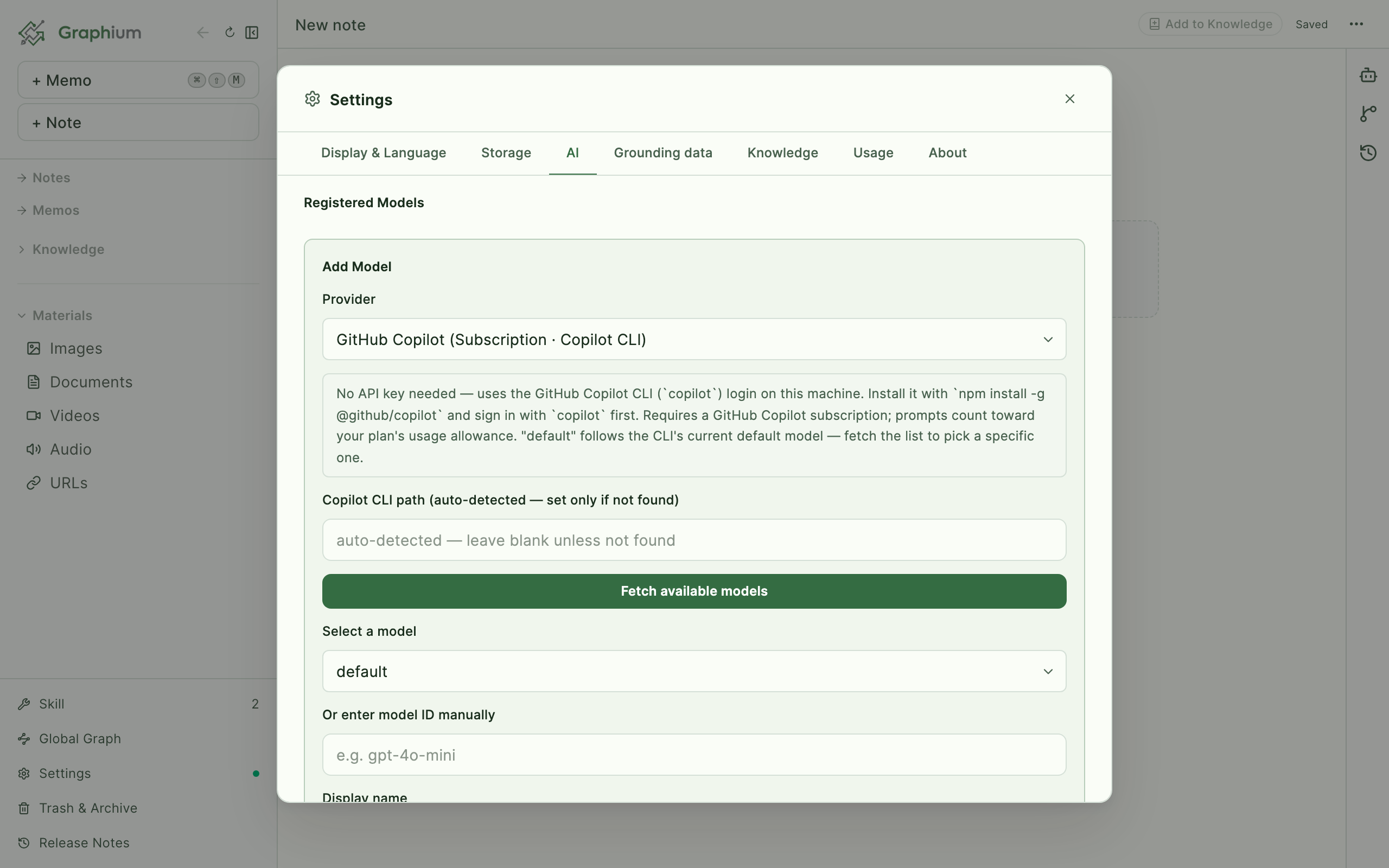
Under Registered Models, click Add model. The first question is Where do you want to connect? While no model is registered, Settings → AI shows this choice as soon as you open it.
| Choice | What happens |
|---|---|
| Add another model from a service you already use | Adds another model with a service (and key) you already use. Shown only when a model is registered |
| Use your GitHub account | Connects GitHub Copilot with one button (below). Desktop app only |
| Connect with an API key (cloud services) | Pick Anthropic, Cloudflare, Google, Mistral, OpenAI, OpenRouter, or Sakura AI Engine and paste a key (below) |
| Run it on this computer | Connects to a model running in LM Studio or Ollama. No key needed |
| Other (enter the address yourself) | Shows the fields in the table below, where you enter the provider and API Base URL yourself |
Once you pick a service, only the fields it needs appear. Paste your key and Graphium checks the connection for you and picks an everyday chat model from the ones you can use. Click Add and you're done. Open Advanced settings only if you want to change the address, model, or display name. Choose another service takes you back.
If you choose Other (enter the address yourself), these are the fields:
| Provider | What you need |
|---|---|
| Anthropic | An Anthropic API key |
| OpenAI | An OpenAI API key |
| Google Gemini | A Google AI API key |
| OpenAI Compatible (Groq, Ollama, etc.) | An API Base URL (e.g. http://localhost:11434 for Ollama) and a key if the endpoint wants one |
| GitHub Copilot (Subscription · Copilot CLI) Added in v0.33.0 (2026-08-13) | A GitHub Copilot plan — no API key (the empty-state button handles sign-in for you; adding it by hand needs the copilot CLI signed in on this machine) |
For the API-key providers: enter your API Key, click Fetch available models, pick one from the list (or use Or enter model ID manually), optionally set a Display name, and click Add. The first model you register becomes the default, and the AI features appear throughout the app. Display names must be unique — adding or renaming a model to a name another one already has is refused with a reason shown right in the form.
A cloud service in your country (example): if you want your data kept in Japan, Sakura Internet's "Sakura AI Engine" is OpenAI-compatible; choose OpenAI Compatible and set the API Base URL to https://api.ai.sakura.ad.jp/v1. Its free base-model plan allows up to 3,000 requests a month (past that, limits apply; billing does not start). Check the official pricing and conditions before you rely on it.
Note: Graphium's developer is an employee of Sakura Internet. This mention is information from a personal development project, not something the company asked for or paid for. Any other OpenAI-compatible endpoint works the same way.
Models on your own machine (Ollama, etc.): small models of about 4–8B parameters can summarize well, but when turning notes into knowledge they sometimes invent numbers or claims that are not in the original note (measured locally in October 2026). For knowledge building, we recommend a cloud model or a larger one. If Ollama's default context length is too large it uses a lot of memory; setting OLLAMA_CONTEXT_LENGTH=32768 or so helps.
LM Studio: a local model can only take as much as its Context Length at load time, and Max Concurrent Predictions above 1 splits that room between requests. When the room runs out, LM Studio only answers "Channel Error"; Graphium then says the local model ran out of room and points you to these two settings. Set Max Concurrent Predictions to 1 and a context length of 16,384 or more for cleaning up a voice note (65,536 for summarizing a long meeting), then eject and load the model again — the new values apply only after reloading. Before a voice note's Clean up or Summarize, Graphium asks LM Studio for the loaded context length and, if it looks too short, says so and lets you Run anyway or Cancel.
Models that think before answering (Qwen 3, Gemma 4 and the like): for a voice note's clean-up they can spend far more on thinking than on writing — in our test a Qwen 3.6 model used about nine times as many tokens thinking as writing, so each part took about five minutes. Clean-up does not need long thinking. The reliable way to turn it off in LM Studio is the model's prompt template: in the model's settings, add {%- set enable_thinking = false %} as the first line of the Prompt Template (Jinja), then load the model again. Whether a model can switch thinking off this way depends on its template. While a clean-up runs, the block shows how many parts are done and, after the first one, about how long is left.
Connect GitHub Copilot with one button Added in v0.92.2 (2026-10-21)
The easiest way to connect GitHub Copilot is the Connect button under Use your GitHub account. Click it and Graphium does the rest: it fetches the Copilot component if your computer does not have one yet, opens GitHub in your browser for you to approve, and registers the model once the connection checks out. If you are already signed in, no approval is needed. If the browser does not open, click Approve with a code, copy the 8-character code, and enter it on GitHub. If Copilot is not turned on for your GitHub account, you will see Turn on Copilot and takes you to your GitHub Copilot settings. Prompts count toward your Copilot plan's usage allowance.
Before you work with research data
What you give the AI — notes, materials, chats — is sent to GitHub Copilot. On personal plans (Copilot Free / Pro / Pro+ / Max), since April 24, 2026, GitHub may use it to train AI models unless you turn this off (Copilot Business and Enterprise are excluded). If you work with unpublished data, click your profile picture on GitHub → Copilot settings and set Allow GitHub to use my data for AI model training to Disabled. The Turn it off in GitHub link under the button opens the same page. See GitHub's Managing Copilot policies as an individual subscriber for details.
Students and teachers: verified students may get Copilot Student, and teachers and researchers may get Copilot Pro, for free (eligibility is reviewed every month). The free education plans are still treated as personal plans, so turn off the use for training as the warning above says. See GitHub's page on free access for the conditions.
When your sign-in expires: GitHub sign-in can lapse after a while. When it does, the top of Settings → AI shows "You have been signed out of GitHub Copilot" — click Sign in again. The same action is available as Sign in to GitHub again on the Copilot model's row in the list. You only approve in the browser; the registered model stays as it is.
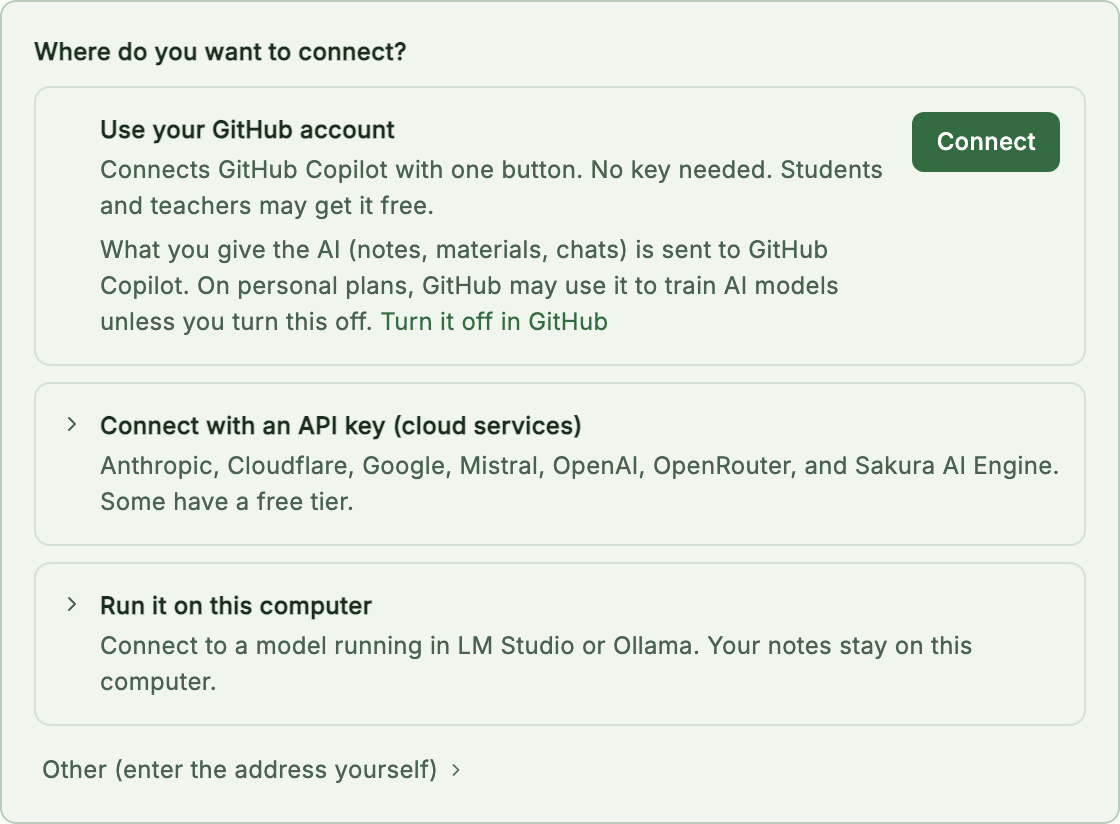
For terminal users: the GitHub Copilot (Subscription · Copilot CLI) provider in Add Model skips the key too. It uses the GitHub Copilot CLI sign-in on this machine, so you can install the CLI with npm install -g @github/copilot and run copilot once in a terminal to sign in. The preselected default model follows the CLI's current default — click Fetch available models to pick a specific one. To switch GitHub accounts later, click Sign in to GitHub again on the Copilot model in Settings → AI and pick the other account in your browser.
The Claude subscription provider was removed
Earlier versions offered a Claude (Subscription · Claude Code) provider that ran AI through a Claude Pro/Max plan. It was removed because Anthropic's terms do not permit third-party apps to use subscription authentication. Any model registered through it disappears from the list on first launch after updating — register another provider instead. Anthropic API keys are unaffected, and the GitHub Copilot provider above fills the same no-API-key role.
Connect with an API key (including services with a free tier) Added in v0.94.8 (2026-10-22)
Open Connect with an API key (cloud services) under Where do you want to connect? to see the cloud services you can connect with a key, in name order, with the same facts for each. Services with and without a free tier are in one list, and none of them is recommended.
- Tick Show only services with a free tier at the top to list only those
- Each service shows three things
- Free tier: roughly how many papers a month, or how many chat turns, in Graphium. Services without one say "No free tier — you pay for what you use"
- Training: whether what you send is used for AI training. For services that do, this line is shown in a warning colour
- Sign-up: what signing up needs
The figures and how to compare the services are in AI usage and free tiers. Compare in detail in the list opens it too.
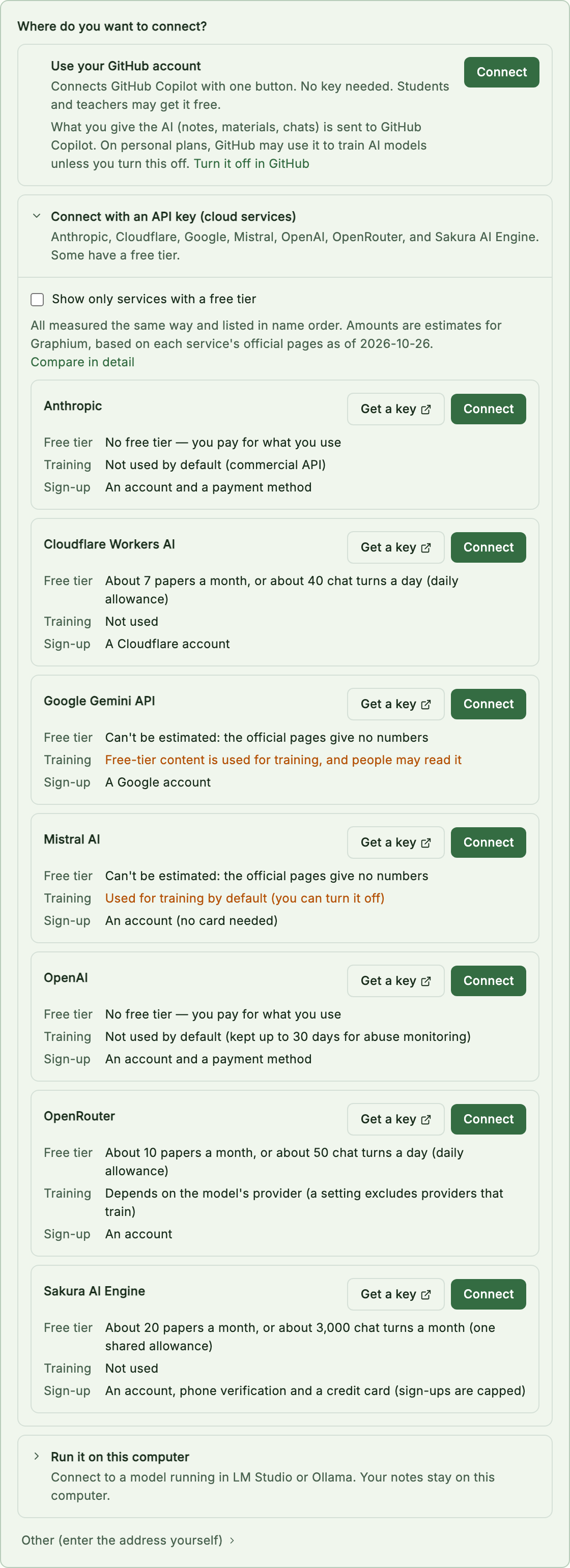
- Get a key opens the page where that service issues API keys
- Connect shows a screen with just the key field. Paste your key and Graphium checks the connection and picks the model the list expects (otherwise the newest of the service's everyday family)
- For Cloudflare Workers AI, an Account ID field also appears. Enter the 32-character ID shown on the right of your Cloudflare dashboard, and the address is filled in
- The figures are as of the date they were checked. Six months after that date, the list says it may be out of date. Check each service's own page for the current terms before you rely on it
Where your API keys live
Keys never leave your machine except to reach the provider you registered. On the macOS desktop app they are stored in the macOS Keychain; on Windows they live in a local file inside your Graphium data folder. Prefer a scoped, spending-capped key — details in SECURITY.md.
Per-model pricing
Click Edit on a registered model to set its Pricing — input and output rates in USD per 1M tokens, both optional. For well-known models Graphium shows a reference price you can apply with one click (Use … / …). These rates feed the cost estimates on the Usage tab; models without pricing simply show token counts.
Model assignment
Model assignment sits right below Registered Models and is always shown. It decides which registered model handles which job. Only the default matters at first — leave the others empty and every AI feature uses the default model; the rest are optional refinements.
Once you have registered a model, Registered Models collapses to a one-line list of names so the assignments stay near the top. Click the heading to open the list again to edit or delete a model.
Assignments remember a model by its display name. Rename a model and the assignments that chose it follow the new name (unless another model already has that name — then the field shows "(not found)" so you can choose again). When you delete a model, the delete confirmation lists the assignments that use it, and deleting it sets them back to empty (the default). If a name that no longer matches any model is left over, its field shows "(not found)"; choose again, or save as is to set it back to empty (the default). If you don't reopen Settings before that name goes stale, AI actions don't quietly switch to a different model — they're refused with a message telling you to pick a model again.
| Assignment | Used for |
|---|---|
| Default model | Fallback for everything, and directly for background tasks (ingest, lint, rewrite) |
| Chat model | AI Chat, lint (AI analysis), and topic merging. Falls back to the default model when empty |
| Embedding model | Semantic search over notes and Knowledge. Requires an OpenAI or OpenAI-compatible provider; leave empty for a text-match fallback. Use Test embedding to verify the model actually supports embeddings before saving. If this field ever shows a name followed by "(cannot be used for embeddings)" — typically after hand-editing settings — that model exists but isn't from an OpenAI-compatible provider; choose another one, or save as is to set it back to empty |
Below Model assignment, two more sections each have their own on/off switch — Use world grounding and Use insights — off the first time you use Graphium, on if you've used it before (turning either off just hides its buttons and results; nothing already saved is lost):
- World grounding: a World-grounding model (optional, falls back to the chat model, then the default — you usually don't need to set it) and an Auto-ground new knowledge toggle (off by default), which world-checks newly created insights and claims in the background. See World grounding for how checks and the local knowledge base work.
- Insight discovery: an Insight model (optional, falls back to the chat model, then the default) plus Test insight model, covered below.
How capable a model does each job need?
Graphium is model-agnostic, but the jobs are not equally demanding. A rough guide:
| Job | What it demands | Works well with |
|---|---|---|
| Claim extraction, topic grouping, chat | Careful reading and faithful extraction | Most mid-size and larger models, including good local ones |
| Insight generation (abstraction across Claims) | The hardest step in the pipeline: lifting domain findings into transferable rules without diluting them into platitudes | A frontier-tier model — for example Claude Opus or Claude Sonnet, or another vendor's flagship. Assign it as the Insight model in the Insight discovery section. "Reasoning-capable" or merely large is not enough by itself: in our testing, a 120B-class open reasoning model produced only restatements of the Claims where a frontier model found real cross-Claim patterns |
| Procedure structuring (PROV extraction) | Strict structured output over long documents | Frontier-tier models are the most reliable here too |
| Embeddings | An embeddings endpoint (not chat) | An embedding-capable model — use Test embedding to verify before saving |
If Insights seem rare or read like restatements of your Claims, switch only the Insight model to a stronger one and run discovery again — the FAQ walks through this one-variable experiment.
Test insight model Added in v0.45.0 (2026-08-25)
Rather than trusting a recommendation, you can measure the model you picked. In the Insight discovery section (turn on Use insights to reveal it), Test insight model next to the Insight model selector runs the selected model once over three bundled test Claims about bread-making and shows the Insights it produced right there.
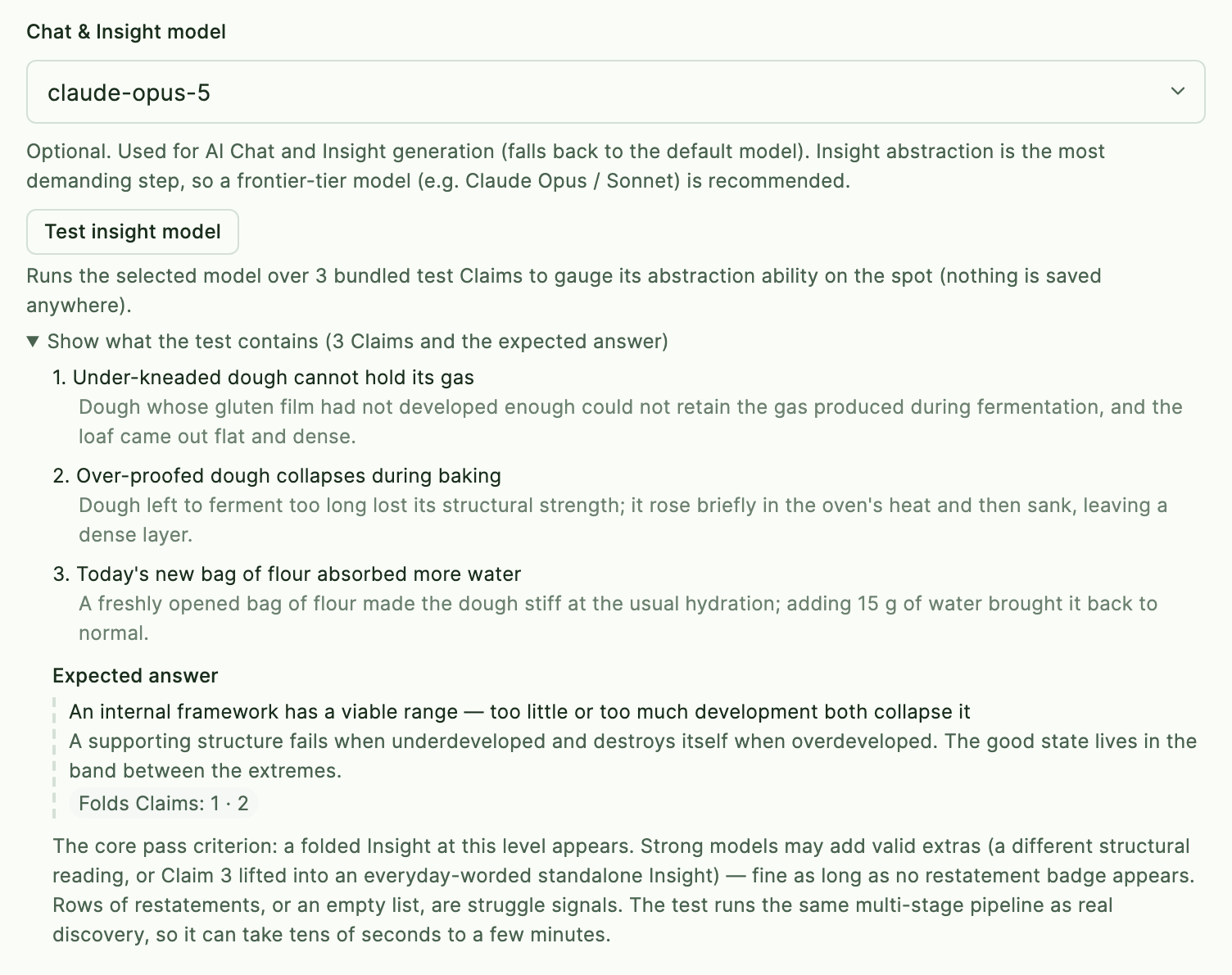
Open Show what the test contains to see the three Claims and the expected answer before running: two of the Claims (under-kneaded dough collapses, over-proofed dough collapses) should fold into one rule about a viable range, and the third — a one-off note about today's flour — is there as noise. A capable model returns that folded Insight; a struggling one returns restatements of the Claims, or nothing.
Each candidate shows which Claims it cites, and a possible restatement badge when its wording barely differs from a source Claim. A summary line counts the folds and restatements so a long result stays readable. The test runs the same multi-stage pipeline as real discovery, so it takes from tens of seconds to a few minutes — that wait is itself a preview of discovery speed with this model.
Nothing from the test is written to your notes or Knowledge: the test Claims live in the app itself, and the result is kept only until you close the app (or press Clear result).
MCP servers Added in v0.13.6 (2026-06-04)
MCP (Model Context Protocol) is an open standard that lets the AI chat call external tools — web search, file access, your own APIs. Graphium connects to MCP servers directly; expand the collapsed Connect external tools (MCP) group and, under MCP Servers, click Add MCP server and pick one of three modes:
| Mode | How it works |
|---|---|
| Paste JSON | Paste the mcpServers JSON straight from a server's README and click Import. Multiple servers, both local and remote, in one paste |
| Manual | Fill the form yourself. Local servers take a Command, Arguments (one per line), and Environment (KEY=value, one per line); Remote servers take an Endpoint URL, a Transport (SSE or Streamable HTTP), and an optional API key |
| From registry | Enter a Registry URL for a Crucible Registry, click Fetch servers, and add candidates from the list |
Local servers are launched and managed by Graphium over stdio, the same way Claude Desktop does — you never start or stop a process yourself. This requires the desktop app, since a browser can't launch local processes. Remote connects to an already-running server by URL.
Every server in the list can be toggled on and off, edited, or removed. One practical tip from the app itself: adding a web-search server (e.g. Tavily) lets External grounding search the live web on any model.
Connecting Asterism. When the Asterism integration is on under Experimental features, a Find and connect Asterism button appears under the server list. It looks for a running Asterism (the desktop app on port 8765, or asterism-local on 8080), registers its /mcp as asterism, and runs the connection test for you. The chat AI can then query your Asterism knowledge graph — which datasets exist, what their rows say, and where each table came from.
Note that this is Graphium as the client, reaching out to other tools. Graphium can also run as an MCP server, so that an assistant outside Graphium — Claude Desktop, Claude Code, Cursor, and others — reads your notes from the outside. See Connecting an AI assistant. The two are independent.
The Usage tab Added in v0.12.0 (2026-05-28)
The Usage tab in Settings shows AI Usage: token consumption per AI feature, so you can see where your budget actually goes.
- Switch the range with Day / Month / Year; the tab shows Total tokens, Estimated cost, a Tokens over time chart, and a By feature breakdown.
- Costs display in USD or JPY — toggle the currency and edit the conversion rate (1 USD = ¥) inline.
- Subscription models are marked Subscription (no per-token cost) — tokens are counted, but no cost is estimated.
- Changed a model's pricing after the fact? Recalculate cost recomputes the last 90 days of events with the current per-model rates. Older monthly summaries are unaffected.
Usage tracking runs on the backend, so it is part of the desktop app.
Next steps
With a model registered, the AI surfaces light up across the app: AI chat and the Composer, the Knowledge layer, and world grounding.