
Materials & citations
Research rarely starts from a blank page — it starts from a paper, a web page, a photo of a whiteboard. Graphium keeps those external sources as materials: first-class items with their own gallery, reader view, memos, and graph, so every note you write can point back to the evidence it came from. This page covers bringing material in, reading and quoting it, extracting text from images, translating PDFs, and citing materials and knowledge inside your notes.
The material gallery
The sidebar has a Materials section with one entry per type: Memos, Images, Documents (PDFs, Word, PowerPoint, and Excel files), Data (the .csv / .txt / .dat files instruments write, imported as tables), Videos, Audio, and URLs. Click any of them to open the gallery.
Inside the gallery you can:
| Control | What it does |
|---|---|
| Gallery / List | Switch between thumbnail cards and a table with Name, Date, Used in, and Size columns |
| Search box | Filter materials by name (typing an extension such as .m4a works too) |
| All / PDF / Word / Excel / PowerPoint | In Documents, show one kind of file. Older .doc / .xls / .ppt files count with Word, Excel, and PowerPoint. Only kinds you have at least one file of are listed |
| Upload | Upload files of the current type. Like Add PDF below, they go through the intake sheet, so you see progress and a report |
| Add URL | Register a web page as a URL bookmark |
| Add PDF / Add Word | Add PDF or Word files as materials — no note is created. They go through the same intake sheet as Bring in what you already have, so you see progress and a report, and the work keeps going if you move to another screen |
| Checkboxes | Multi-select for bulk download, delete, or bulk AI actions — in either view. Drag across items, or shift-click, to select a range |
Checkboxes work in both views: in Gallery they sit in the top-left corner of each tile (hover a tile to reveal one; once anything is selected they stay visible on every tile), and the checkbox next to the sort buttons selects or clears everything currently listed. Either way the same selection bar appears above the materials, carrying the bulk actions — folder, download, delete, the AI actions, and Share with team where a shared library is set up. Added in v0.59.0 (2026-09-07)
The Used in count tracks which notes reference each material. When you try to delete a material that notes still use, Graphium recommends Archive (recommended) instead — archiving hides it from the library while keeping existing references working.
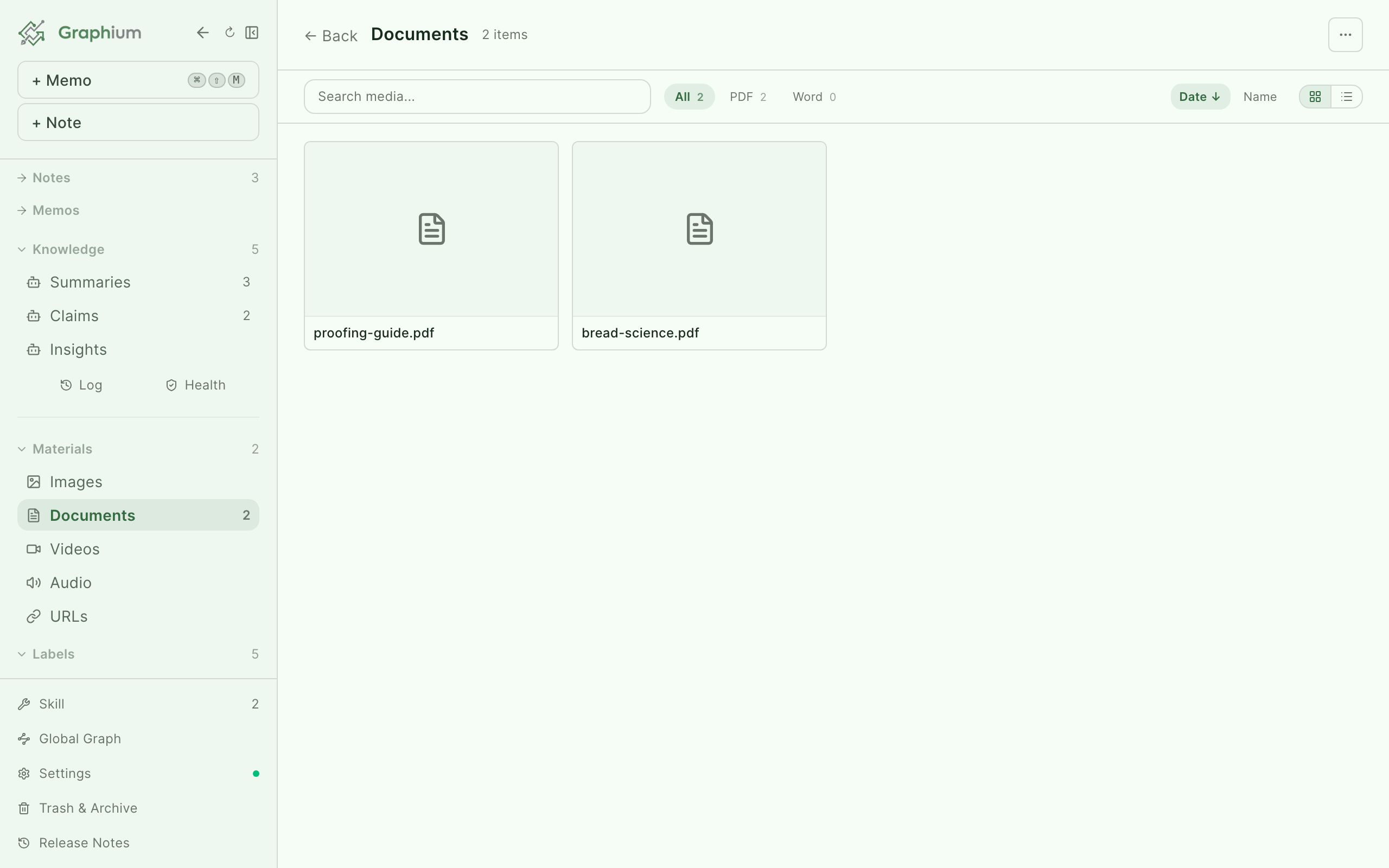
Seeing and sorting by page count Added in v0.89.0 (2026-10-14)
Under Documents, PDF, Word and PowerPoint files show how many pages they have: in the Pages column of the list view, and in the bottom-right corner of each card in the gallery view. Click Pages (the column, or the button in the gallery) to put the longest documents first; click again for the shortest. It lets you spot a very long document before you send it to Knowledge.
PDFs use their real page count, PowerPoint files their number of slides, and Word files the page count saved in the file. A .docx written by something other than Word may not carry one; those, Excel files and the older .doc / .ppt formats show —. Materials you already had are counted one at a time in the background after the app starts, and each one appears in the list as soon as it is counted. Hover — to see why there is no number: the kind is not counted, it has not been reached yet, or the file could not be read.
Using the title inside the file as the name Added in v0.89.0 (2026-10-14)
A document still called scan_0012.pdf or Document1.docx can be renamed from the title written inside it. This works for PDF, Word and PowerPoint files.
- One at a time: open the material and choose Rename using the title inside the file from the ⋯ menu at the top right. The title fills the name field; edit it if needed and press Enter (Esc cancels).
- Several at once: select them and click Rename N by title. Each file is listed as "current name → new name"; keep the rows you want checked, edit any new name in place, and click Rename N.
The title comes from the file's properties first. When that is empty or meaningless (such as "Microsoft Word - ….docx"), it is taken from the body instead: the largest line on the first page of a PDF, the Title or Heading 1 paragraph of a Word file, or the title of the first slide in PowerPoint. The original extension is kept. A title taken from the body can occasionally pick up something like a journal name, so take a look before you confirm.
Where a material came from (authors, year, publisher, DOI) Added in v0.90.1 (2026-10-20)
PDFs, documents and URL bookmarks can carry four pieces of source information: Authors, Year, Published in (a journal, site or publisher) and DOI. They appear in the Source block of the material's metadata, and show as Not set until filled in.
- When a PDF is brought in, Graphium reads the DOI and the author names stored inside the file, on your device. The year is never taken from the file, because a PDF's creation date is not its publication year.
- Edit lets you type any of the four by hand. Separate several authors with
;. - Fill in from DOI looks the DOI up and fills in the authors, year and publisher. This is the only time anything is sent outside: when you press it, the DOI alone is sent to Crossref (
api.crossref.org). Nothing is sent automatically. If the material has no DOI yet, a PDF is first searched for one inside the file.
The gallery list shows a short line under each name, such as Farris et al. · 2025 · JACS Au. The gallery search, Cmd+K and the search_media tool of the MCP server all search these fields, so typing something like "Leonard 2025" finds the paper.
Bringing material in
There are several routes, all ending in the same library:
| Route | How |
|---|---|
| Drag & drop or paste | Drop a file into a note (or paste an image from the clipboard). It is uploaded to your library and inserted as a block. Images that arrive as part of copied web-page content are also captured into the library, so they keep working even if the original page goes away |
| Slash menu | Type / and pick Image, Video, Audio, Document ("Upload new or insert existing PDF / Word"), or Data (turns a .csv / .txt / .dat into a table). The picker offers Upload from file and an Insert as choice: Embed (content expands inline) or Link (an @-link; content stays collapsed) |
| Paste a URL | Pasting a URL into a note opens a small menu: Link ("Paste as inline text") or Bookmark ("Display as a card with preview"). Either way the URL is registered in the URLs gallery |
| Links already in a note | Clicking a link that is not registered yet — for example one written into the note by an AI chat answer — opens the side peek with an Add to materials button in the header. Review the page first, then register it: the URL joins the URLs gallery and appears in graphs. Nothing is registered automatically |
| Slash menu Bookmark / PDF | Insert a URL card or an embedded PDF viewer directly as a block |
| Gallery buttons | Upload, Add URL, Add PDF, Add Word — add materials without touching any note |
| Bring in what you already have | One intake sheet takes in files and folders you already have on disk — see Bring in what you already have below |
| Mobile capture | Photos and memos captured on your phone land in an inbox — see Mobile |
Word files get extra care: the built-in preview converts formats browsers cannot show (EMF and TIFF, common in documents with pasted Excel charts), and the material menu's Extract embedded images pulls the embedded images out of a PDF or Word file and registers them as image materials of their own.
PowerPoint and Excel files brought in through the intake sheet (below) get their own treatment too: a .pptx keeps its slide text searchable and pulls its embedded pictures out as image materials, and a .xlsx turns each sheet into its own CSV data material (named <workbook> / <sheet>.csv) so it flows through the same table import as any other delimited data. Added in v0.65.0 (2026-09-08) A .pptx or .xlsx already sitting in your library that hasn't been expanded yet — for example, one added through Upload in the gallery — can still be expanded later from the material menu (Extract slides and images / Turn sheets into tables). Added in v0.66.0 (2026-09-08)
Bring in what you already have Added in v0.63.0 (2026-09-08)
There are four ways in: Bring in files in the sidebar, the Bring in files chip at the top of an empty note, the empty-state receptacle in the note list and material gallery, or dropping a folder or files anywhere in the window (a banner appears while you drag).
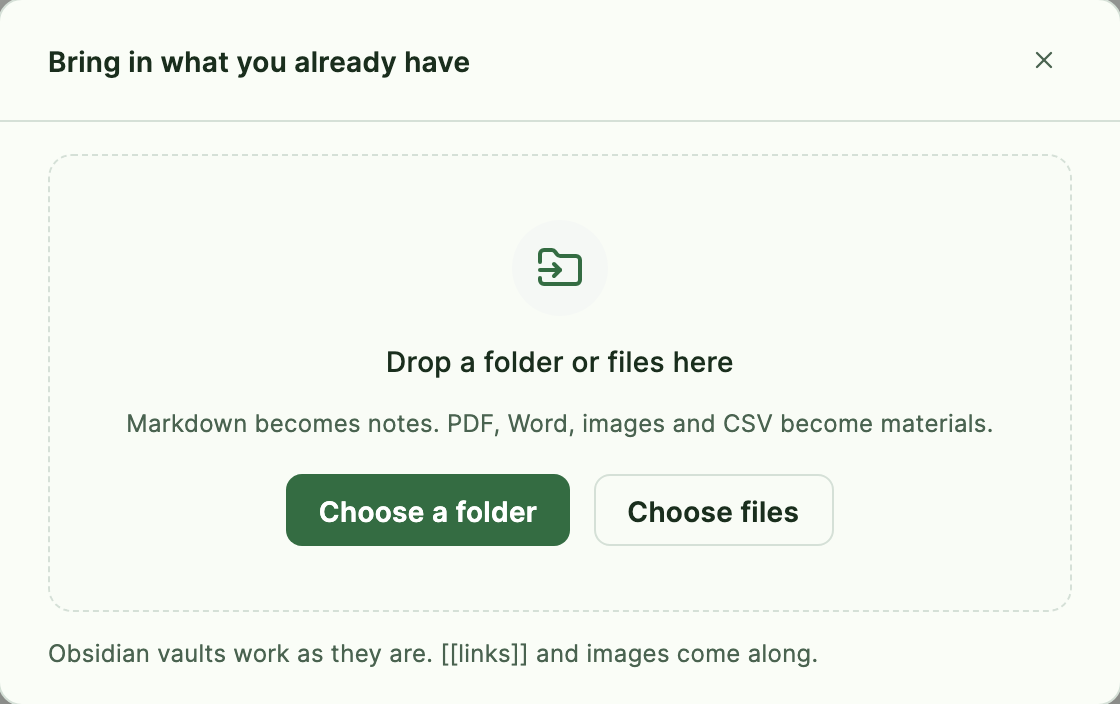
The rule is one sentence: Markdown becomes notes. PDF, Office files, images and CSV become materials. Audio, video, and delimited data (.csv / .tsv / .txt / .dat) are materials too. A .pptx or .xlsx is expanded on the way in — see above. Old-style .doc / .xls / .ppt files are not taken in yet — the report lists them by extension and count instead of dropping them silently. The same goes for anything else Graphium can't open, such as archives or files without an extension. Hidden files and folders (names starting with ., such as .git or .obsidian) are left out.
In the desktop app, choosing a folder never reads files of a type Graphium can't take in, so a folder of old data full of such files is still quick to go through. Up to 500,000 files that can be taken in are handled in one go; for anything larger, the app asks whether to bring in the first 500,000 or choose a smaller folder.
Whatever order files sit in inside a dropped folder carries over as Graphium folders, for both notes and materials. The name of the folder you dropped is not used as a folder itself.
Obsidian vaults work as they are. [[wikilinks]] are resolved first against files in the same batch, then against your existing notes and knowledge entries by title, and images they reference come along too. Links that cannot be resolved stay as plain text.
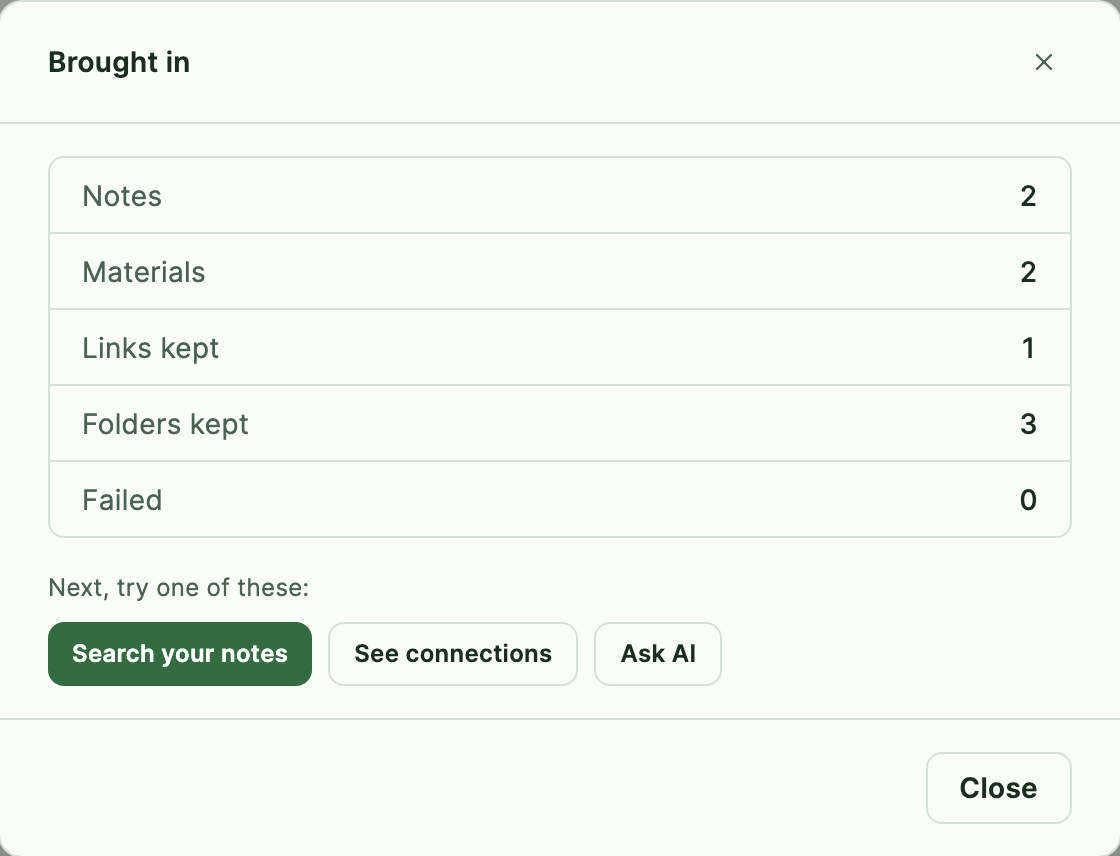
When it finishes, a Brought in report breaks down what happened: notes, materials (with N already in your library for anything that matched something already in the library), links kept, folders kept, failures, and skipped files — plus a note of how many materials were extracted from PowerPoint / Excel files, when any were. From there you can Search your notes, See connections, or Ask AI — or Set up AI first if no model is configured yet. If AI is already set up and anything new came in, Add all to knowledge sends everything you just brought in through the same pipeline as selecting notes or materials one by one and building knowledge from them; items already in your library before this batch are left out, same as the note and material counts above. Added in v0.76.0 (2026-09-16)
Any images among the materials are not read on the spot — the report says the text will be read afterward, and reading happens in the background, one image at a time, right after intake finishes. Once it is done the text counts toward search and Cmd+K, same as reading text from images started any other way. Added in v0.65.0 (2026-09-08)
In the desktop app, choosing a folder lists the folder itself instead of handing that job to the browser. While it lines files up it shows how many files and folders it has found so far, and you can press Stop to give up partway through. That's faster than the browser path, but a very large folder — tens of thousands of files on a network drive, say — can still take a few minutes to line up. Added in v0.76.7 (2026-09-16)
In the browser, choosing a folder shows Looking through the folder… until every file inside has been listed, and on a network drive that alone can take a few minutes; the progress bar appears only after it. Dragging a folder in is listed by the browser either way and shows nothing at all while it works, so for a folder on a network drive, choose it rather than dragging it. A large folder takes a while to bring in either way. In the desktop app on macOS you can move on to other work in the meantime: intake, and the image reading that follows it, keep going while the Graphium window is behind other apps or on another desktop. Minimizing the window slows them down, so leave it open instead.
Notes follow the same idea as materials (see below): a Markdown file whose contents match one you already brought in is not re-imported, and the report shows N already in your notes next to the notes count. The check reads the contents, not the name, so a renamed copy still counts as the same file. If the contents changed, it comes in as a new note. A note you have since edited in Graphium is never touched: re-importing the unchanged original is simply recognized as already brought in, and a changed original arrives as a new note beside your edited one. Added in v0.65.0 (2026-09-08)
Bringing the same file in twice Added in v0.37.0 (2026-08-14)
A file that is already in your library is reused rather than registered a second time. The check reads the contents, not the name: a renamed copy counts as the same material, and two different photos that both arrived as IMG_0001.jpg stay apart. A material is one artefact used from many notes, so a second copy would only split its extracted text, its memos and its list of notes in two. This holds for every route in the table above, images and video and audio and PDF and Word and data files alike.
Two cases are left as they were. An archived material is never reused: if you retired it from the gallery, a fresh upload registers a new material instead of quietly bringing the old one back. Files above roughly 128 MB are registered without the check, because reading one end to end to compare it costs more than the duplicate does.
Materials registered before v0.37.0 are read once in the background after you sign in, to give them the mark the check relies on. Until that pass reaches a given material, bringing it in again still adds a copy. A large library takes a while, and closing the app is safe — the next launch picks up where it left off.
Reading materials: side peek and reader view Added in v0.9.2 (2026-05-26)
Clicking a material opens it in a side peek next to your note, so you can read without leaving what you are writing. Use Open in full view for a full-screen reading layout.
Added in v0.84.0 (2026-09-30) An image in a note opens the same way: double-click the image to open it in the full view; closing the full view takes you back to the note. Or select it and press Open in side peek in the toolbar to see it in the panel beside the note, with the material's details, the notes that use it, and the full view one click away. The button and the double-click only work for images that are in your materials — an image linked from another site has no material to open.- PDFs render with a selectable text layer, zoom controls, and page navigation.
- URLs open in Reader Mode — a cleaned-up article view fetched from the page. Reader images can be saved into your library with Save image. If the URL is not in your library yet, the header shows Add to materials, so you can check a page before deciding to keep it. Added in v0.29.0 (2026-08-05)
- Word files (.docx) get an inline preview.
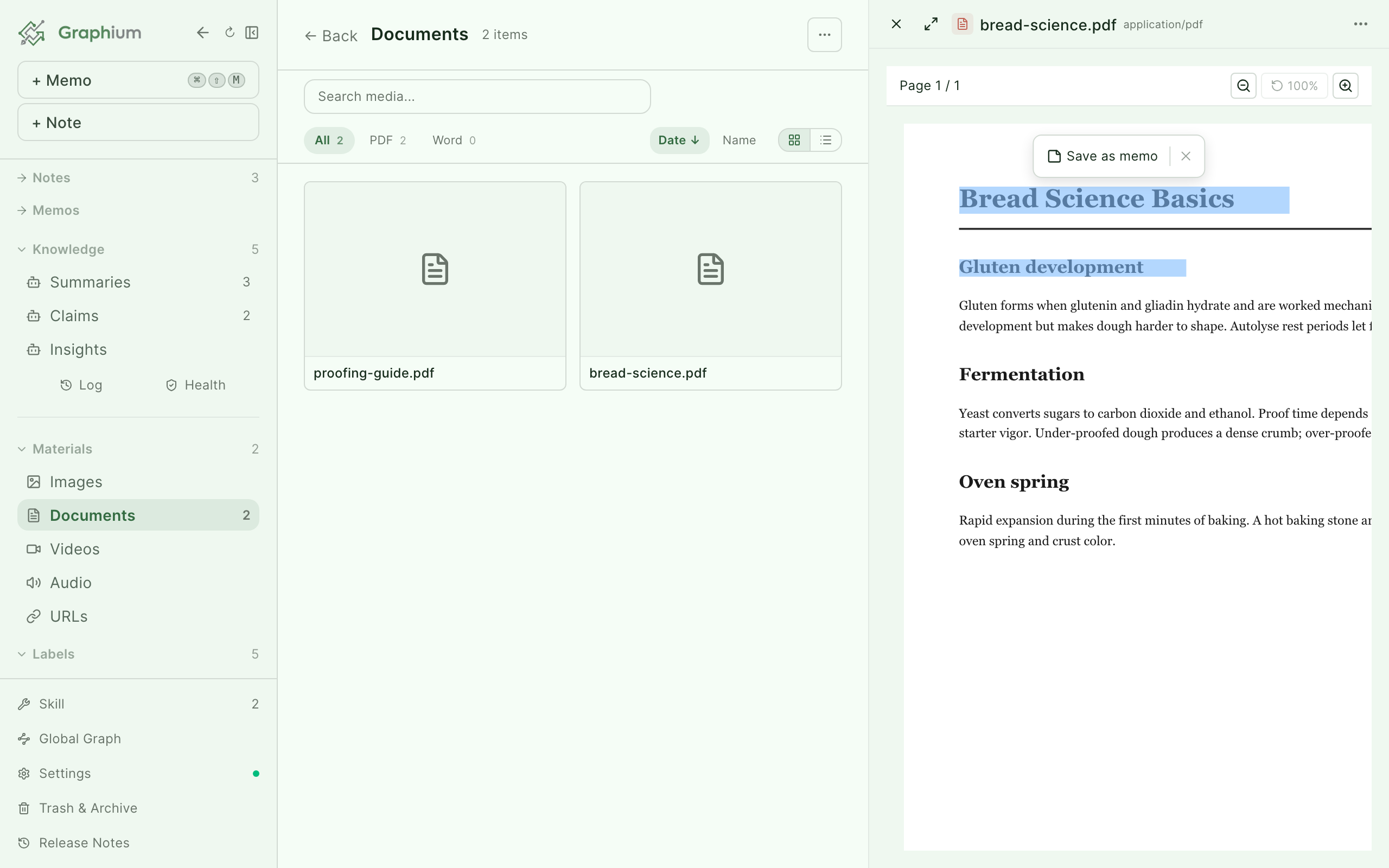
Select text in a PDF, Word preview, or URL reader and a small pill appears: Save as memo. The selection becomes a quote memo with its source attached — collect quotes while reading, then insert them into notes later via the / menu's Memo item ("Insert from saved memos"). When inserting, Graphium asks whether to Insert and keep memo or Insert and delete memo. Quote memos with a source are inserted as quote blocks with a "— source" attribution line.
Finding text in a PDF Added in v0.68.0 (2026-09-08)
⌘F (Ctrl+F on Windows/Linux) searches inside the PDF while your pointer is over the viewer — or click the magnifier in the viewer's toolbar. Every match in the document is highlighted, with the current one in orange and a counter beside the box ("2/37"); Enter jumps to the next match, Shift+Enter to the previous, Match case toggles case sensitivity, and Esc closes the bar. Matches that run across a line break are found as written, so searching for thin film still finds it where the line broke after thin. When your pointer is somewhere else, ⌘F goes to whatever else is on screen — Find in note while you are writing, or the search box of the material list you came from. The two find bars never open at the same time.
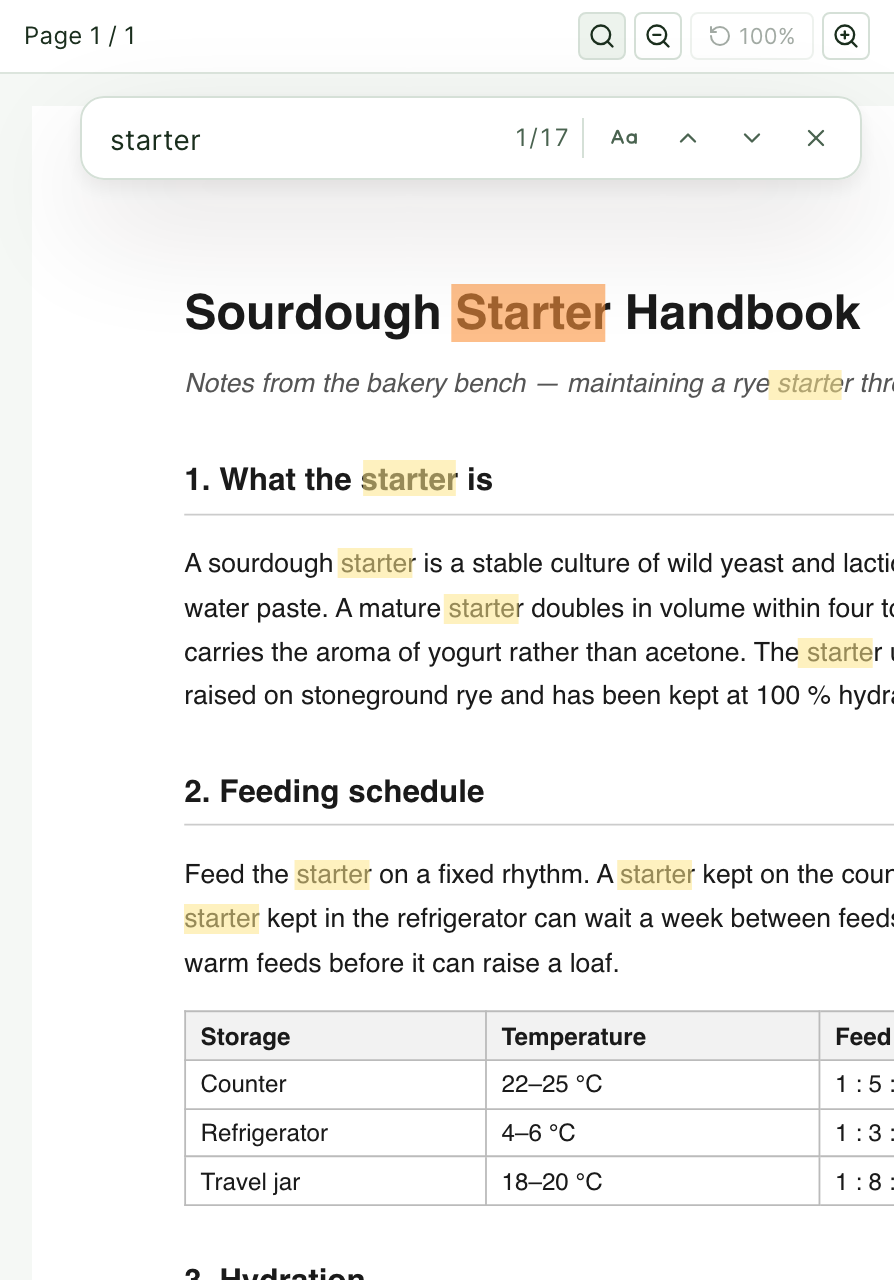
The highlight follows the PDF's text layer, which pdf.js lays out with a substitute font and stretches to the width of each run. Where the substitute's letter shapes differ from the PDF's own font, a highlight can sit a fraction of a character off; the count, the jumps and the text you select are exact.
Per-material memos, chat, and graph
Every material carries its own workspace. In full view, the right panel has four tabs:
| Tab | What it shows |
|---|---|
| Memos | Memos attached to this material — quotes you saved plus anything you write in the box |
| Asset graph | A graph of the notes that use this material; click a node to open the note |
| Metadata | File details, and per-type actions like Extract embedded images |
| Ask AI | A chat scoped to this material — ask questions about the document (needs AI) |
Everything except Ask AI works without any AI setup.
Turning materials into notes and knowledge (AI)
The menu on a PDF, Word, or URL material offers three AI-powered conversions. All of them need a configured model — see AI setup.
- Extract steps into a note — reads the source and builds a structured note with steps, labels, and highlights already in place, ready for the provenance graph.
- Translate into a note Added in v0.14.0 (2026-06-05) — translates the full PDF or web page into your display language, page by page, keeping the original structure. A glossary is extracted first so terminology stays consistent, and embedded figures are placed back near their captions in the translated note.
- Add to Knowledge — distills the source into your Knowledge layer.
Bulk versions of these appear when you multi-select materials in the gallery. Memos have an equivalent: select memos in the Memos gallery and turn them into Knowledge in one step.
Reading text from images (OCR) Added in v0.21.0 (2026-07-26)
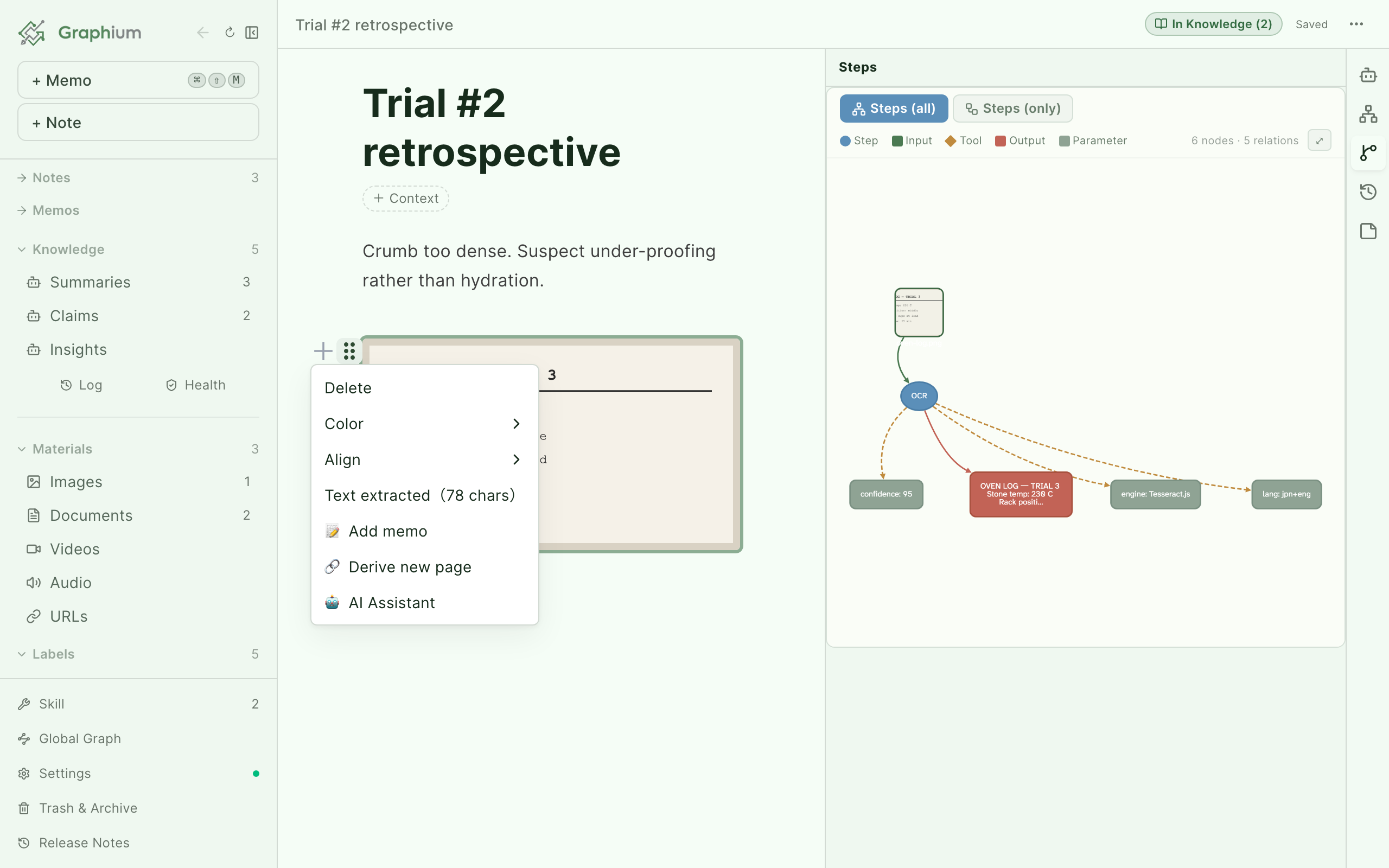
Graphium can read the text inside any image — instrument screenshots, plots, photos of labels — entirely on your device using Tesseract. No LLM is involved and no AI setup is needed; the image never leaves your machine (only the OCR engine and its language data are fetched from the web).
Three ways in:
- Click an image block — the toolbar shows Read text from image.
- The same item lives in the block's drag-handle (⠿) menu.
- Images newly added while a note is open are read automatically, with a progress toast so nothing runs silently.
Once extracted, the text works for you in several places: note search matches it (results show an image text badge), the Composer finds the image itself by the words inside it Added in v0.35.0 (2026-08-13), and you can view and Copy the raw text from the image toolbar.
Citing knowledge in a note Added in v0.12.3 (2026-05-29)
Under the / menu's "Existing knowledge" group, Claims and Insights open a picker over your Knowledge layer entries. Search by title, select several at once, and press Insert (⌘Enter, Ctrl+Enter on Windows/Linux). Each citation is inserted as an @-link and recorded as a reference, so the note's Graph tab shows an edge from your note to the cited knowledge.
Citing itself calls no AI — it just links existing entries. AI features like the Composer then use those citations as context.
@-mentions of materials
Type @ in a note and the mention menu lists notes to link — plus a Document materials group with your PDFs and Word files. Mentioning a material inserts an @-link and registers the document as cited by the note, which means the Composer and AI chat can read its text (as much of it as the chat's context budget allows) and your highlight memos when answering questions about that note. (Choosing Link in the media picker does the same thing.)
The mention is a plain link — no AI runs until you actually ask something.
Block-anchored memos Added in v0.19.2 (2026-07-23)
Sometimes a thought belongs to one specific block — a doubt about a measurement, a reminder to re-run a step. Open the block's drag-handle (⠿) menu and choose Add memo to attach a memo to that exact block.
Anchored memos appear in the note's Memos panel with a Linked block chip showing the block's current text — the chip follows the block as you edit it. Click the chip to scroll to and highlight the block. If the block is later deleted, the chip keeps the last text it saw, so the memo still tells you what it was about.
Everything points back to its source
Lineage is the quiet thread through all of this — nothing you derive loses track of where it came from:
- A note created by Extract steps into a note or Translate into a note gets a Source tab in its right panel, holding the original document.
- Knowledge entries list their origins in a Derived from section — source notes, PDFs, URLs, Word files, chats, and memos alike. Clicking a source opens the material in a side peek.
- Quote memos carry their source attribution into any note they are inserted into.
- Material nodes in the note graph and network graph open the material directly.
TIP
This is the same PROV-DM provenance model that powers step labels — see Labels & provenance for the full picture.