
Mobile capture
Ideas rarely arrive while you sit at your desk. Graphium treats your phone as a capture device for your desktop brain — a place to jot memos, snap photos, and save links that you will organize, cite, and grow into knowledge later on your computer. It is deliberately not a standalone phone note app: the thinking happens on the desktop, and the phone feeds it.
Quick memos on the desktop
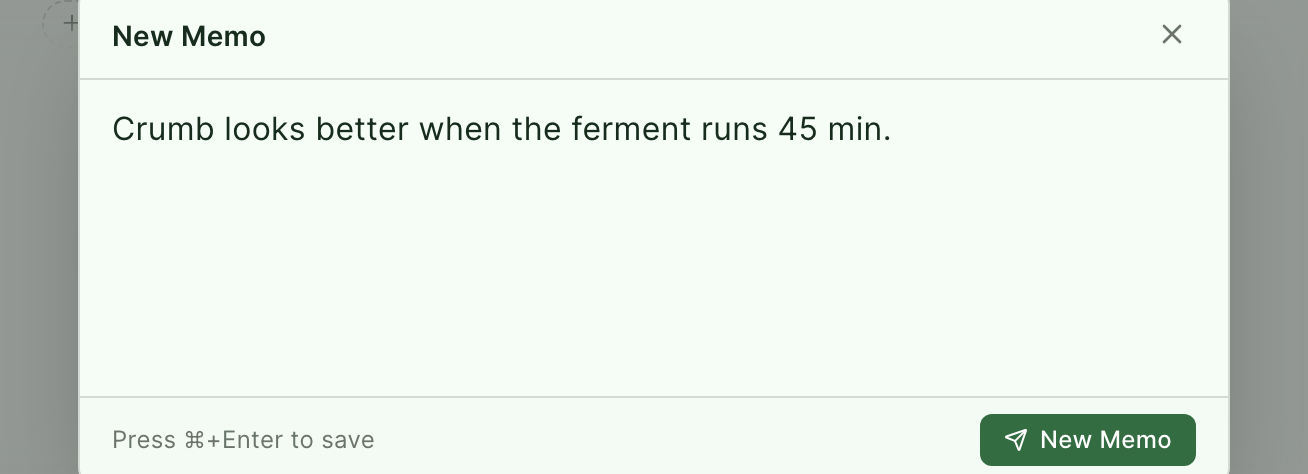
The fastest capture doesn't need your phone at all. Press ⌘⇧M (Ctrl+Shift+M on Windows/Linux) anywhere in Graphium to open a quick memo dialog, type your thought, and press ⌘Enter to save. The memo lands in your memo collection without touching the note you were writing.
Other ways in:
| Entry point | Where |
|---|---|
| + beside Memos | In the sidebar's Materials section — hover the Memos row |
| New Memo | Button at the top of the memo gallery |
| File → New Memo | Native menu in the desktop app, same ⌘⇧M shortcut |
| Save as memo | While reading a PDF or web page in materials, select text to quote it into a memo |
The phone view
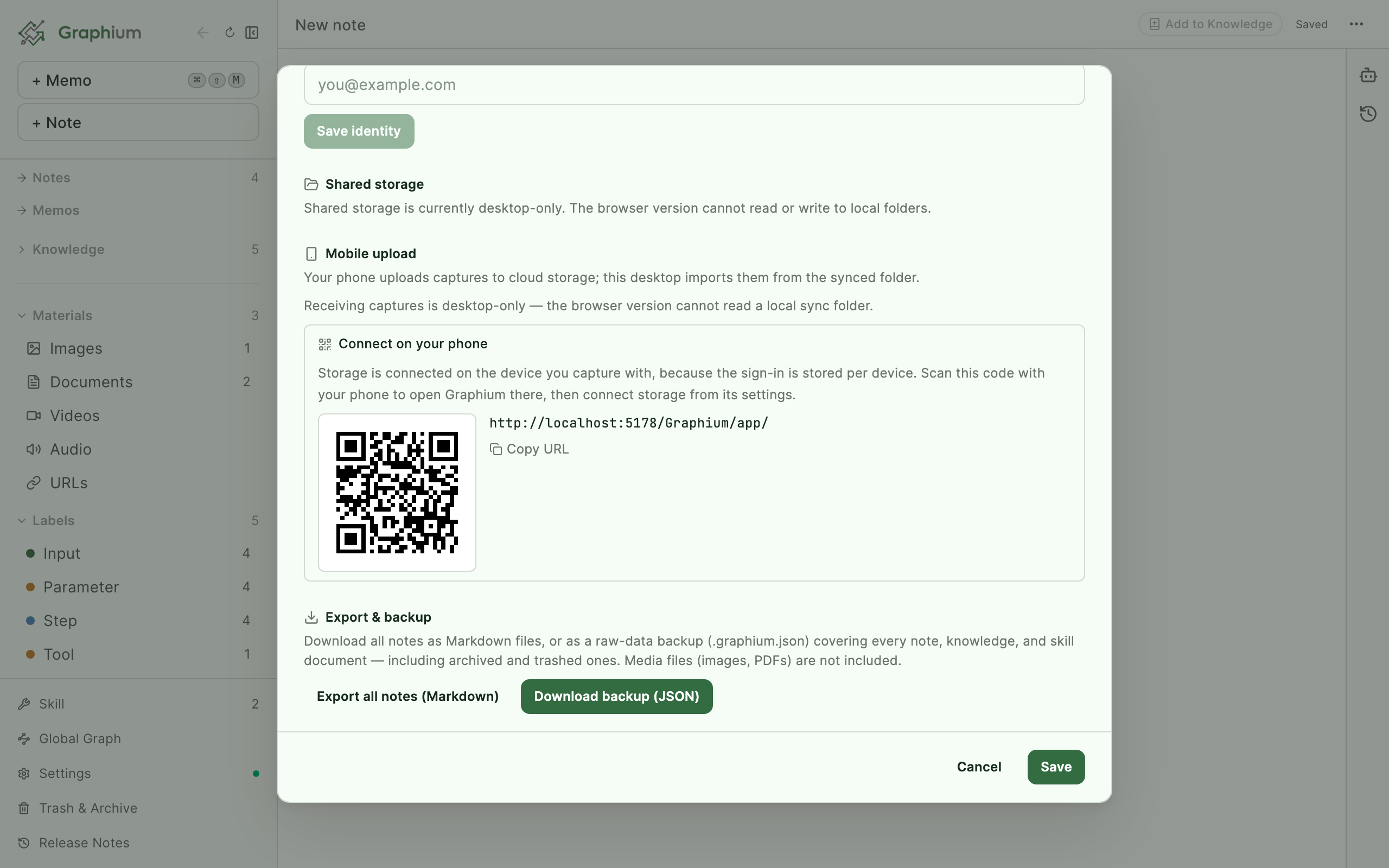
Open the app in your phone's browser — the QR code in the desktop's Settings → Storage → Share with other people → Send from your phone gets you there in one scan. On a phone, Graphium shows a home built for capture: your capture history under Captures, and a capture bar fixed at the bottom with six ways in — Write, URL, Photo, Video, Voice, and Library.
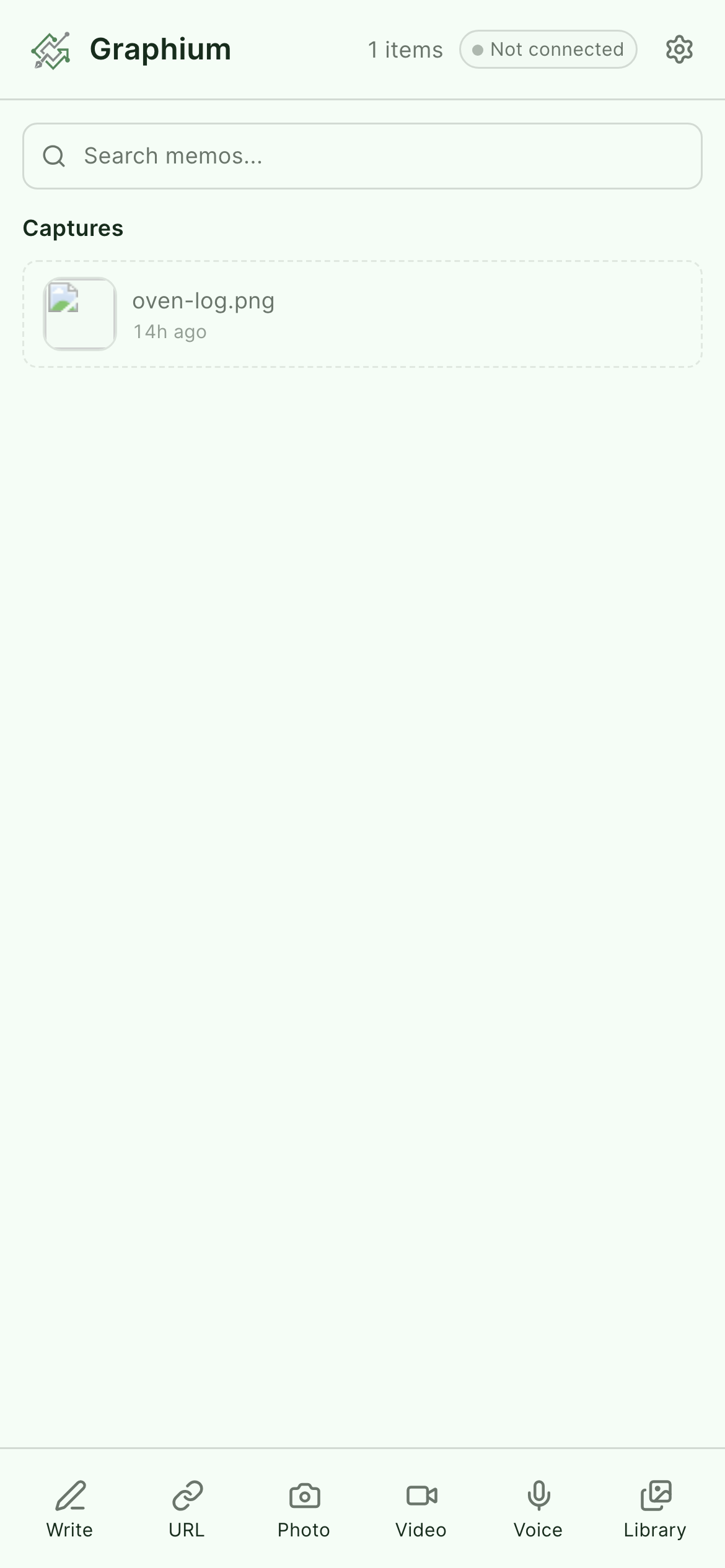
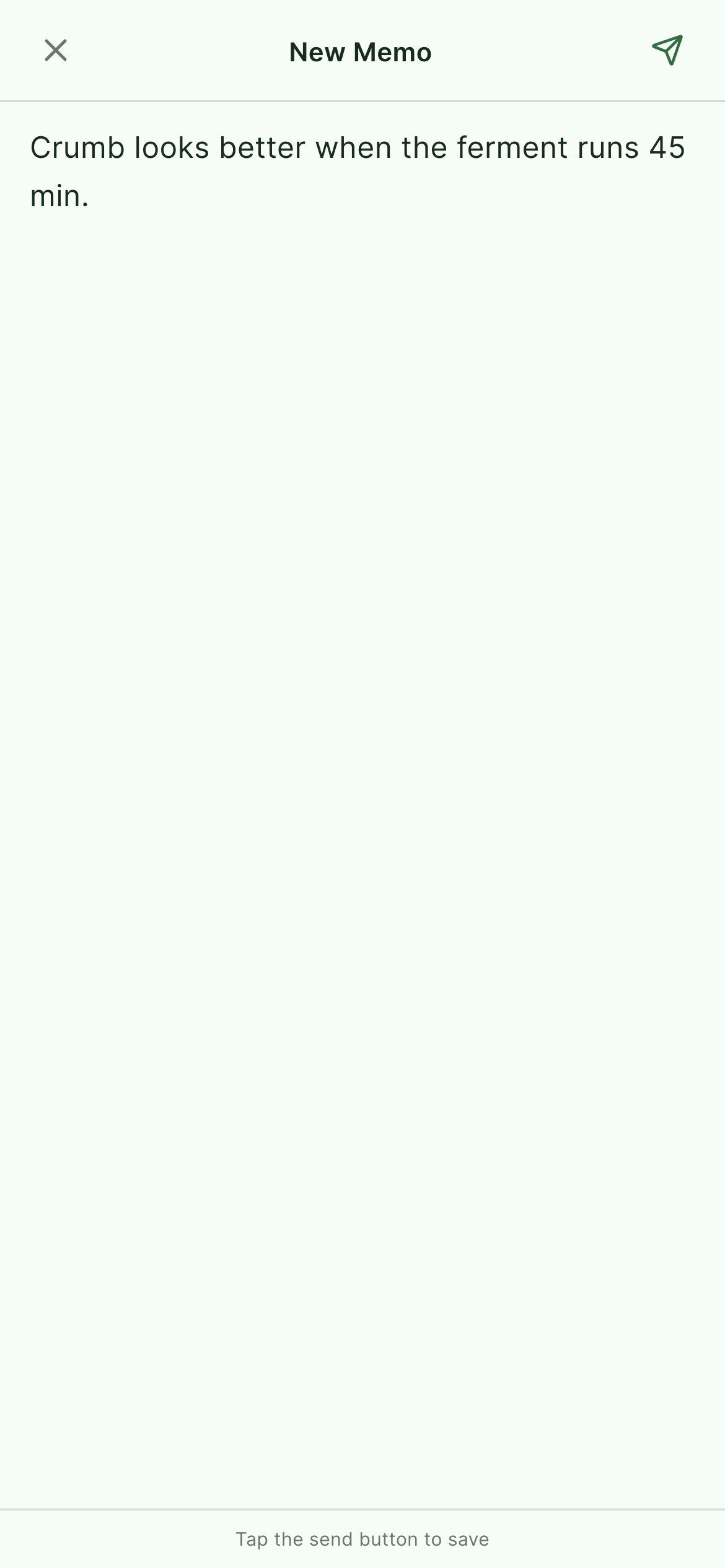
- Write opens a text input for a memo; URL saves a link.
- Photo and Video open your phone's camera directly, so a lab bench or whiteboard is two taps away; Library picks from your photo roll.
- Voice Added in v0.26.0 (2026-07-30) records inside Graphium: tap to start, tap again to stop, play it back, then Capture — or Record again if it did not come out. Recording stops on its own after ten minutes. The first tap asks your browser for microphone access; if you turned that down before, allow it for the site and try again.
Everything you capture here is meant to travel to your desktop. Each capture joins the Send queue the moment it is taken — persisted on the phone, so nothing is lost if you close the browser or go offline. Pending items stay pinned at the top of the home with an unsent count, each row shows its status (Waiting, Sending..., Sent, Failed with a retry), and Send uploads the queue to your cloud storage (next section). Sent captures stay in the list rather than vanishing, so you can see what already made it across; Remove from history clears a row you no longer need. A chip in the header shows whether storage is connected.
Install it like an app
Graphium is an installable web app (PWA). Use your phone browser's "Add to Home Screen" and it launches full-screen, no browser chrome.
Captures wait until you send them
Captures live in that phone's queue until they are sent — they do not reach your desktop by themselves. Connect storage once and tap Send to move them over. See Storage & sync for where data lives.
The memo gallery
On the desktop, click Memos in the sidebar (the count next to it shows how many you have). Memos are shown as a wall of sticky-note cards; toggle between Gallery and List views, and search as you type.
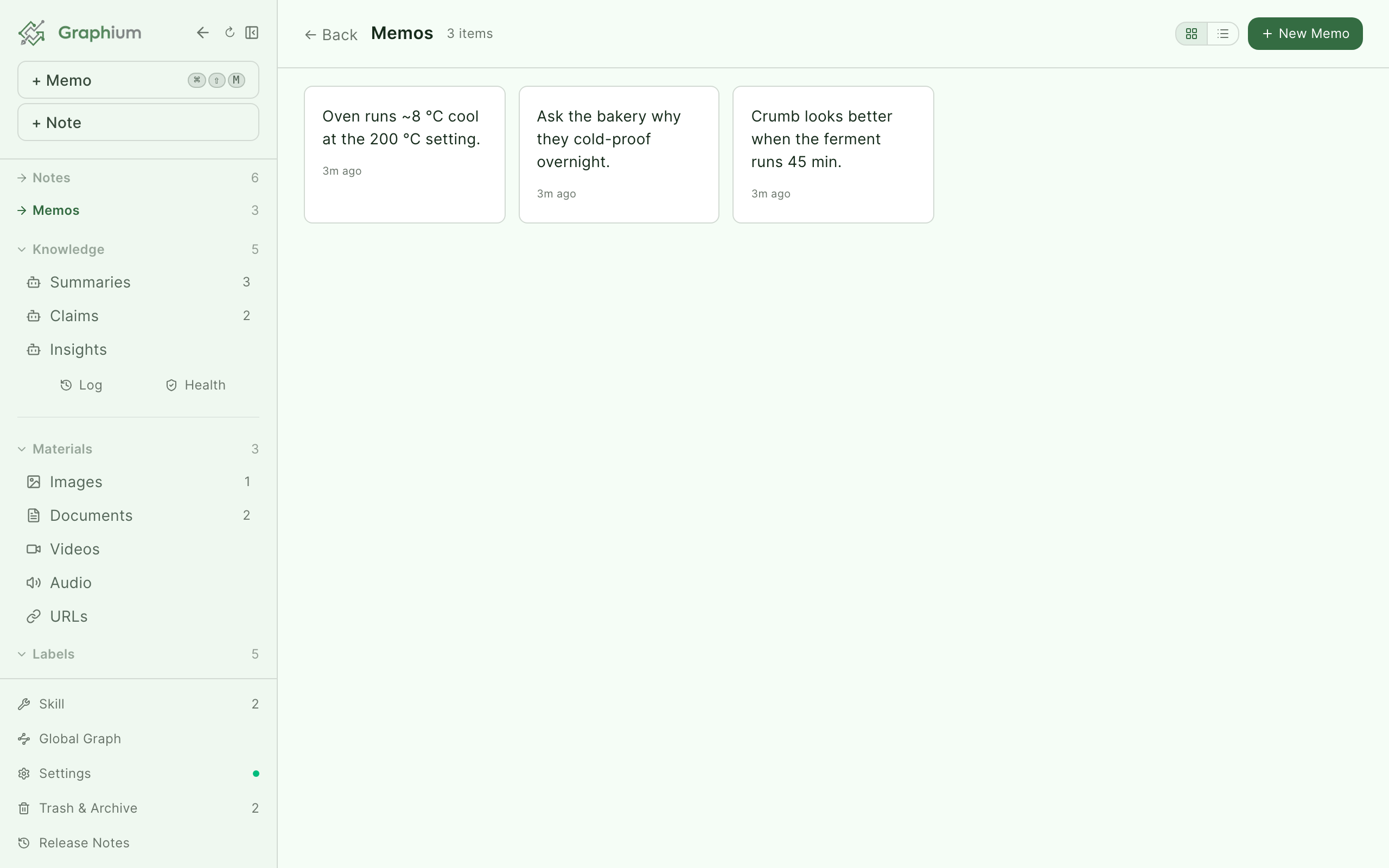
In Gallery view every card has its own checkbox: it appears in the top-left corner when you hover the card, and stays visible while anything is selected. The checkbox in the header selects every memo at once, and your selection survives switching between Gallery and List. Added in v0.61.0 (2026-09-08)
Select several memos at once — drag across cards or shift-click — and act on the batch:
| Action | What it does |
|---|---|
| Folder Added in v0.56.0 (2026-09-06) | Files the selected memos into a folder — the same folders your notes and materials use |
| Archive | Moves memos out of the gallery without deleting them |
| Delete | Removes them permanently (memos already inserted into notes leave the note text untouched) |
| Turn into Knowledge (shows the selected count) | Extracts knowledge entries from the selected memos directly into the Knowledge layer — no notes are created |
Click a single memo to open its detail: edit the text (an Edit history is kept), and switch between the Network tab — a small graph of which notes this memo has been inserted into — and the History tab.
Each note also has a Memos tab in its right panel, showing the memos attached to that note.
Putting memos into notes
A memo is raw material; sooner or later you pull it into a note.
- Slash menu: type
/memoin the editor. The Memo item ("Insert from saved memos", under Existing media) opens the Select memo picker, where you can search and pick one. - From the gallery: open a memo's detail while a note is open and click Insert into note.
Either way, Graphium asks whether to Insert and keep memo or Insert and delete memo — keep it if you expect to cite the same thought elsewhere. A memo that carries a source (one made with Save as memo from a reader view) is inserted as a quote block with its source shown after the text.
Attaching memos to blocks
Memos can also annotate a specific block instead of the whole note: open the block's drag-handle (⠿) menu and choose Add memo. See block-anchored memos for how the memo tracks its block.
Memos are citable sources
Memos are not throwaway text — they carry lineage, which is the whole point of capturing in Graphium rather than a scratchpad:
- A memo made with Save as memo remembers which material it was quoted from, down to the PDF page.
- Every insertion is recorded, so a memo knows the notes it was used in (the "Used in" count and the Network tab).
- When you run Turn into Knowledge, the resulting knowledge entries record the memo as their source, so the lineage graph can trace a claim back through the memo to the moment you captured it.
Sending captures to your desktop Added in v0.23.1 (2026-07-29)
Mobile upload closes the loop: captures made on your phone travel through your own cloud storage and land in an inbox on your desktop. Sending works from any modern phone browser; receiving requires the desktop app — only there is a local sync folder to read.
The pipeline, end to end:
- Connect storage on the phone — once. Tap the gear in the phone header (or the queue's Connect storage button). The Choose storage picker offers Google Drive (OneDrive is listed as Coming soon). You sign in with your own Google account; Graphium gets access only to files it creates (
drive.filescope) and no secret is involved. The settings sheet behind the gear also shows the connection status, lets you Change or Disconnect, and holds a folded Advanced client-ID override that most people never touch. - Capture and send. Tap Send on the queue and it drains into the
Graphium/Inboxfolder of your own Drive. Transfers use TLS, and the files sit as ordinary files in storage you control. - Sync the folder to your desktop. Run your cloud client (for example Google Drive for desktop) so that folder exists on the desktop's disk.
- Point Graphium at it. In the desktop's Settings → Storage, expand Share with other people and open Send from your phone — it has the Inbox folder picker: choose the folder your cloud storage syncs to, and Graphium reads the
Inboxsubfolder inside it. The same section shows the QR code under Connect on your phone (with Copy URL) that opens Graphium on the phone in the first place. - Import. When files arrive, a Mobile entry in the desktop sidebar shows a pending count. Open it to preview each item, then Import all or Import selected. Photos, videos, and voice notes become materials; written captures become regular memos and URL bookmarks. Pick a folder under Send into Added in v0.55.0 (2026-09-04) at the top of the phone screen and what arrives is already in that folder — photos, videos, audio and URLs as materials, and anything you wrote as a memo. The list holds the folders you have used before on that phone, plus the ones in your library if the phone is connected to the same storage; + New folder… creates one on the spot. Your choice is remembered until you change it, so there is nothing to pick each time you send. Duplicates are skipped automatically, a toast summarizes Imported · skipped · failed, and an empty inbox simply says Nothing new.
By default, imported files are deleted from the inbox — their content is already in your library. Check Keep processed files in _imported/ (in the inbox's folder settings, or in Settings → Storage → Share with other people → Send from your phone) if you prefer an archive.
No cloud account? No problem
The queue is a convenience, not a requirement: your phone's share sheet can save a photo straight into the synced Graphium/Inbox folder by hand (Photos → share → the Files/Drive app), and the desktop inbox imports it exactly the same way.
Why cloud storage in the middle?
Your phone and desktop never talk to a Graphium server — captures travel through storage you control (your Google Drive), and the desktop only reads a folder on its own disk. See Storage & sync.