
Storage & sync
Graphium keeps your notes in storage that you own — a browser database or plain files on your disk. There is no Graphium cloud and no account. This page explains where your data lives on each platform, how to move it, how archive and trash protect your links, how team sharing works, and how to back everything up.
Where your data lives
| Platform | Where notes are stored | Reach |
|---|---|---|
| Browser version | That browser's local database (IndexedDB) | Only that browser on that device |
| Desktop app | Plain files in a Graphium folder inside your Documents folder (~/Documents/Graphium/ on macOS) | Only that machine — or any machine, if you point it at a synced folder |
Browser version
Notes live in the browser's own IndexedDB storage. Nothing leaves your machine, but the storage belongs to that one browser profile.
Clearing site data erases your notes
If you clear this site's data in your browser (or use a private window), the notes stored there are gone. If you work in the browser version, download a backup regularly — see Backing up below.
Desktop app
The desktop app writes ordinary files you can see in your file manager. Inside the Graphium folder you'll find subfolders for notes (one JSON file per note), media, wiki (Knowledge pages), skills, and appdata. Because they are plain files, any backup or sync tool can handle them.
Changing the storage folder Added in v0.3.10 (2026-04-25)
On the desktop app you can move the whole data folder: open Settings → Storage → Where your notes are saved and press Change…. The current and default paths are shown, and Reset to default takes you back to the Documents folder.
Two things to know before you switch:
- Existing notes are not moved automatically. Copy the contents of the old folder into the new one before you continue working.
- Restart Graphium after changing the location so it takes effect everywhere.
Sync without a cloud account
The settings hint says it best: point the save location at a Dropbox-, Google Drive-, or OneDrive-synced folder and your notes follow you across machines — no OAuth, no extra service. Graphium itself never talks to the cloud; the sync client does.
Your author identity
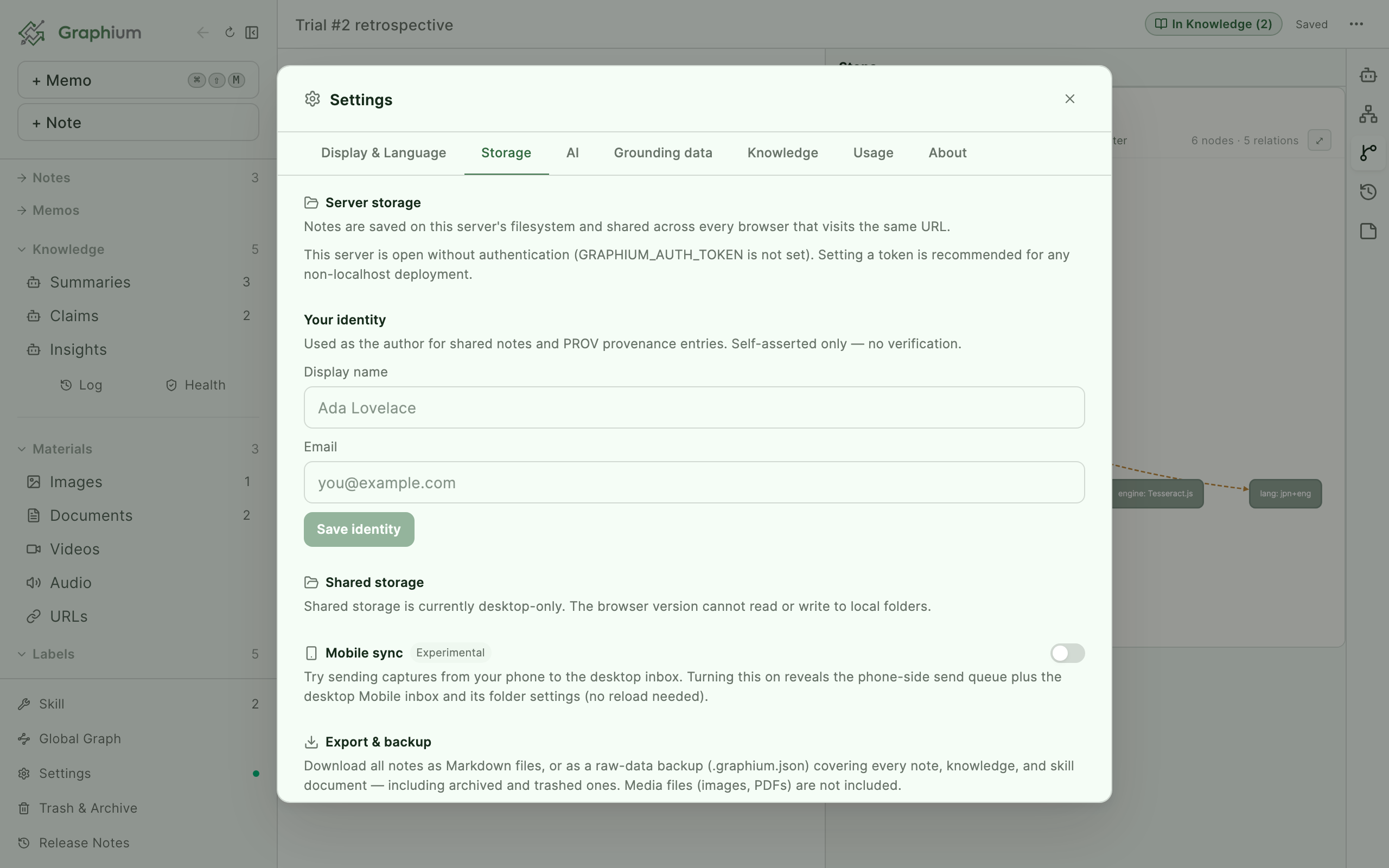
Notes record who wrote them. Open Settings → Storage, expand Share with other people, then open Your name and fill in Display name and Email, then press Save your name. This identity is stamped on shared notes and on PROV provenance entries (the record of who edited what — see Labels & provenance). It is self-asserted: there is no login or verification behind it.
An identity is required before you can share notes with a team (below).
The note list index
The note list is built from a lightweight index over your note files. Graphium keeps it up to date as you work, and if it is ever missing or outdated it is rebuilt automatically the next time the app loads. Your note files themselves are always the source of truth — a stale or broken list fixes itself on relaunch, and archive/trash flags survive the rebuild.
Archive and trash
Deleting a note outright would break every link and citation pointing at it. Graphium therefore uses soft deletion in two flavors:
| Action | What happens | Links keep working? |
|---|---|---|
| Archive | The note is hidden from the list but stays fully readable | Yes — references and citations still resolve |
| Move to trash | The note is retired; it opens read-only with a restore banner | No — links to it are flagged as broken |
Both live in the note's ⋯ menu: Archive and Move to trash. If other notes link to the one you're trashing, Graphium warns you how many links will break before it proceeds.
To bring something back, open Trash & Archive at the bottom of the sidebar. The view has a Trash tab (with Restore and Delete permanently) and an Archive tab (with Restore from archive and Send to trash). A trashed or archived note opened directly also offers Restore from trash / Restore from archive in its ⋯ menu.
Delete permanently is the only destructive step: on the desktop app the file is moved to your operating system's trash; in the browser version it is deleted immediately and cannot be undone.
Media has the same protection: deleting a file from the material library that notes, saved versions or your own templates still reference offers Archive (recommended) instead, which hides it while keeping those references working.
Sharing notes with your team Added in v0.6.0 (2026-05-05)
Sharing publishes a copy of a note into a folder your whole team can reach — a lab NAS, a Dropbox-synced folder, any shared drive. It is desktop-only for now; the browser version cannot read or write local folders.
Set up the shared folders
Open Settings → Storage, expand Share with other people, then open Share with your team:
- Pick a Shared folder — the team-visible location where published notes go.
- Optionally pick a Blob folder (large binaries) — where media bytes are stored. Notes with embedded images, PDFs, or other media need it; URL bookmarks don't.
- Press Test connection to run a full round trip (write → read → verify → delete) against the folder.
You must save your identity first — shared entries carry their author's name and email.
Reading the shared library needs only read access to the folder: members who never share anything can leave the folder read-only for their account, and Graphium creates subfolders only when something is written. If opening the library fails with "Can't reach the shared folder", check that the drive is mounted on that machine and that the path matches the one you chose. The NAS itself may still show up in Finder or Explorer while the share's mount has silently dropped after sleep or a restart — that is the most common cause. The notice offers a Reconnect button: once a share has loaded successfully, Graphium remembers its address (smb://…, or the \\server\share behind a mapped drive), asks Finder or Explorer to open it again, and reloads as soon as the folder is visible. When a second computer mounts the NAS under a different name (Kumagai-1, say), the notice lists paths that seem to hold the same contents and Use this path switches to one.
Publish and unpublish
Open a note's ⋯ menu and choose Share with team. A Shared badge appears on the note, and teammates see it in their shared library. When you share a note containing media, the files are copied into the blob folder automatically — you never attach them by hand.
The shared copy is a snapshot. To update it, edit your local note and choose Update shared copy from the same menu. To withdraw it, use Unshare in the shared library; Graphium warns that other members may have already viewed, cached, or forked it, so it cannot be fully erased.
What travels with the note: the text, its labels and procedures, the folder it sits in, and any embedded images or files. What does not: the AI chats you had inside the note, its edit history, saved versions, and memos. Sharing hands over the record, not the working process behind it. If you want the chats and the edit history to travel too, turn on Include AI chats and edit history when sharing in Settings → Storage → Share with other people → Share with your team, or tick the same box in the bulk share dialog. Either way it applies from the next share onward — notes you shared before are updated the next time you choose Update shared copy. Added in v0.61.0 (2026-09-08)
Share knowledge pages too Added in v0.44.0 (2026-08-25)
Knowledge pages — topics, claims, and insights, plus any older summaries still on disk — share the same way. Open a page's ⋯ menu, choose Share with team, and it appears under Knowledge in the shared library, next to the shared notes. Update shared copy and Unshare work as they do for notes.
Forking one brings it into your knowledge rather than your notes, so it sits with your own claims and insights and joins your searches and graphs. Its lineage does not come along: a shared page's "derived from" links point at notes, chats, and claims in the author's library, and those ids mean nothing in yours. The fork starts with that lineage cleared and records where it came from instead, so nothing is left dangling or pointing at the wrong page. The text, the semantic type, and any sections edited by hand arrive intact. World-check results and search embeddings are rebuilt on your side rather than carried over.
Share several at once Added in v0.44.0 (2026-08-25)
Select notes with the checkboxes in the notes list, or knowledge pages in a Knowledge list, and a Share button with the count on it joins the other bulk actions. Sharing runs one item at a time and ends with a summary: how many were newly shared, how many updated entries you had shared before, and which ones failed and why. One failure does not stop the rest, and you can cancel partway — whatever was already shared stays shared.
The same multi-select bar exists in the list view of the material gallery, so you can share several images or files at once instead of one at a time from each item's menu.
The button appears in the desktop app once a shared folder and an identity are set. What travels is the saved version of each item, so save the note you are editing before you share it.
Share a page as a template Added in v0.54.0 (2026-09-04)
A note's ⋯ menu also has Share as template, next to Share with team. Unlike a regular share, this hands out the page as a reusable starting point instead of a record: give it a name (defaults to the note's title) and, optionally, a description. It shares the page exactly as it stands — Graphium does not strip results or filled-in values for you, so clear anything you do not want to hand out before sharing.
Each share of a page as a template creates a brand-new entry rather than updating a previous one, since a template is an independent handout, not a snapshot tied back to the note it came from.
Browse and fork
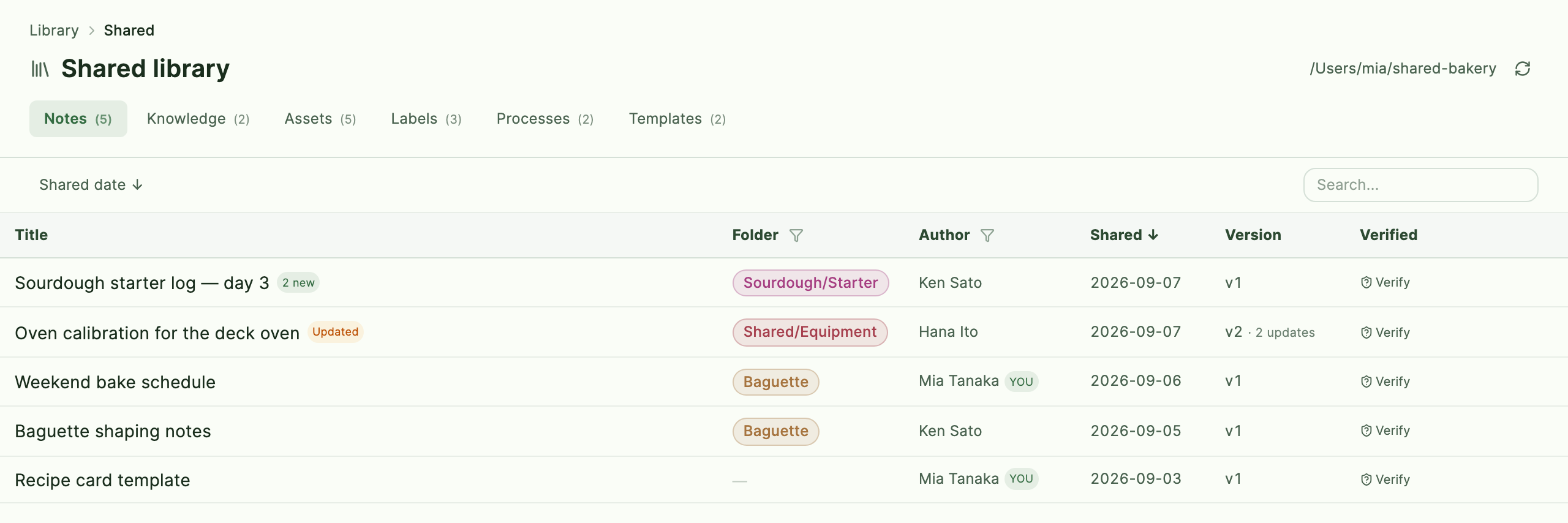
Once a shared folder is configured, a Library section with a Shared entry appears in the sidebar. It lists what everyone on the team has shared — notes, knowledge pages, references, and data files — on a tab each. Entries from others are read-only — press Fork to copy one into your own storage, where you can edit it freely. Any media it carries is materialized into your local library automatically, and the fork records where it came from.
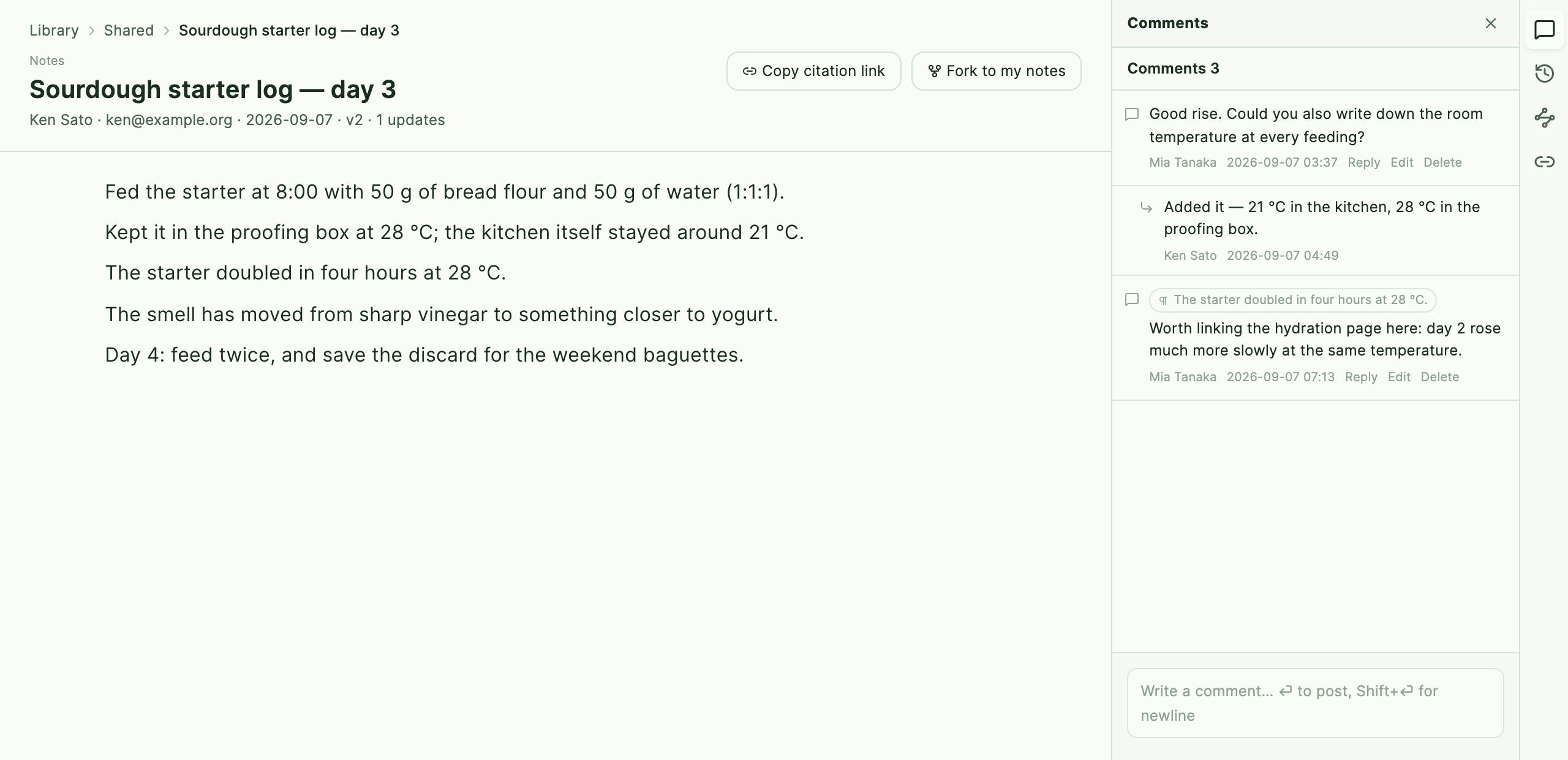
Clicking a row opens it in the detail panel beside the table, the same as a click in your own note list. Double-click a row — or press Open in full view at the top of the detail panel — to read it full-page instead, in the same place and at the same width as your own notes. A right-hand rail lets you switch between Comments, History, Process, and Backlinks without leaving the page; Comments is open by default. The breadcrumb at the top (Library › Shared › title) takes you back to the table. Added in v0.58.0 (2026-09-07)
When an AI model is set up, the rail carries one more tab — Ask AI — for asking about the entry you are reading, with the shared text itself as the grounding. The conversation stays on your own device; nothing about it is written to the shared folder. See Asking about a shared note. Added in v0.59.0 (2026-09-07)
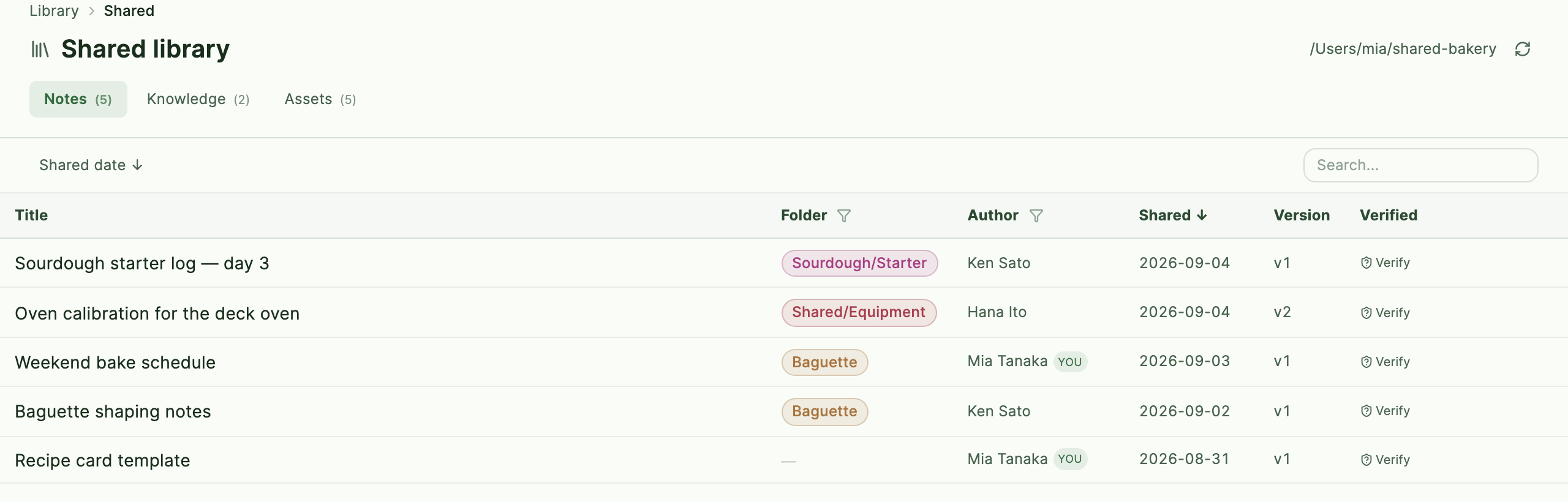
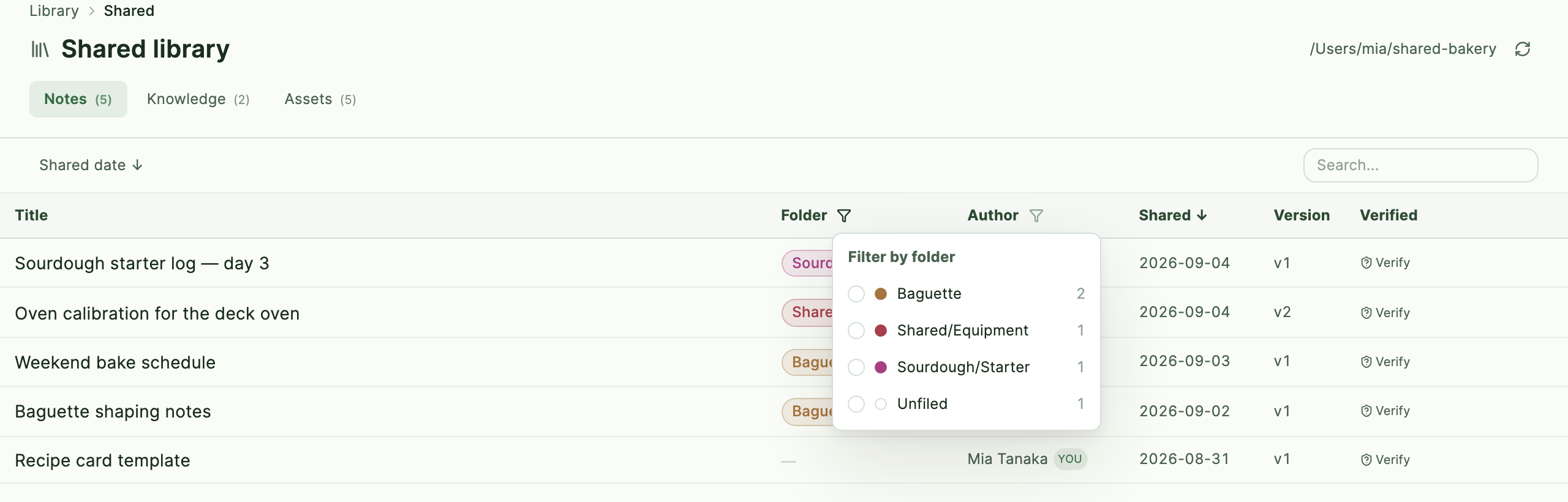
A shared note also carries the folder it was in when it was shared, so the Notes tab has a Folder column you can filter and search on. Forking does not bring that folder along: it is the author's own filing, so your copy starts unfiled. Added in v0.53.0 (2026-09-03)
The Assets tab also has a Folder column, and lists every image or file embedded in a shared note alongside items shared directly as a material. A note's images and files are not entries you can fork or verify on their own — you can open the parent note or add the file to your own materials, and if the same file appears in several shared notes it is shown once with a count of how many notes carry it. Added in v0.54.0 (2026-09-04)
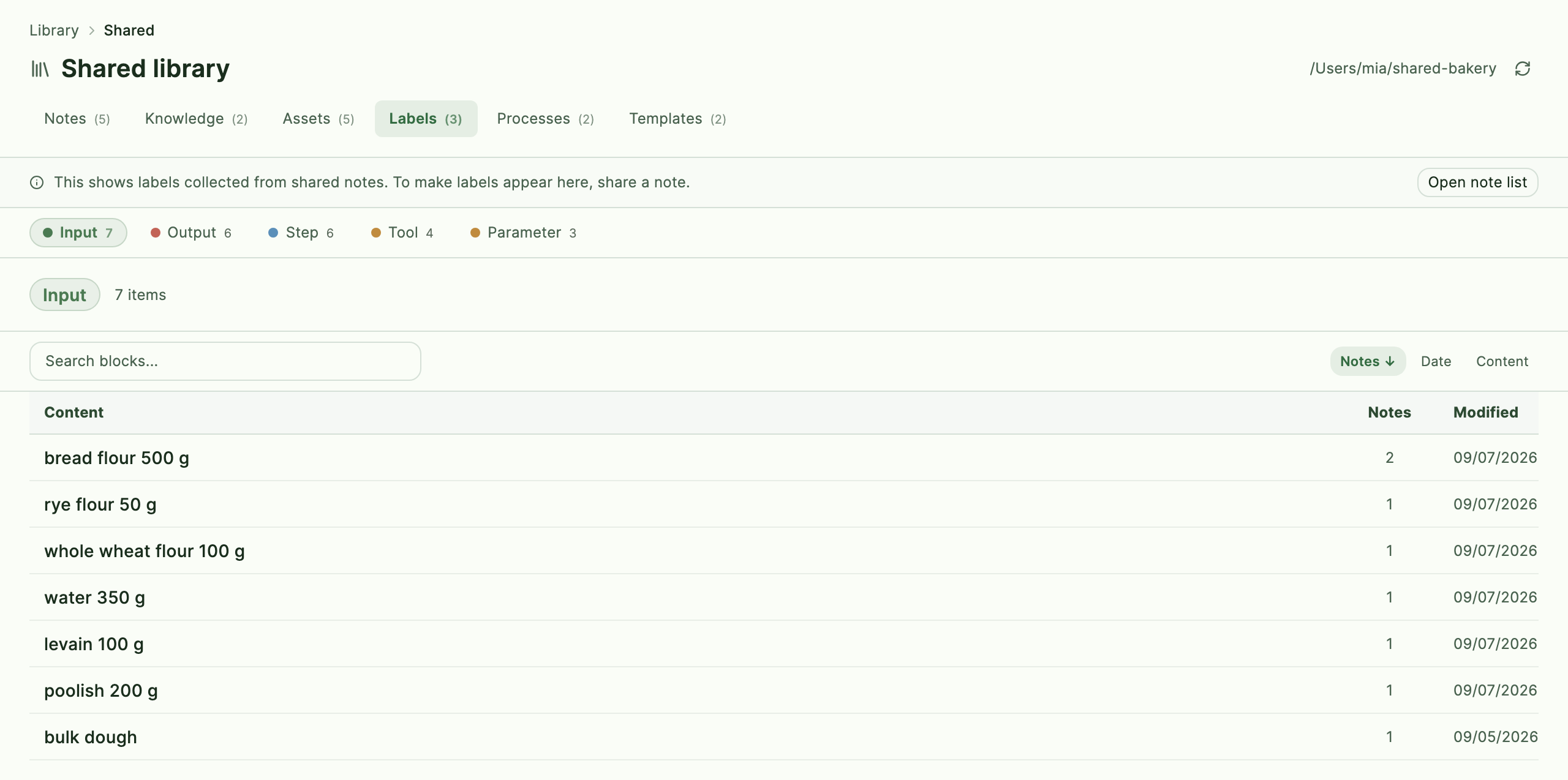
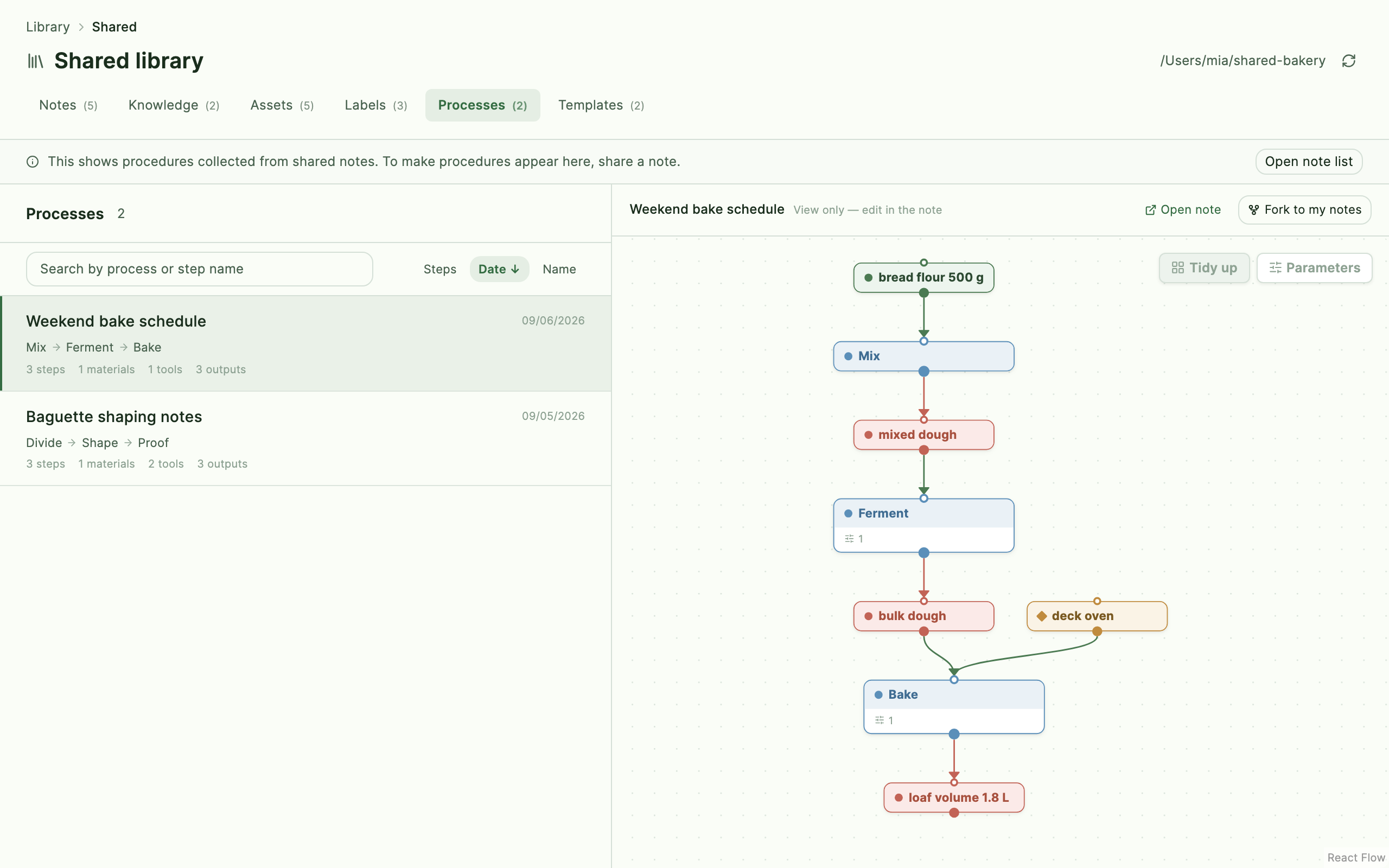
Two more tabs mirror your own left-hand navigation: Labels and Processes. They show labels and PROV-DM procedures found in shared notes, extracted the same way your own note list and process list are. This piggybacks on the background read that also powers shared search and AI chat (see below), so a shared note whose content Graphium has not read yet will not contribute to these tabs until it does. Forking a process into your own notes works the same way it does for your own procedures. There is no separate action to share a label or a process — sharing the note that contains them is enough, and both tabs explain this with a link back to your own note list. Added in v0.54.0 (2026-09-04)
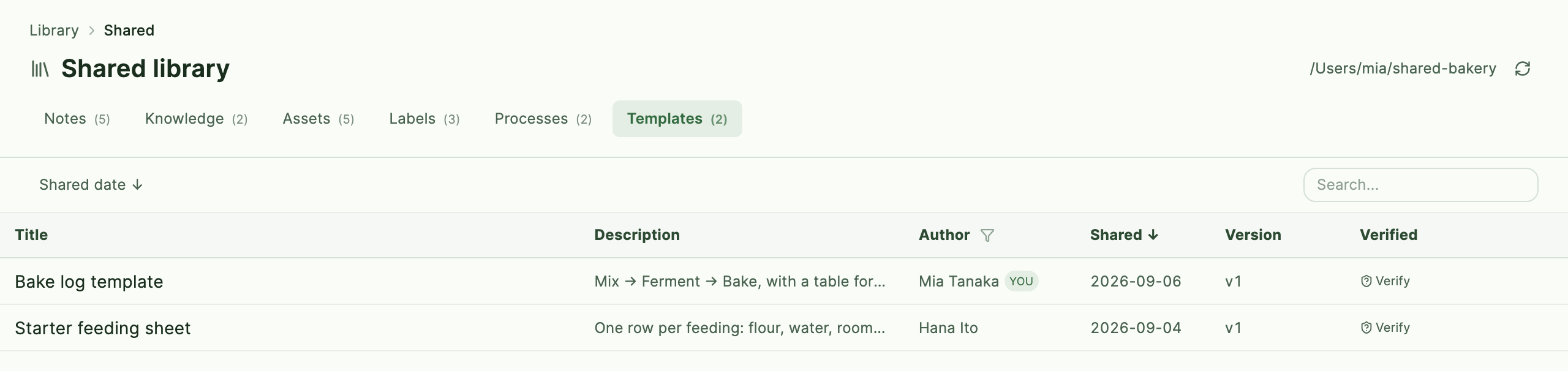
The Templates tab lists pages shared as templates (see above), with a Description column in place of the folder column you see on the Notes tab. There is no Fork here — a template is a blank starting point, not a record to copy — but its detail panel has New note from template, available on any entry including your own. It reads the template, rebuilds its blocks and labels into a new note, materializes any embedded media into your own library, and opens the result. The new note records which template it came from, separately from a fork's "derived from" — a template does not hand you any facts, only a shape to start from. The same template list also appears inside the editor's /template picker, so you can insert a shared template into a note you already have open instead of starting a new one — see Notes & the editor. Added in v0.54.0 (2026-09-04)
Shared entries in search and AI chat Added in v0.52.0 (2026-09-03)
Shared notes, knowledge pages, references, and data files also show up without forking them: the ⌘K search palette gets a Shared section, and AI chat can cross-search them the same way it cross-searches your own notes (Internal grounding scope). Graphium builds a search index and, for shared knowledge pages, an embedding — both on your own device only. Nothing is written back to the shared folder, and the AI never records a shared entry as a source in provenance unless you insert a citation card yourself.
This is on by default whenever a shared folder is configured, since setting up the shared folder is itself the opt-in step. Turn it off in Settings → Storage → Share with other people → Share with your team if you would rather keep search and AI chat scoped to your own library. Note that the shared folder has no access control inside Graphium: anyone who can read it can index and search it the same way.
Cite a shared entry in your notes Added in v0.31.0 (2026-08-12)
Type / in any note and choose Cite shared entry to insert a citation card pointing at a shared note, reference, or data file. The card shows the entry's title, author, date, and a verification badge. It stays in your note as a reference — the content itself lives in the shared folder, and your note keeps only a lightweight snapshot for display, so the card still renders when the shared folder is unreachable.
The badge tells you the state of the shared side:
- Verified — the shared content matches its recorded fingerprint (hash).
- Content differs — the shared files no longer match the fingerprint; something modified them outside Graphium.
- Cached copy — the shared folder is unreachable (for example, the NAS is not mounted), so the card renders from its snapshot.
- Not found — the entry was removed or unshared.
When the author updates the entry in place, your card follows automatically. When they publish a major revision, the card keeps pointing at the version you cited and shows A newer version is available instead — your past analysis never changes underneath you. Click the arrow on the card to open the entry in the shared library. Citations are also recorded in the note's provenance, so an exported evidence bundle shows which shared entries your note used.
Copy a citation link from the library Added in v0.44.0 (2026-08-25)
You can also start from the other end. In Library → Shared, press Copy citation link on an entry — on its card or in its detail panel — and paste the link into any note. It becomes the same citation card, with the same badges and the same behaviour.
Pasting is what makes this worth having: the library takes over the screen, so while you are browsing it you cannot see the note you are aiming at. Copying the link lets you find the entry first and decide where it lands afterwards. The link is plain text, so it can travel in a chat message as well; a teammate on the same shared folder gets the same card by pasting it into a note of their own.
Reply with a comment Added in v0.57.0 (2026-09-06)
Any entry in the shared library — a note, a knowledge page, a reference, anything — can carry a comment thread. Open its detail panel and scroll to Comments: write a note, or click a paragraph in the preview first to attach the comment to that specific spot (a small "¶" chip shows what it's attached to; there's a button to remove the attachment before posting). Comments support one level of replies — a reply to a reply is just added to the same thread — which is enough for a back-and-forth without turning into a nested discussion.
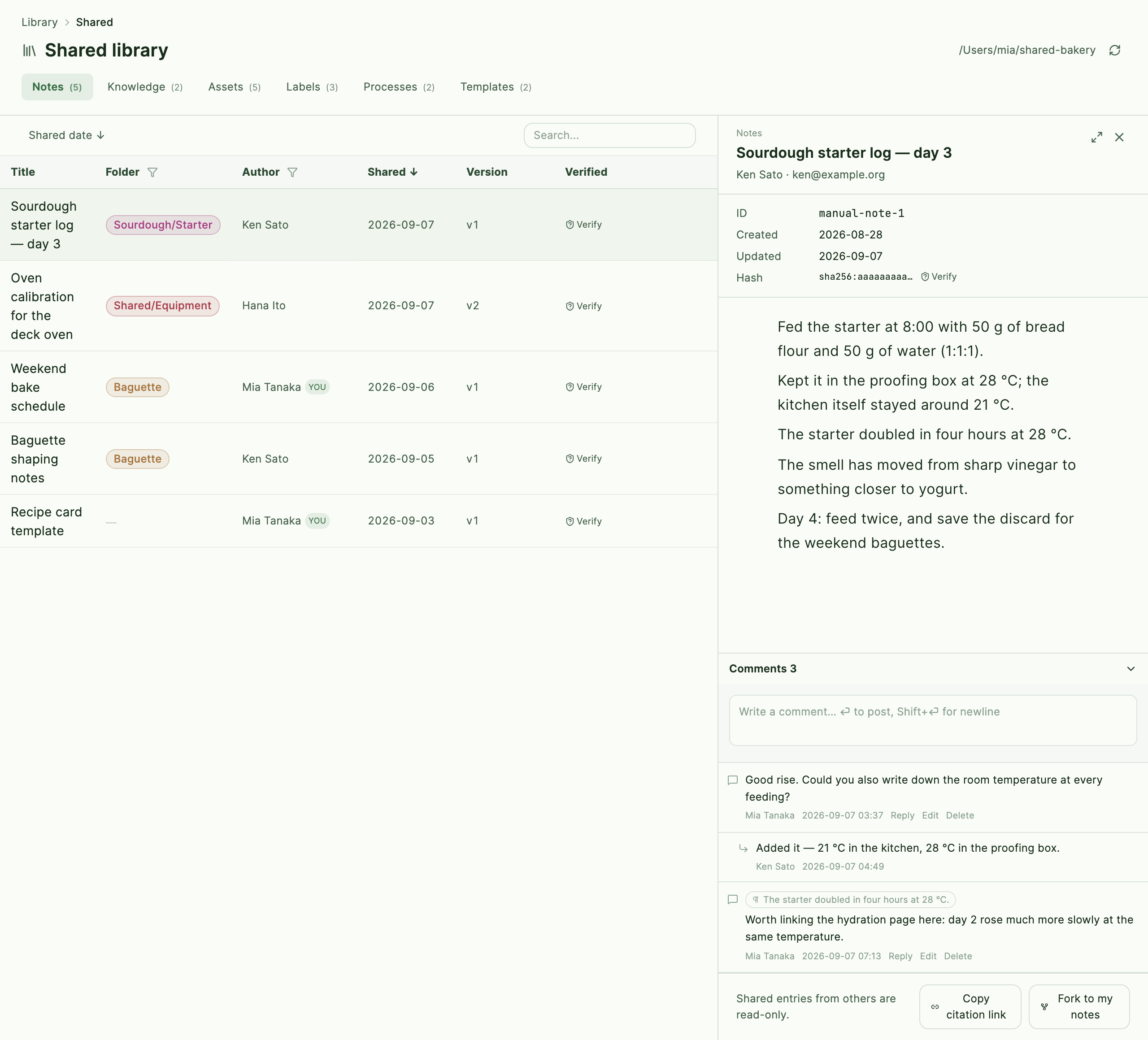
You need your identity saved (see Your author identity) before you can write a comment; without it, the panel explains why and points you at Settings.
Comments have no "resolved" checkbox. Instead, when the note's author fixes something and presses Update shared copy, the note's fingerprint changes, and any comment written against the old version automatically moves into a collapsed Comments on older versions section — the thread doesn't disappear, but it steps out of the way once the point has been addressed. You can edit or delete your own comments; you cannot edit someone else's.
If you have a note of your own shared and someone comments on it, the same thread appears in a Comments tab in that note's own right-hand panel while you're editing it — clicking a comment there jumps to and briefly highlights the paragraph it was written against.
The full-view page (above) keeps the same Comments panel in its own right-hand rail, so you can read and reply without opening the detail panel first. Clicking a paragraph in the body attaches a "¶" chip to your comment the same way it does in the detail panel.
Update history and the updated / new-comment marks Added in v0.57.0 (2026-09-06)
Every time a shared entry is re-shared under Update shared copy, Graphium keeps a short log of that: the version column in the shared library shows how many times an entry has been updated (for example "v1 · 3 updates"), and the detail panel lists each update's date, author, and the first eight characters of its fingerprint.
To help you notice what changed since you last looked, the shared library also marks rows Updated (the entry's fingerprint changed since you opened it) or with a new-comment count (comments added since you opened it). These marks come from a small record kept only on your own device — nothing is written back to the shared folder, and an entry you authored never shows "Updated" for your own edits. The shared library also refreshes itself automatically when you switch back to the Graphium tab or window, so these marks stay current without a manual reload.
Reverse links: who cited or forked this Added in v0.57.0 (2026-09-06)
When a note cites a shared entry, forks it, or is created from a shared template, the shared library can now show that relationship from the other side too. A shared entry's detail panel lists the shared notes that cite it, the shared notes forked from it, and — for templates — the shared notes made from it, each one clickable to jump straight to it. This depends on Graphium having already read the citing/forking note's content at least once, so a very recently shared note may take a moment to show up in another entry's reverse links.
Propose changes to someone else's note Added in v0.66.0 (2026-09-08)
A note you forked from the shared library can be offered back as a proposal: your version of the note, shared as a suggestion. The original is not rewritten — its author decides whether to take anything in.
Proposing takes three steps:
- In the shared library, open the note and press Fork to get your own copy
- Edit the copy as usual — fill in values, fix a step, add a table
- From the note's
⋯menu, choose Propose changes to the original
The dialog shows which note you are proposing to, and whether the version you forked is still the latest one. Add a one-line description if you like and press Propose; a proposal under your own name appears in the shared folder. You can send an updated version later with Update proposal, or take it back with Withdraw proposal. While a note is shared as a proposal it is not shared as a copy of its own — one note points at one shared entry.
The library gains a Proposals tab listing title, the original note (click it to jump there), author, shared date, version, and state. The state is worked out on the spot rather than stored:
| State | Meaning |
|---|---|
| Open | The original's author has not taken this in yet |
| Adopted | The original's author took this proposal in |
| Original updated since | The original changed after the proposal was made |
Open a proposal in full view and a Changes tab appears in the right-hand rail, listing the differences from the original block by block — and, for tables, cell by cell. Click an item and the matching spot in the body preview lights up.
If the version you forked was kept, each change is attributed and coloured: Proposer (only you changed it — a candidate for the author to take in), Author (the original's author changed it afterwards), or Both (you both changed it and disagree). Without that baseline — no blob store configured, or an older fork — the view falls back to comparing the proposal with the original's current version, and cannot tell the two apart. The list says so at the top.
Some things are deliberately not compared: the link target of images and files (shared and local copies always spell those differently — captions and file names are compared), pages after the first, and annotations such as labels and step links.
Seen from the original, a note that has proposals shows N proposals on its row, and its detail panel lists them under reverse links; click one to open it.
You can still propose when the original has moved on. The changes are then shown against the original's current version, so your edits and the author's edits sit side by side.
The full view of a proposal is a place to read. Taking changes in happens on the author's side, in their own note.
Adopting a proposal (the original's author) Added in v0.67.0 (2026-09-08)
When a proposal arrives for a note you shared, opening that note adds a Proposals tab to the right-hand rail (notes with no proposals don't get one). A Proposals N badge next to the shared badge in the header opens the same tab.
- Open Proposals in the right rail. Incoming proposals are listed with author, date, state and description
- Pick one and you get the differences against your note. The comparison is against what you are writing right now, not against the shared copy — edits you have not published yet are already taken into account
- Tick the changes you want. Ticked by default are the ones only the proposer changed. Both (you disagree) is left for you to judge. Author (what you changed) has no checkbox — there is nothing to take in
- Press Adopt selected changes
Pressing it first saves a version ("before adopting") automatically, then applies only what you ticked. If you change your mind, restore that version from the ⋯ menu — or just undo (⌘Z / Ctrl+Z), which reverses the whole thing in one step.
Tables can be picked at two levels. Tick individual cells, rows or columns and only those change. Tick the table itself and the whole table is replaced with the proposed one. You cannot do both — a wholesale replace would also drop rows you added yourself.
Adopting does not change the shared side yet. It becomes a new version when you press Update shared copy, and only then does the proposer's badge turn to Adopted. The ⋯ menu says "N adopted proposal(s) will be part of the new version", so you can tell when you have forgotten to press it.
From the proposer's side, the state badge changes to Adopted. Their note stays where it is, so they can keep working and propose again, or clean up with Withdraw proposal in the ⋯ menu.
Seeing where a note came from
A note you created by forking shows a Forked from: … chip in its header; click it to open the original shared entry. The Graph panel on the right shows the same relationship as a dashed link, alongside any proposals aimed at your note (clickable too).
Exports
Everything can leave Graphium in open formats, per note or in bulk.
Per note, the ⋯ menu offers:
| Menu item | Output |
|---|---|
| Print / PDF | The rendered note, including its provenance graph. Your system's print dialog opens, so you can preview the pages and then save them as a PDF — the text stays selectable and searchable |
| Markdown | A portable .md file |
| PROV-JSON-LD | The note's provenance graph in W3C PROV format |
Markdown is lossy by design: what a block means survives, how it looks does not. A formula exports as its LaTeX source, a calculation as its lines with the values they produced, and a chart as its caption and what it plots. The figure itself cannot travel, but the table behind it exports as an ordinary Markdown table.
Export everything Added in v0.16.10 (2026-07-03)
Settings → Storage → Export and backup has two bulk buttons:
- Export all notes (Markdown) — a ZIP of every note as Markdown, for reading anywhere.
- Download backup (JSON) — a ZIP of the raw data (
.graphium.json) for every note, Knowledge page, and skill document, including archived and trashed ones. This is the lossless option.
Media files (images, PDFs) are not included in either ZIP — back those up separately as described below.
Backing up
- Browser version: press Download backup (JSON) regularly. It is your only safety net against cleared site data, and re-download it after any big writing session.
- Desktop app: your data is plain files in the Graphium folder (
~/Documents/Graphium/unless you moved it). Any backup tool that copies that folder — including itsmediasubfolder — captures everything. Pointing the save location at a synced folder gives you continuous off-machine copies for free.
A periodic Download backup (JSON) is cheap insurance on every platform — it captures notes, Knowledge, and skills in one file, independent of where the live data sits.