
Chat & Ask (Cmd+K)
Once AI is set up, Graphium gives you two ways to talk to a model without leaving your work: a chat panel that knows what note (or block) you are looking at, and the Composer — a ⌘K (Ctrl+K on Windows/Linux) palette that combines note search with one-shot AI questions. This page covers both, plus how answers cite sources, how to reuse an answer, and how to steer the AI with skills.
Which model answers
Chat and the Composer use the model assigned as Chat model in Settings → AI, under Model assignment (falling back to the default model when unset). See AI setup.
The AI chat panel
Open the Chat tab in the right-side panel of a note (the robot icon). The tab appears once an AI model is registered. Type a question and press ⌘Enter (Ctrl+Enter on Windows/Linux) to send; a Stop button cancels an in-flight answer.
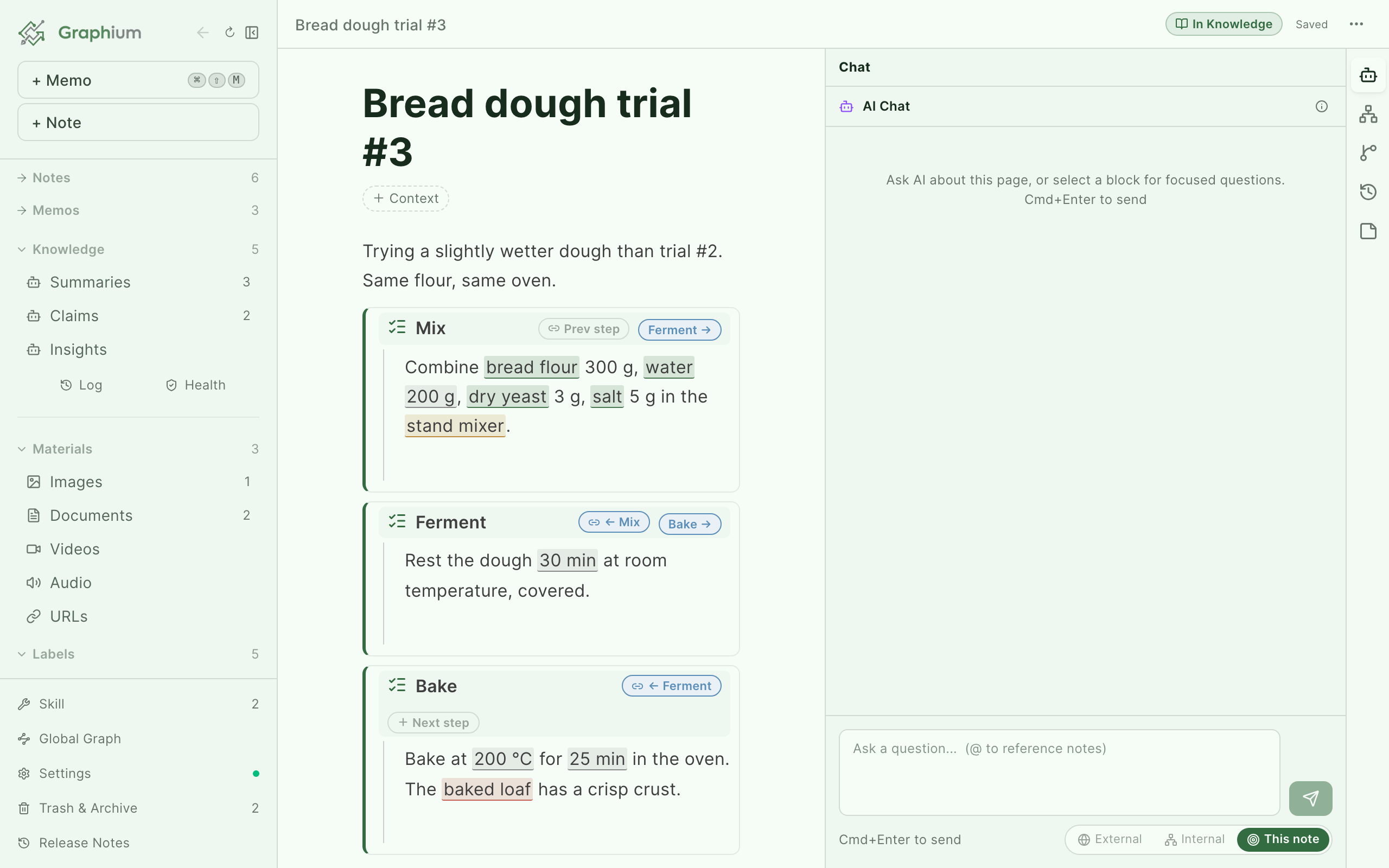
By default the chat can see the note you have open. To focus it on a specific part of the note instead, start the chat from the editor:
| Starting point | What the conversation is about |
|---|---|
| Chat tab | The whole current note |
| Drag handle (⠿) → 🤖 AI Assistant | That block — for a heading or a step block, everything under it is included as one unit |
| Select multiple blocks → Ask AI about selection | Exactly the blocks you selected |
| Select text → Ask AI about selection in the floating toolbar | The selected text |
Whichever starting point you use, the note you have open is passed as background as well. A quoted sentence that leans on the lines before it — a pronoun, an abbreviation, "under these conditions" — is still understood. The answer stays on the quoted part; the rest of the note is there only for context. It is re-read on every message, so edits you make mid-conversation are picked up. Added in v0.29.0 (2026-08-05)
When a chat starts from blocks or a selection, the passed content stays visible at the top of the panel under Quote, so you always know what the conversation is about.
Referencing notes and materials with @
Type @ in the chat input to search your notes and knowledge pages and attach one as context — the input hints at this with "(@ to reference notes)". Attached items appear as chips above the input and are sent with your next message.
If the attached note was created from a PDF, web page, or Word document, Graphium prioritizes what you distilled from it — your memos and derived knowledge — and falls back to the original text, so the AI answers from your reading rather than a cold document.
Materials have their own chats too: open a material in full view and use Ask AI in its right panel to chat about that PDF or web page directly. These conversations are saved per material and are there when you come back.
Choosing what grounds the answer Added in v0.16.8 (2026-07-02)
The Grounding chip next to the input controls what evidence the AI draws on. The same chip appears in the Composer.
| Scope | Behavior |
|---|---|
| External | "Search the web and ground the answer in external sources — for investigating something new" |
| Internal | "Everything you cited, plus a cross-search of your accumulated knowledge — for ideation" |
| This note | "Only what this note cites, without a cross-search — for accurate writing and citations" |
This note is the default: answers stay pinned to what you explicitly cited, which is what you want while writing.
What the cross-search in Internal (and External) reads: your knowledge pages first, and a few short passages from your own notes and assets — image text read by OCR, URL excerpts, PDF text — that share words with your question. Those passages come from a full-text index kept on this device (see Settings → Storage, inside the collapsed Advanced group); no embedding model is needed, and it works offline. The AI is told which passages are raw material rather than distilled knowledge, so it can say so when an answer rests on a note rather than on a knowledge page. Whole notes still enter a conversation the way they always have: cite them with @. Added in v0.39.0 (2026-08-17) On desktop, if a shared library is configured, its entries are cross-searched the same way unless you turn that off in Settings → Storage, inside the collapsed Share with other people group. Added in v0.52.0 (2026-09-03)
Letting the AI search again Added in v0.93.0 (2026-10-21)
The cross-search above runs once, with your question, before the AI starts. If you turn on Let the AI search again on its own in Settings → AI → Experimental features (off by default), the AI also gets two read-only tools in Internal and External chats, and in chats without a note open:
- Search again — the same search as the first one (same index, same ranking), but with words the AI picks. It helps when your wording and the note's wording differ, or when a question has two steps, such as "which notes used this starter, and at what temperature?"
- Read a whole page — opens a note or knowledge page that came up in a search, up to 6,000 characters, when a short passage leaves out the conditions or numbers.
What the AI finds this way is numbered and cited the same way as the first search, so the links in the answer open the same pages. The AI is asked to use the tools only when the first search isn't enough, and to stop at about three calls per question; even so, replies take longer and use more of your AI quota. This note chats never get the tools — they stay limited to what you cited.
Things to know before turning it on:
- It is slower and costs more. Every tool call is one more round trip to the model, with the whole conversation sent again, so a question that uses two tools can take two to three times as long.
- How well it works depends on the model. Capable models use the tools well; smaller models, or models that call tools through plain text (such as gpt-oss on some endpoints), may skip them, repeat the same search, or stop searching too early.
- The same question can take a different path. Which words the AI searches with can change from one try to the next, so answers vary a little more than with the single search.
- It doesn't make a search exhaustive. With about three calls per question, "list every note that…" questions still won't reach everything.
- Keep Graphium open while it answers. The tools run in the app itself, so if you close it mid-answer, the remaining searches are skipped after 30 seconds and the AI answers from what it already has.
- You can't see the searches yet. Only the answer is shown, not which words the AI searched with or which pages it opened.
Web search in chat Added in v0.16.6 (2026-06-30)
Choosing External forces a web search. To give Graphium one, register a search MCP server (such as Tavily) in Settings → AI, inside the collapsed Connect external tools (MCP) group.
So you can tell where a statement comes from, sources at the end of an answer are labeled 📓 From your notes for internal citations and 🌐 Web sources for pages found on the web. Clicking an internal citation opens what it points at — a knowledge page, a note in the side peek, or an asset in the material peek.
When no web search is configured
If you select External without a search MCP server, a dismissable banner appears above the input: "No web search is set up — External will answer without live web results. Add a search MCP server (e.g. Tavily)," with an Open settings shortcut. The question still runs — the answer just cannot include live web results.
Editing, regenerating, and forking Added in v0.16.10 (2026-07-03)
Conversations are editable, not append-only:
| Action | Where | What it does |
|---|---|---|
| Edit and resend | Pencil icon under your own message | Rewrite the message and press Resend. As the note warns, "Resending replaces the conversation after this message." Attached notes are re-attached automatically. |
| Regenerate response | Circular-arrow icon under an AI reply | Asks the model to answer the same question again. |
| New chat from here | Fork icon under an AI reply | Starts a new chat carrying the conversation up to that reply, leaving the original intact. Forked chats show a Forked badge in the history list. |
Chat without a note open Added in v0.81.0 (2026-09-18)
The Chat entry in the sidebar, under Records & knowledge (between All notes and Knowledge), is a conversation that is not about any particular note. Open it and the content area becomes a chat screen in two columns, the way ChatGPT or Claude lays one out: a chat list on the left and the conversation on the right. The breadcrumb reads Home → Chat. Added in v0.95.7 (2026-10-26)
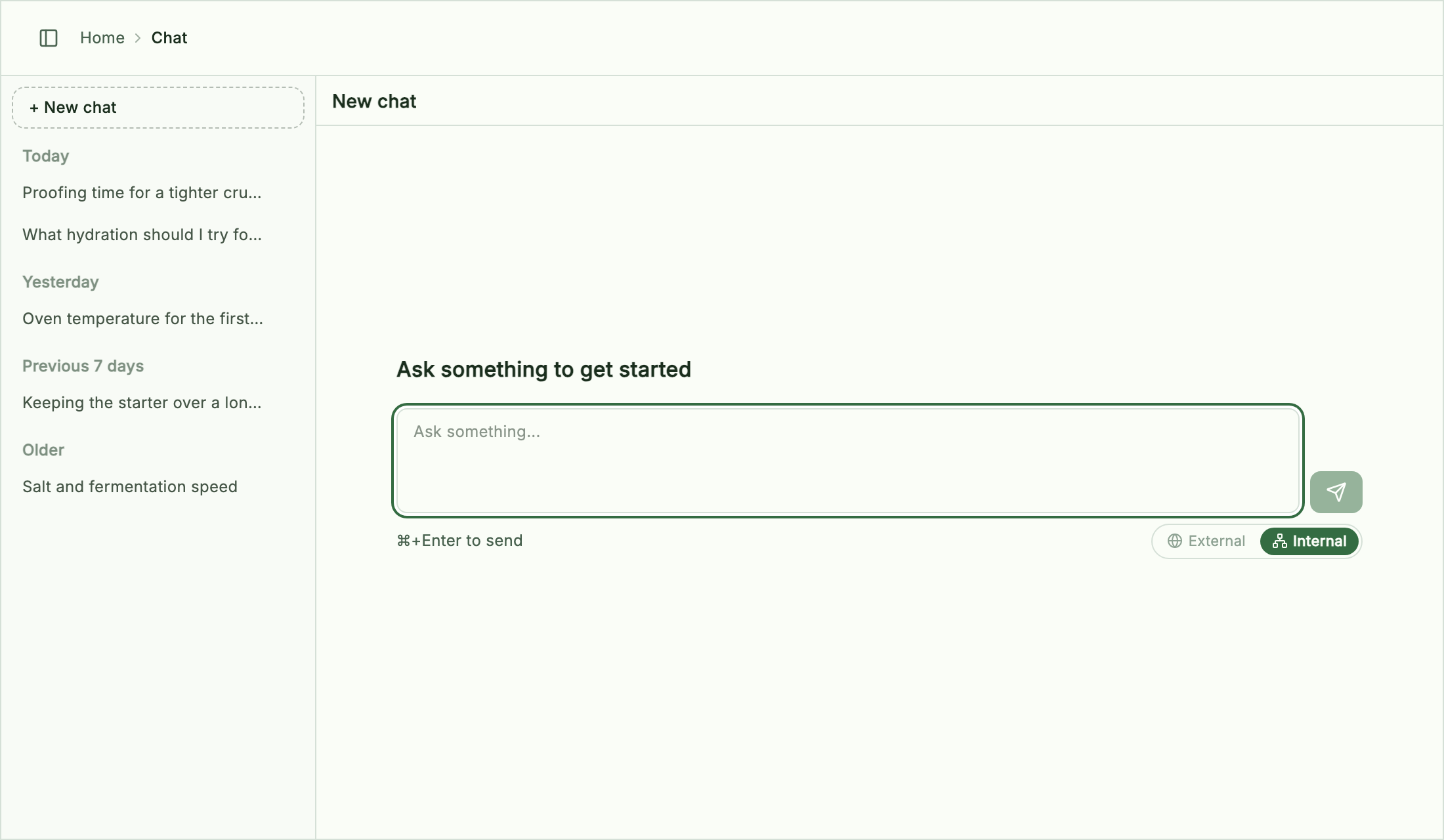
The chat list starts with + New chat, then your past conversations grouped by when they were last updated — Today, Yesterday, Previous 7 days, Older. Each row shows the title the AI writes once the first exchange is done; until then it shows the first question. Hovering a row reveals a delete button, which asks for confirmation. The button at the left of the breadcrumb hides or shows the list. On a narrow window the two columns take turns: the list first, the conversation once you pick one, and a back button to return.
With nothing selected the right side is a new chat: a prompt reading "Ask something to get started" with the input and the Grounding chip in the middle of the screen. Your first message creates the conversation, adds it to the list, and moves the input to the bottom, where it stays for the rest of the exchange. ⌘K and Ask in chat on a "Worth investigating" row in Upkeep's Check tab start a new conversation on this screen the same way, with the question already sent.
It always cross-searches your notes and Knowledge, so the Grounding chip next to the input has two settings rather than three: Internal (the default — your notes and Knowledge) and External (the same, plus a forced web search; see Web search in chat for what External needs and the banner you see without it). There is no This note here, since no note is attached. The scope you pick stays with that conversation — later messages use it, it is selected again when you reopen the chat, and a fork inherits it. A question sent from ⌘K keeps the scope chosen on the Composer; This note chosen there behaves as Internal.
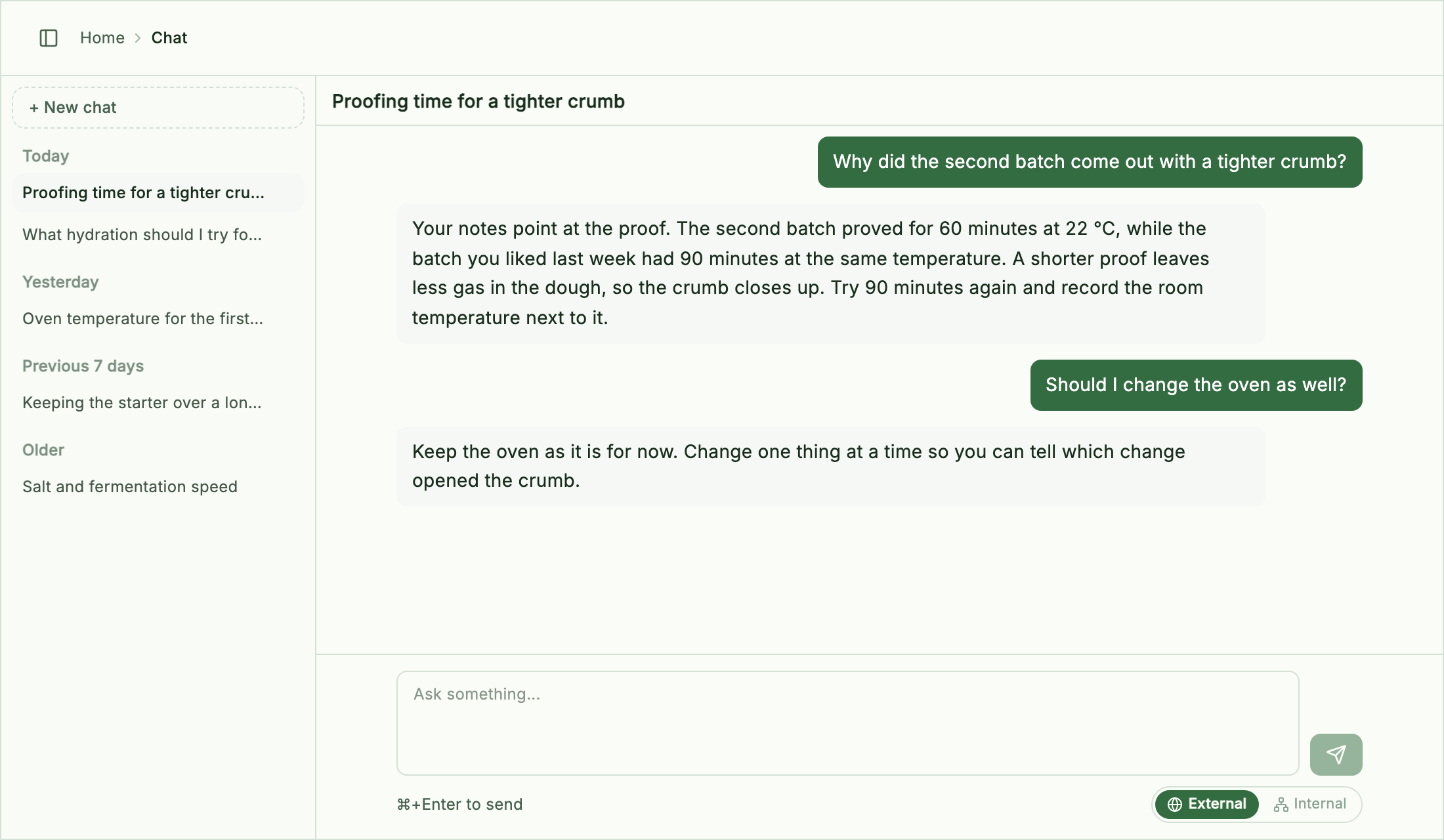
Conversations support edit and resend, regenerate response, and new chat from here (forking), with the same look and controls as the note chat panel. Forking is the one difference: instead of adding to the same note's history, it adds a new conversation to the list. What is still missing: @ attachments, Make Knowledge (the claims/insights picker), and inserting or replacing into a note — there is nothing to insert into, since it is not attached to a document, but Keep as knowledge is available to save the answer as its own page.
A conversation is saved the moment you send a message, not when the answer comes back — so if the AI request fails, the question stays in the list and you can reopen it later. While waiting for a reply the panel shows "Thinking..." with a Stop button that only cancels the conversation you are looking at; other conversations keep running if you switch away. Deleting the conversation you have open returns you to a new chat.
Conversations live on this device, in app data — never mixed into a note file, so they do not travel with a note if you export or share it.
| Note chat panel | Chat without a note | |
|---|---|---|
| What it is about | The note (or block) you have open | Nothing in particular — its own topic |
| Insert / replace into a note | Yes | No |
@ attachments | Yes | No |
| Grounding chip | External / Internal / This note | External / Internal (always cross-searches, so no This note) |
| Edit / regenerate / fork | Yes | Yes (forking adds a new conversation to the list) |
| Make Knowledge (claims/insights picker) | Yes | No (Keep as knowledge is available) |
| What Stop cancels | That conversation | Only the conversation you are looking at (others keep running if you switch away) |
Use the note chat panel while you are writing and want the AI to see (or write into) that note. Use the sidebar chat when the question is not about any one note — general questions, working things out, or checking something across everything you have written.
⌘K is another way in: press it from anywhere, including with a note open, and choose Ask AI: "..." (or ⌘Enter) to start one of these note-independent conversations without leaving where you are. See The Composer below.
Chats stay with the note — and keep running Added in v0.17.1 (2026-07-06)
Each note keeps its own chat history, saved with the note. In the panel header, Chat history lists past conversations (with message counts), + New chat starts a fresh one, and Clear chat discards the current one.
Switching notes does not kill a running answer. The request keeps going in the background, the result is written back to the correct note's chat, and when you return to that note the Chat tab reopens on the conversation.
Asking about a shared note Added in v0.59.0 (2026-09-07)
Entries in the shared library can be discussed the same way, without forking them first. Open one in full view (double-click its row, or Open in full view in the detail panel) and pick Ask AI from the right-hand rail. The tab is there once an AI model is set up, and for entries that have something to read — not for files shared as materials, or for comments.
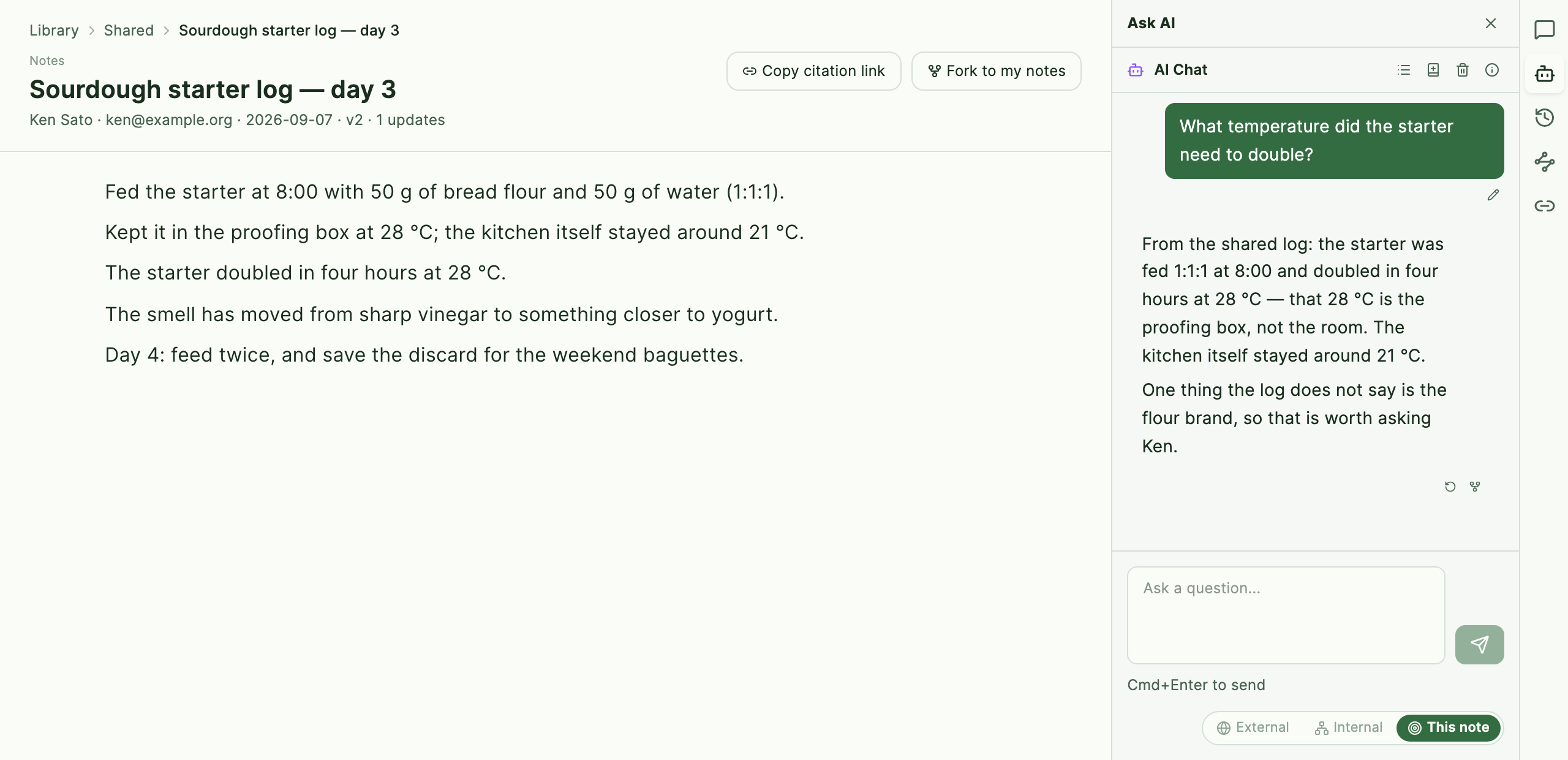
Three things are worth knowing about it:
- Click a paragraph to ask about that paragraph. While Ask AI is the open tab, clicking a paragraph in the body starts a new conversation quoting it, instead of marking it as the place for a comment. Close the tab, or switch back to Comments, and paragraph clicks go back to picking a comment target.
- The conversation stays on your side. Questions and answers are saved on your own device, never in the shared folder — the person who shared the entry does not see that you asked, or what you asked. Nothing is written into provenance either, so the buttons under an answer — Insert into note, Derive as note, Make Knowledge, Keep as knowledge — are not offered here; it is someone else's material you are reading, not your own note you are writing. To keep something from the conversation, use Add to Knowledge in the panel header (the book icon, which appears once the conversation has a message): it hands the whole conversation to your own Knowledge layer and reports what it wrote in a toast.
- The shared text is what grounds the answer. The entry's content travels with every question (long entries are cut off, with a line saying so), so the model answers from what is actually shared rather than from the title. Whether the answer may also draw on other shared entries follows the search setting described in Storage & sync; your own notes and Knowledge are reached the usual way, by choosing Internal or External as the grounding scope.
One limitation to keep in mind: leaving the page cancels an answer still being written. Unlike a note's chat, this conversation does not keep running in the background — wait for the reply before you navigate away.
Using an answer
Every AI reply has action buttons underneath:
| Button | What it does |
|---|---|
| Insert into note | Inserts the answer into the note as blocks |
| Replace in note | Replaces the source blocks with the answer (shown when the chat was started from specific blocks) |
| Derive as note | Creates a new note from the question and answer, with provenance linking back to the source note, and opens it in the side peek |
| Make Knowledge | Extracts knowledge candidates from the answer (below) |
| Keep as knowledge | Saves the whole answer as-is, as a Q&A page in the Knowledge layer (below) |
Extracting knowledge from a chat Added in v0.16.8 (2026-07-02)
Make Knowledge turns a good answer into entries in your Knowledge layer — without saving anything you didn't choose. Graphium shows "Extracting claims…", then "Generating insights…", and presents a picker titled Knowledge candidates (select to save). Each candidate carries a Claims or Insights badge; use Select all / Clear, then Save selected (n) — or Cancel to keep nothing. Only the candidates you pick become knowledge pages.
Keeping a whole Q&A
If the answer already reads well as a self-contained explanation — not something to break into separate claims — press Keep as knowledge instead. Graphium calls the AI once more first, handing over the conversation so far to rewrite the exchange into a Q&A page that reads standalone — filling in what a context-dependent reply left implicit and rewriting the title away from the phrasing of your request — with any citation the answer showed carried over to the rewritten sentences. There's no preview to edit first; if the rewrite fails or strips out every citation the original had, Graphium falls back to saving the message text unedited, titled with the question you asked. Once saved, the button becomes a confirmation with an Open link to the new page, and from then on the page is upkept like a Topic — revised when a source updates or contradicts the answer, checked, and source-checked. See Knowledge layer for details.
The Composer (⌘K)
Press ⌘K to open the Composer — one input for both "find a note" and "ask the AI". The AI half needs a registered AI model; the search half does not. Esc closes it.
The placeholder says it all: Find a note or ask AI...
Both halves are live everywhere — not only while editing a note. Open ⌘K from the note list, the materials gallery, the Knowledge hub, or with nothing open at all, and you can still search and ask the AI a fresh question. The verb buttons and one-click suggestion cards described below are the exception: they need a note open that cites claims or insights, since their prompts are built from that note's cited set. The search-only form still appears when no AI model is registered at all Added in v0.39.0 (2026-08-17) — the search half needs no AI, so ⌘K still opens.
Finding notes
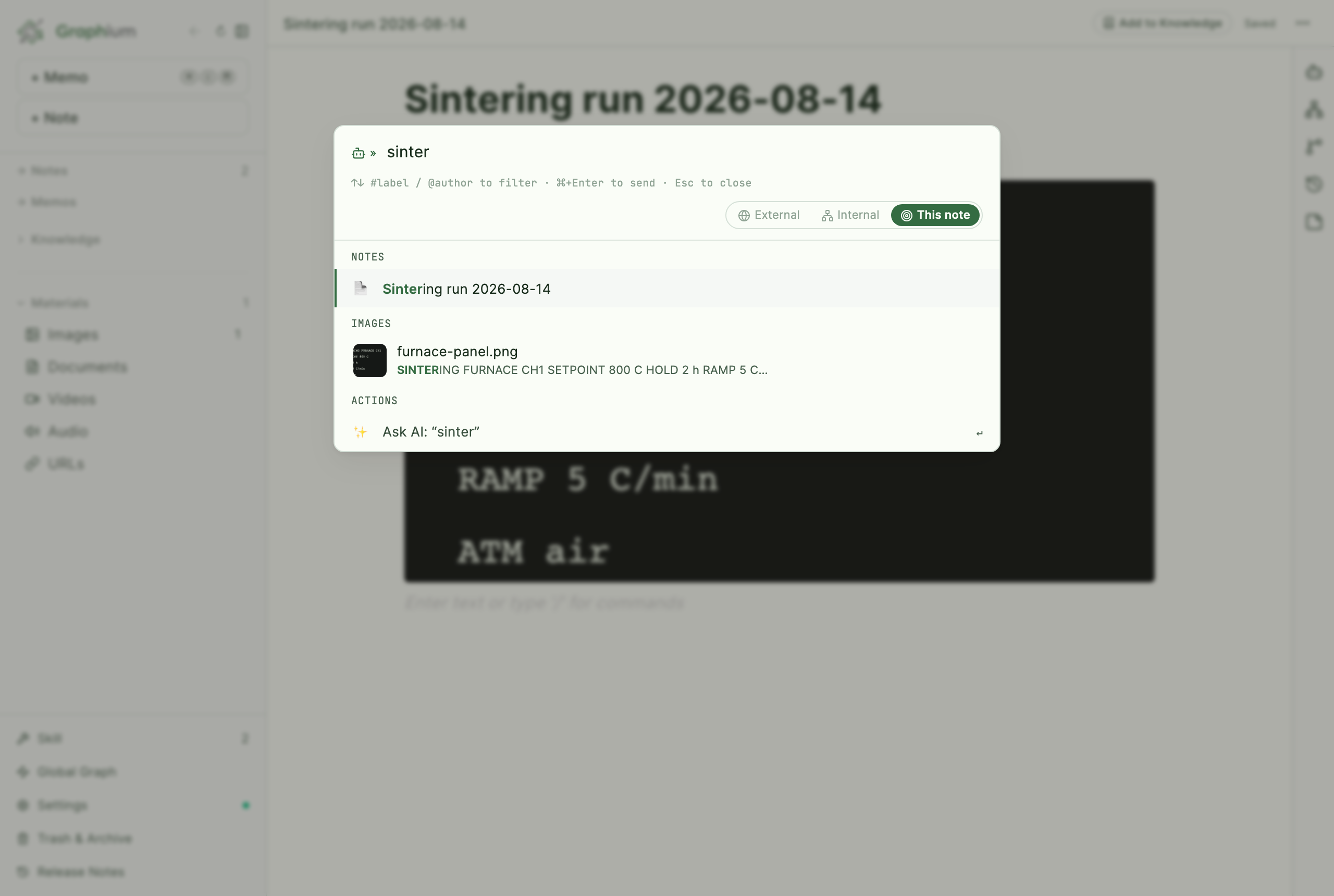
As you type, matching notes appear instantly, searched by title, headings, labels, and author — and by the words in the note body, through the same on-device full-text index the AI chat uses Added in v0.39.0 (2026-08-17). A body match shows an excerpt around the matched words under the title, so you can tell why a note is listed before opening it. Title and heading matches rank above body-only matches. Two filter tokens narrow the list, as the footer hints ("#label / @author to filter"):
| Token | Filters by |
|---|---|
#label | Notes containing that label |
@author | Notes by that author |
With an empty input you get Recent notes. Press Enter to open the highlighted note.
Finding assets Added in v0.35.0 (2026-08-13)
Assets are searched alongside the notes and listed under Assets. Images you have read with OCR match on their file name and on the words read out of them; PDFs, URLs, and documents match on their name and on their text (the text of a PDF, the excerpt and description of a URL) through the same full-text index Added in v0.39.0 (2026-08-17). Each row carries a thumbnail — or a type icon for non-images — and an excerpt around the match, so two similar screenshots, or two papers, are told apart before you open either.
Selecting one opens the materials gallery on that asset's tab, with the asset in the side peek — rather than jumping to a note. One asset can be used by several notes, or by none, and the peek lists the notes that use it.
Assets stay out of the empty-input view and out of #label / @author queries; both of those are about finding notes.
Asking the AI
The last row of results is always Ask AI: "your text" — select it, or press ⌘Enter to send your input straight to the AI regardless of what is highlighted. The answer opens full-screen, as a new conversation of its own — not the open note's chat panel, even if you had a note open when you asked. If a note was open, it is attached above the conversation as a citation chip, which you can remove with its ×; while attached, its content is handed to the AI as context. The Composer has the same Grounding chip and web-search warning as the chat panel.
Verb buttons on notes with citations
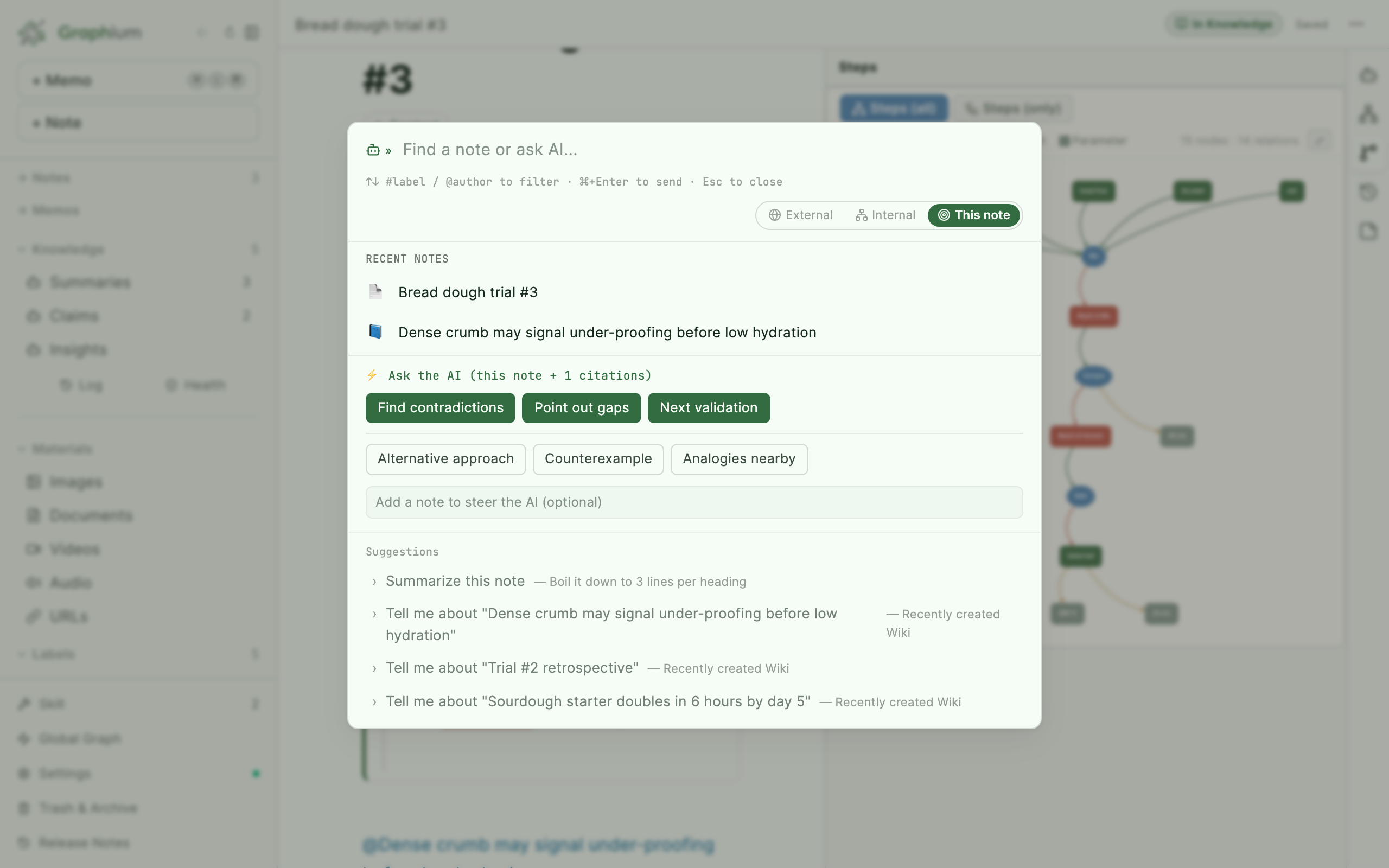
On a note that cites claims or insights, opening the Composer with an empty input shows a set of one-click questions about the cited set, under the heading Ask the AI (this note + N citations). Unlike a typed question, these go straight to the open note's chat panel (the same one in the right-hand panel), because their prompts are built from that note's own cited claims and insights:
| Group | Buttons |
|---|---|
| Examine the cited set | Find contradictions · Point out gaps · Next validation |
| Broaden the direction | Alternative approach · Counterexample · Analogies nearby |
An optional text field ("Add a note to steer the AI (optional)") lets you add one line of guidance; clicking a verb fires immediately. These are the questions that get sharper as your citation set grows — a single LLM prompt can't check your claims against each other, but this can.
Skills: saved prompt templates
A skill is a reusable instruction document — for example a writing-voice guide or a domain glossary — that Graphium can apply automatically. Open the Skill section in the sidebar to see them. Graphium ships with built-in system skills, which cannot be deleted but can be edited and restored with Reset to default.
Each skill's Edit dialog controls:
| Setting | Effect |
|---|---|
| Description | Shown as a label in the list ("not sent to the AI — the AI reads the prompt body") |
| Language | All languages / Japanese / English — "Applied only when the generation language matches." |
| Auto-apply on Ingest | When on, the skill's prompt is automatically appended as instructions when Graphium generates knowledge from your notes — and in AI chat conversations |
Skills are ordinary documents: click one to edit its prompt body like any note.
The built-in Knowledge Schema is the exception to auto-apply: Graphium always supplies its saved body as a separate instruction when an assistant helps with Knowledge, or when Topics, Answers, and Claims are generated. The first saved default follows the UI language at creation time and does not change when you later switch the UI. To replace it deliberately, open the Schema and use the confirmed Switch to Japanese or Switch to English action; the previous body stays recoverable in History. It defines structure, citations, revision, and upkeep rather than writing voice; it can be edited and reset like a system skill, but cannot be deleted. Added in v0.81.1 (2026-09-18)