

World grounding
Your notes produce claims and insights — but how do they relate to what the rest of the world already knows? World grounding checks a piece of knowledge against outside sources (Wikipedia, OpenAlex, and optionally a web search) and stamps it with a verdict. It answers "is this already known, supported, or contested out there?" so you can decide where to dig deeper.
Treat the verdict as a positioning aid, not a truth oracle. It tells you where a claim sits relative to a knowledge base — the final call on whether your claim holds always stays with you.
Requirements
World grounding is part of Graphium's AI features, so you need the desktop app and at least one registered model — see AI setup. Evidence from Wikipedia and OpenAlex works out of the box with no API keys; on a self-hosted setup where the operator has configured an MCP Registry (CRUCIBLE_API_URL), one search tool from that Registry broadens the evidence to the general web. If you connect web search (Tavily) in Settings → AI → external tools, world grounding also uses it, so the evidence reaches the web too: only its search tool is used, once per check, and only when the claim is not already answered by your own knowledge base (the one exception: an older result that was a model judgment alone is re-checked once, and that re-check uses the search too). The search words are the title and opening of the item, flattened to one line and cut to 400 characters. It also runs for automatic world grounding, which spends your search credits each time. Checking several pages at once from the list spends one search for each page the local knowledge base does not answer. If the search fails (an invalid key, a timeout, no connection), the check carries on with Wikipedia and OpenAlex alone. Other MCP servers you add yourself are not used by world grounding (AI chat uses them). It's also gated by the Use world grounding switch in Settings → AI, inside the collapsed Preview features group — off the first time you use Graphium, on if you've used it before — so turn it on if the Check world button described below is missing.
Checking a claim against the world Added in v0.8.0 (2026-05-21)
Open a knowledge item — Claims or Insights in the sidebar's Knowledge tab — and look at the banner above the text. Next to Regenerate there is a Check world button.
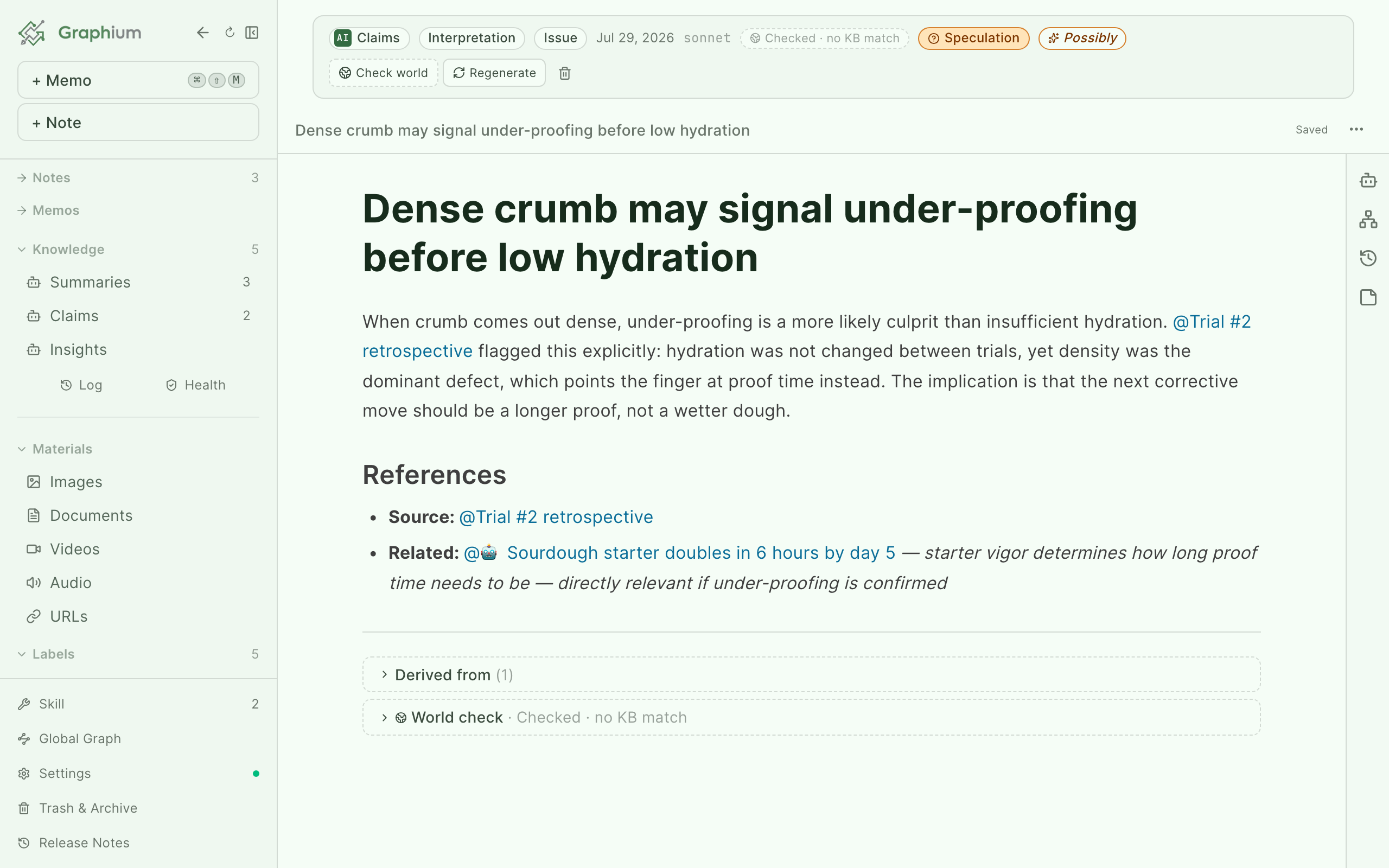
Clicking it runs the check and stores the result on that knowledge item: a verdict, a rationale, and sources. A progress toast keeps you posted while it runs. Summaries (a legacy page type, no longer generated — see Knowledge layer) cannot be grounded — they describe one of your notes rather than assert something about the world.
You can also ground several items at once. In the Claims or Insights list, a World column shows the latest verdict for each row (sortable by verdict strength). Select rows with the checkboxes and click Check world in the bar that appears — running it again overwrites the previous verdict, so the same button doubles as a re-check.
Reading the verdict
The verdict appears as a chip in the banner, phrased as the knowledge base's position (hover it to see KB position and the rationale):
| Chip | What it means |
|---|---|
| Aligned with established | The claim lines up with well-established, textbook-level knowledge. |
| Aligned with supported | The claim lines up with knowledge that has published support, but is less settled. |
| KB sees as weakly-grounded | The knowledge base found only weak grounding for this claim. |
| KB has counter-evidence | The knowledge base holds evidence that cuts against the claim. |
| Checked · no KB match | The check ran, but nothing matched — the claim is neither supported nor refuted. |
For the full picture, scroll to the bottom of the item. A World check section shows the Rationale, the Sources (each one a link you can open), the Matched keywords, and Checked by — which tells you whether the answer came from the local knowledge base, from a web-evidence-backed judgment, or from a model answering from its own knowledge.
When two insights ground to the same world fact, Graphium links them: the section Insights grounded to the same world fact lists other insights that touched the world at the same point. This is a connection an isolated AI answer cannot hold for you.
Source check: does the source actually say it? Added in v0.77.0 (2026-09-17)
World grounding asks whether a claim holds up against outside knowledge. Source check asks a narrower, different question: does the source this knowledge item itself cites actually say this? It never touches outside knowledge and never judges whether the statement is true — only whether it is written in the cited source.
Only Claims and Topics are checked. A Claim is checked as a whole (its title and body against every note in its Derived from list). A Topic is checked sentence by sentence: every sentence in its body that cites a member Claim (before the References section) is checked against that Claim's own text, whether the citation is a link or the claim's title written out as plain text right after the sentence — a Topic's plain definition sentences, which cite nothing, are skipped. Insights are never checked, because an Insight generalizes across several Claims rather than restating one source, so there's no single source text to hold it against.
Run it from the Check sources button in a Claim's or Topic's banner (next to Check world, when the AI is available), or from Check against sources yourself in the Upkeep tab of the Upkeep view (see below). It doesn't run on its own by default — not at ingest, not on startup — so a result only appears because you asked for it, unless you've turned on Auto-check sources in Settings (off by default; see Automatic source check below). Turning the AI off hides the button, but a result already recorded stays visible.
Reading the badge. The badge next to the source-check button shows one of five judgments:
| Badge | Meaning |
|---|---|
| Differs from source | The cited source actively contradicts the statement. Shown in the most attention-grabbing color of the five, since a claim disagreeing with its own source is the most surprising outcome. |
| Not in source | The source was read, but doesn't say this. |
| Found in source | The source says this. |
| Couldn't tell | The judge read the source but couldn't decide either way. |
| Source unavailable | The source itself couldn't be checked — see below. |
Open the Source check details section at the bottom of the item for the per-source breakdown: each source's judgment, a short rationale, and, when the model's quote could be traced to one exact note block, a Go to source link. That link opens the source note, Word file, or Claim it points to — it stops at opening the item, since Graphium has no existing way to scroll straight to one block inside it. Added in v0.132.1 (2026-11-14) When the source is a PDF, clicking its name opens it at the page that holds the quote and highlights the quoted sentence; if that sentence can't be found on the rendered page, it just goes to the page shown below the quote. Sources that can't be opened at all (no source recorded, an AI-chat origin, or a Cmd-K answer with no note behind it) aren't rendered as links. For a Topic, each entry also shows the statement it checked — the specific sentence, not the whole page. Added in v0.133.0 (2026-11-14) If the AI gives no quote but the sentence carries the source passage it was written from, and that passage is in the source, the passage is shown as the quote (the judgment is not changed by it, and a sentence judged Not in source never gets one). If the passage the AI copied when it wrote the sentence wasn't found in the source, the entry shows that passage too, so you can see what the AI changed.
Added in v0.80.0 (2026-09-18) When the source is a PDF or a Word file, the quote also shows where in that document it came from — a line right under it reads, for example, Page 12, Pages 12–13, or Paragraph 3. Graphium works this out mechanically from the same text the check just read rather than asking the model, and it never changes the verdict — it only helps you find the passage. If the exact same wording appears more than once in the source, at different pages or paragraphs, Graphium can't tell which one was meant and leaves this line out rather than guess.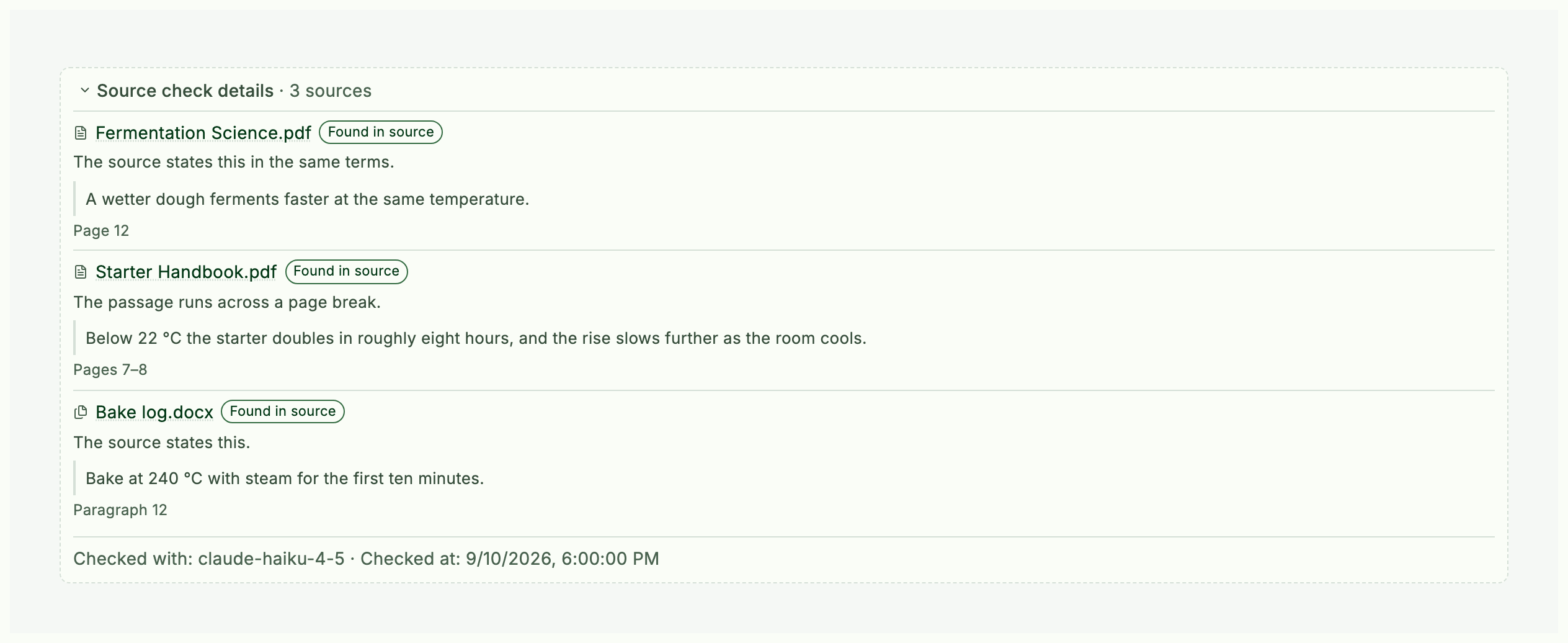
Why a source can be "unavailable". The judge is never even called for these — they're recorded straight away:
| Reason | When it happens |
|---|---|
| Source not found (deleted or in trash) | The cited note, PDF, Word file, or Claim has been trashed or no longer exists |
| Can't trace the original conversation | The source is an AI chat — Graphium keeps no reference key back to it |
| Could not read the source text | Re-fetching a URL or re-extracting a PDF/Word file failed |
| This source kind can't be checked | An id kind source check doesn't handle |
| The source text is empty | The source was read, but had nothing in it |
| Claim made from an AI answer (no source text) | The Claim was adopted from a ⌘K (Ctrl+K on Windows/Linux) answer — the answer text itself was never stored, so comparing against the note where it was shown would wrongly read as "not in source" |
| No source was recorded | The Claim has no cited note at all, or (for a Topic) the sentence cites no member Claim |
A source-check run always re-reads the source fresh rather than trusting anything cached — the same PDF and Word extractors ingest uses, and for a URL, an actual re-fetch rather than any previously stored copy of the page, so the judgment reflects whatever the URL holds right now. None of these re-reads add a size limit of their own: notes, Word documents, and web pages are read in full, and a PDF is read up to the same 80,000-character limit ingest uses (see the FAQ), so source check compares against the same range ingest read.
The model reports how many sources it will need to judge before it decides, but sources that turn out to be unavailable are skipped rather than judged, so the actual number of model calls can come out lower than what was estimated.
A topic's badge reflects its worst sentence, not its best one. A topic can have several checked sentences, each with its own verdict; the badge on the page shows the one that most needs attention rather than averaging them or letting a good result hide a bad one — one sentence coming back Differs from source or Not in source outranks every other sentence being Found in source. A topic only shows Found in source overall once every one of its sentences does. A Claim only ever has one statement, so this doesn't change how a Claim's own badge behaves.
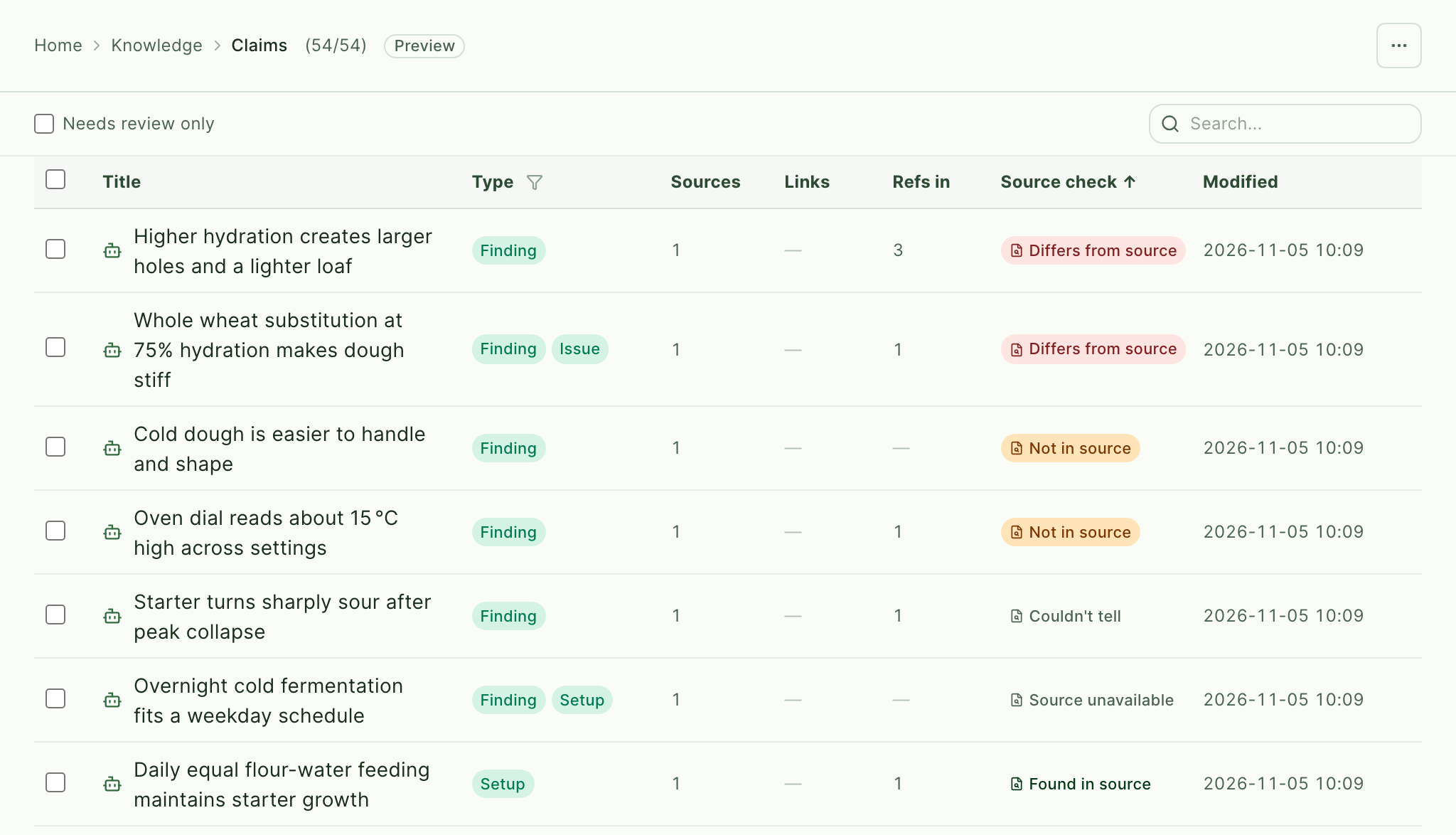
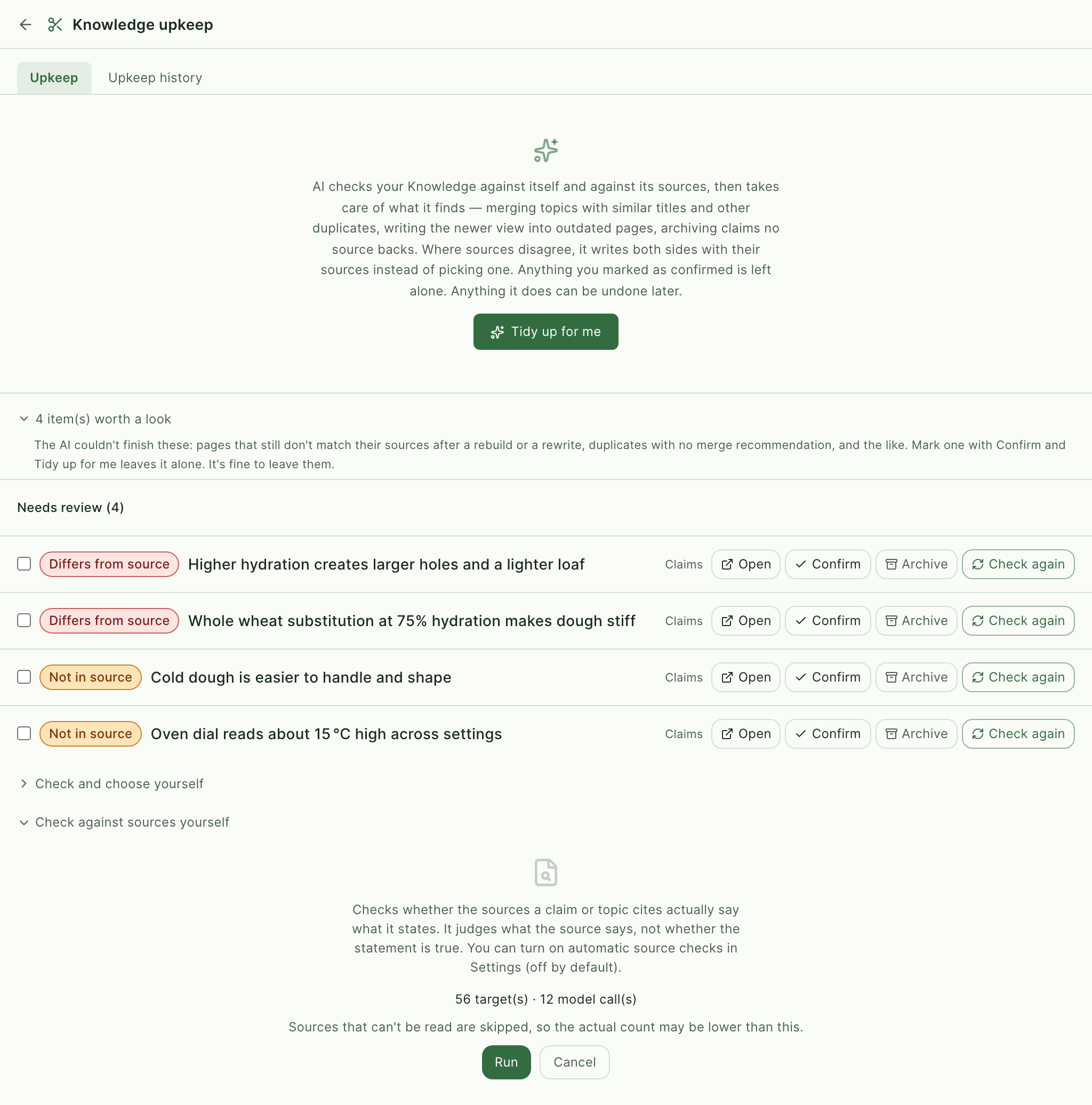
Checking many at once. The Claims/Topics list has a Source check column showing the latest verdict, sorted the same attention-first way: Differs from source → Not in source → Couldn't tell → Source unavailable → Found in source. Open Upkeep in the sidebar, stay on its Upkeep tab and open Check against sources yourself to pick a Target (Claims, Topics, or both) and a Scope (not checked yet, edited since the last check, or all), review a measured plan — how many items, how many model calls, and a breakdown of how many can't be checked and why — before running with a cancelable progress bar. This section is separate from the existing Quick/Full check (Check and choose yourself) and never feeds into it. A single item's check and a batch run never overlap; starting one blocks the other until it finishes.
Tidy up for me. Improved in v0.118.0 (2026-11-05) The Tidy up for me button at the top of the Upkeep tab also runs the source check: after the lint pass and its fixes, the AI checks everything not checked yet or edited since its last check, then fixes what came back Differs from source or Not in source. Where no source backs it, a Claim is archived (a claim is one page, so if none of its sources back it there's nothing left to keep), a Topic or Answer with a sentence no source backs has just that sentence fixed in one AI call — rewritten to what its source says if a source contradicts it, removed if no source has it — and is checked again, and a Summary with such a sentence is rebuilt from its source (one call) and checked again. When some sources back a claim or sentence and another one disagrees — say nine back it and one contradicts it — the sources disagree with each other, and Graphium doesn't pick a side: it rewrites the page so both sides appear with their sources (under Disagreements & open questions for a Topic, Answer or Summary; inside the body for a Claim or Insight) and checks it again. Anything you marked with Confirm is left alone, and stopping the check partway through skips the fixes after it. You aren't asked about each item — pressing the button is the go-ahead. Afterwards you see how many items were fixed; What was done lists them, and the whole pass is recorded as one Tidy up for me entry in the Upkeep history tab, where you can undo any of them. Pages that still don't match after the rebuild or the rewrite are folded away under item(s) worth a look; it's fine to leave them. The AI is called once per source for the check, and once more for each fix (one call per page for a sentence fix or a reconcile; a rebuild of a Summary is one call too) plus its re-check.
Dealing with a result. As with world grounding, the source-check verdict is yours to act on: Check again re-runs it and replaces the old result, Confirm marks a result as reviewed without changing it, and Clear result removes it. Graphium never decides for you which claims to fix or which citations to trust — unless you press Tidy up for me, which hands that decision to the AI for this one pass.
A worrying verdict is never hidden — it lands in Needs review instead. A Claim or Topic that comes back Differs from source or Not in source stays exactly where it was in every list; an AI verdict can be wrong, and a claim silently dropped from the list would still keep feeding Topics and chat behind the scenes. Instead, the Upkeep tab keeps a standing Needs review list, folded into the item(s) worth a look section (differs first, then not-in-source) with Open, Confirm, Archive, and Check again on each row, plus a checkbox multi-select to archive several at once. Archiving here is the same reversible archive used elsewhere — restorable, never silent — so you're always the one deciding what disappears (pressing Tidy up for me is that decision, and each archive it makes can be undone). The Claims/Topics list also gets a Needs review only filter, off by default.
Automatic source check Added in v0.77.0 (2026-09-17)
By default, source check only runs when you ask for it. To have new and edited knowledge checked as it appears, open Settings → AI, open the collapsed Preview features group, find the Source check section (right below World grounding), and switch on Auto-check sources (off by default).
With the toggle on, newly created or updated Claims and Topics are checked against their sources one at a time in the background, calling the AI once per source. It also works its way through anything not yet checked. It never runs at the same time as a manual single check or batch run. An ingest that rewrites a page's body — a merge, a rewrite, or a topic being restructured — clears that page's stored result, so it becomes eligible for automatic checking again.
How it works: a knowledge base that grows
World grounding is built as two layers, and understanding them explains why it gets faster with use:
- A local knowledge base answers first. Every check starts against a local KB (a small curated seed plus everything cached from earlier checks). A hit answers instantly, at zero cost, with no model call.
- Only misses go to the model. On a KB miss, the world-grounding model gathers evidence — Wikipedia and OpenAlex always, plus one search tool from the operator's MCP Registry (
CRUCIBLE_API_URL) if a self-hosted setup has one configured; plus Tavily's search, once, if you connected it in Settings → AI; other MCP servers you add yourself are not used here (AI chat uses them) — and judges the claim against it. If no evidence turns up, the model falls back to its own knowledge.
Each model judgment settles back into the local KB. The next check on a similar claim is a KB hit, so the KB adapts to your own field over time and checks get faster and cheaper the more you use them.
The verdict stored on a note and the KB cache are separate: clearing a verdict from a note does not touch the KB, and deleting a KB entry does not remove verdicts already stamped on notes.
Auto-grounding Added in v0.13.3 (2026-06-02)
By default, grounding only runs when you ask for it. If you want new knowledge checked as it appears, open Settings → AI, open the collapsed Preview features group, find the World grounding section, and switch on Auto-ground new knowledge (off by default). This toggle only appears while Use world grounding is on.
With the toggle on, newly created claims and insights are checked one at a time in the background — silently, with no toasts. Only items that have never been checked are picked up, and because the KB is consulted first, the model is only called for claims not yet known.
The world-grounding model
World grounding always runs on the Light work model under Settings → AI → Model assignment. There is no separate selector: it is light work, and in our measurement a local ~30B model scored the same as a top cloud model.
See AI setup for registering models and the other model assignments.
Re-grounding and clearing verdicts Added in v0.13.5 (2026-06-03)
- Re-ground: press Check world again. The new result replaces the old one.
- Clear: in the World check section at the bottom of the item, press Clear result to remove the verdict and sources stored on that item. Use this when a wrong judgment or a broken link got baked in. In the list view, select rows and use Clear result with the count to strip verdicts in bulk.
TIP
A manually cleared item is deliberately skipped by auto-grounding — clearing signals "don't re-stamp this automatically". Press Check world yourself when you want a fresh verdict.
Grounding scope for AI answers Added in v0.16.8 (2026-07-02)
A related control with the same name appears when you ask the AI a question: the Grounding chip in the AI chat panel and the ⌘K Composer chooses what an answer draws on — External (forced web search), Internal (your citations plus a cross-search of your knowledge), or This note (only what the note cites; the default). The chat without a note open has the same chip with External and Internal only. See choosing what grounds the answer for the full breakdown and what External needs to reach the web.
Managing grounding data
Settings → Grounding data (this tab only appears while Use world grounding is on) is where you inspect and prune the knowledge base that world grounding checks against. It starts empty and grows as you run checks.
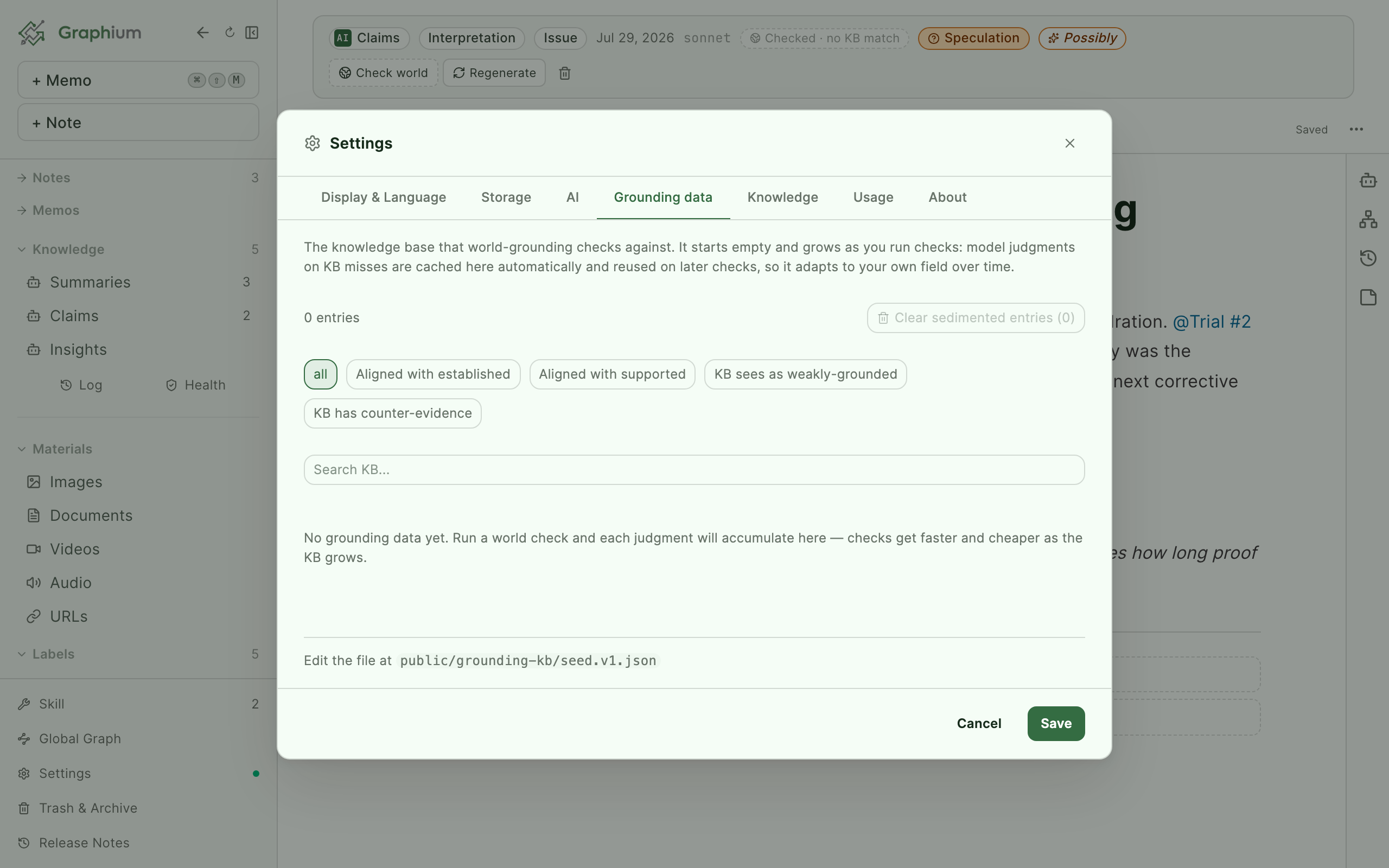
- The header shows the entry count, and you can narrow the list with verdict filter chips or the Search KB... box.
- Each entry carries a badge: seed for curated entries bundled with the app (these cannot be deleted from the UI), model for entries sedimented from a model judgment — hover the badge to see which model produced it.
- Delete a single cached entry with its trash button, or press Clear sedimented entries with the count to wipe every model-cached entry at once. Seed entries are kept either way.
Deleting entries only affects future checks — it is how you evict a judgment you no longer trust so the next Check world re-derives it from fresh evidence.